

Table of Contents
- Why Customize a Pre-Built MT5 Expert Advisor?
- What You Can Change Without Touching Code
- MT5 EA Settings: A Practical Walkthrough of the Inputs Tab
- Customizing an MT5 Expert Advisor Without Source Code
- MQL5 Expert Advisor Parameters: What Each Setting Controls
- MT5 EA Backtesting: Testing Changes Before Going Live
- Troubleshooting Common MT5 Expert Advisor Customization Failures
- Version Control, Backups, and Preserving Your Original EA
- Conclusion: When to Edit Settings vs. Edit Code
- Frequently Asked Questions
Last Updated: October 8, 2026
Why Customize a Pre-Built MT5 Expert Advisor?
Learning how to customize pre-built MT5 expert advisors is the fastest way to make someone else’s trading logic fit your account, your risk tolerance, and your broker. An MT5 Expert Advisor is an automated trading program that runs inside MetaTrader 5, reading price data and placing trades based on rules its developer wrote.
At EZMT5, we build and ship fully optimized systems because customization beats construction for most people: you skip months of coding and testing, starting from logic that already works and tuning it to your style.
MetaTrader 5 itself is free to download and widely used, and MetaTrader 5 platform documentation covers the platform basics. The customization work happens in two places: the Inputs tab and, rarely, the source file.
What You Can Change Without Touching Code
Most of what you want to change lives in the inputs. The Inputs tab exposes every parameter the developer made adjustable, that is where 90% of useful customization happens.
You can change:
- Lot size and position sizing rules
- Stop loss and take profit levels
- Trading hours and session filters
- Maximum spread and slippage limits
- Magic numbers to separate strategies on one account
- Indicator periods and signal thresholds
What you cannot change without code: the core logic. If the EA buys on a moving average cross, no input will turn it into a breakout system. That is a rebuild, not a tweak.
Before changing anything, screenshot your current input values. If a change makes results worse, you can restore the exact original setup in seconds instead of guessing.
MT5 EA Settings: A Practical Walkthrough of the Inputs Tab
Before you touch a value, click the Save button at the bottom of the Inputs tab. That writes the current values to a .set file you can reload later. Do this on every EA you attach.
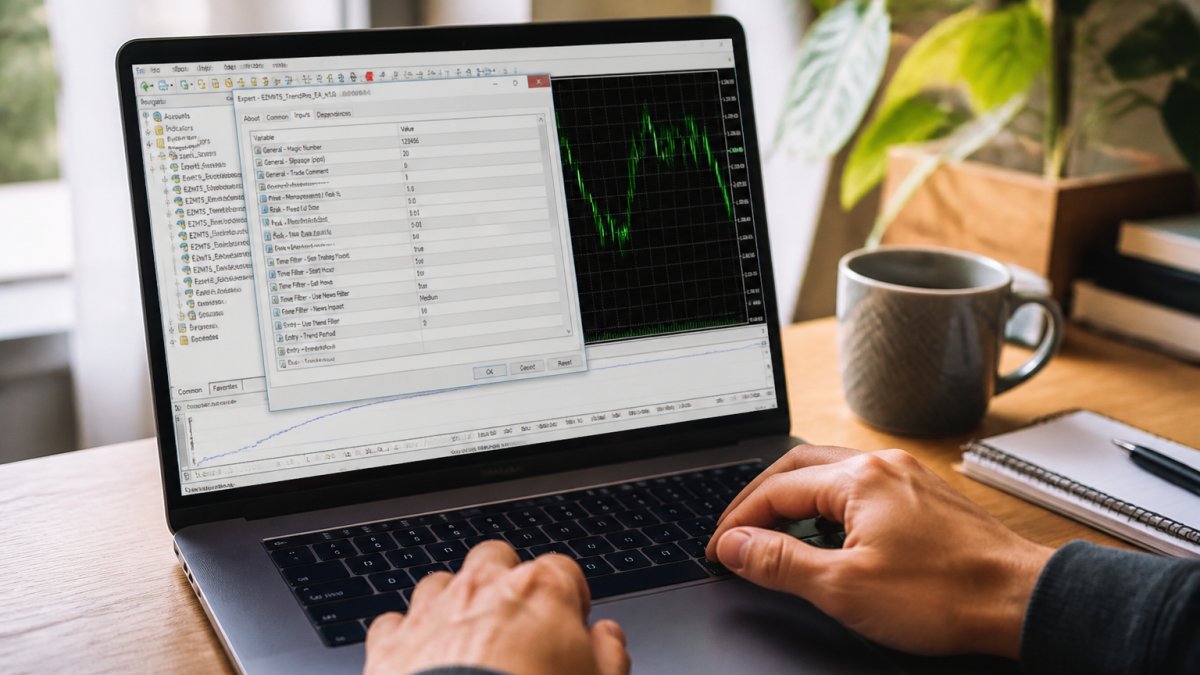
Work through the inputs in this order:
- Risk inputs first. Set lot size or risk percentage before anything else. If the EA offers both fixed-lot and risk-percent inputs, only one is typically active, check the developer’s notes or the input name (for example,
UseRiskPercent). - Protection inputs second. Stop loss, take profit, trailing stop, break-even, usually in points, pips, or an ATR multiple. Confirm the unit before entering a number.
- Filter inputs third. Spread limits, trading hours, news filters, day-of-week toggles. Session filters are often in broker server time, not your local time.
- Signal inputs last. Only touch these once the risk layer is set. Indicator periods, thresholds, and confirmation toggles live here.
Click OK to apply. Some inputs need a restart, so check the Experts log for confirmation. A line like invalid input: RiskPercent=0 means the value was rejected and the EA is running on defaults.
Common Tab, Broker Compatibility, and Account Mode
The Common tab controls how the EA runs, not what it trades. Key settings:
- Allow Algo Trading must be enabled in the EA properties, and the global Algo Trading button in the MT5 toolbar must also be green. Both have to be on.
- Allow DLL imports is off by default. Turn it on only if the developer documents that the EA needs it.
- Allow modification of signal settings lets external tools change inputs. Leave it off unless you know why you need it.
- The smiley face icon in the top corner of your chart must be visible. No smiley, no trades.
Broker compatibility is the silent killer. An EA built for a five-digit pricing broker can misplace stops on a four-digit account. Before assuming a setting is wrong, compare Digits, Point, and Tick size in the symbol specification window.
Account mode matters too. Hedging accounts allow opposite positions at once; netting accounts merge them. An EA designed for hedging can behave strangely on a netting account, a buy and a sell on the same symbol may cancel each other instead of running as a hedge.
Strategy Tester Settings That Change Your Results
The Strategy Tester has its own settings panel, and the defaults are not always what you want:
- Model: “Every tick based on real ticks” is closest to live conditions. “1 minute OHLC” is faster but can hide intrabar stop-outs.
- Deposit, currency, and leverage: match your live account. A 1:100 test on a 1:30 account will overstate what you can trade.
- Optimization: leave it off when testing a single change; turn it on only to sweep a range of values.
- Forward: set to “No” for a single check; use it to reserve history for out-of-sample validation.
Save your tester configuration as a .ini file if you plan to run the same setup repeatedly, so the model, deposit, and date range stay consistent and you compare settings rather than tester setups.
Customizing an MT5 Expert Advisor Without Source Code
You can customize an MT5 Expert Advisor without source code by working entirely through inputs, presets, and chart-level settings, the safest path, and what we recommend for anyone who did not write the EA.
Three tools make it possible:
- Presets. Save your input combinations as a .set file. Load them on any chart or account.
- Multiple charts. Run the same EA on two charts with different presets to compare settings side by side.
- Magic numbers. Give each instance a unique number so trades never get confused.
The limit is real, though. If the developer did not expose a parameter, you cannot change it without the .mq5 file. That is a design choice, not a flaw. Well-built systems expose the settings traders actually need.
MQL5 Expert Advisor Parameters: What Each Setting Controls
MQL5 Expert Advisor parameters fall into four groups, and knowing which group you are editing tells you how risky the change is.
| Parameter Group | Examples | Risk Level | Change Frequency |
|---|---|---|---|
| Risk and sizing | Lot size, risk percent | High | Set once, rarely touch |
| Trade protection | Stop loss, take profit, trailing | Medium | Tune per instrument |
| Entry and exit filters | Spread cap, session hours | Medium | Adjust to your schedule |
| Signal logic | Indicator periods, thresholds | High | Test before applying |
Risk and sizing parameters change how much money is on the line. Get these wrong and a good strategy still blows up an account.
Signal logic parameters change when the EA enters and exits. Small shifts here can flip a profitable system into a losing one, so always test them. (Source: U.S. Securities and Exchange Commission’s guidance on investment advice)
Changing lot size and signal thresholds at the same time makes it impossible to know which change caused a result. Change one variable, test, then move to the next.
MT5 EA Backtesting: Testing Changes Before Going Live
MT5 EA backtesting runs your settings against historical price data so you can see how a change would have performed before risking real money. The Strategy Tester is built into MetaTrader 5.
Here is the workflow:
- Open the Strategy Tester panel from the View menu.
- Select your EA and the symbol you trade.
- Choose a model: “Every tick” for accuracy, “1 minute OHLC” for speed.
- Set the date range, ideally several years.
- Load your saved preset.
- Run the test and read the report.
MetaTrader 5 Strategy Tester documentation explains the modeling options in detail. For most customization checks, “Every tick based on real ticks” gives the closest picture of live conditions.
Safe Parameter Changes and Avoiding Overfitting
Overfitting is when settings look perfect in a backtest but fail live, because you tuned parameters so tightly they fit past noise instead of real market behavior.
Guard against it with these habits:
- Change one parameter at a time
- Test across multiple years, not one good stretch
- Test on more than one symbol
- Treat a perfect backtest as a warning, not a win
- Confirm results on a demo account before going live
A setting that improves results slightly across many conditions is worth more than one that triples returns in a single month.
Troubleshooting Common MT5 Expert Advisor Customization Failures
Most customization failures trace back to a short list of causes.
Invalid input values. MT5 rejects out-of-range inputs at attach time.
Stops placed at the wrong distance. Your broker uses different point values than the EA expects.
EA works on one pair, fails on another. The settings were tuned for one instrument’s volatility.
Results differ from the backtest. Spread, slippage, swap, and execution speed differ live.
Inputs reset after restart. You did not save a preset.
Broker-specific symbol or execution constraints. Some brokers append a suffix to symbol names (for example, EURUSD.pro or EURUSDm).
Do not change two things at once to “save time.” If the EA starts behaving differently, you will not know which change caused it. Change one input, test, then move to the next.
Version Control, Backups, and Preserving Your Original EA
Keep a clean copy of the original EA before you change anything. This one habit saves traders more grief than any other.
A simple system works:
- Save the original .ex5 and .set files in a folder labeled “Original”
- Export a new .set file every time you change inputs
- Name presets with the date and instrument, like “EURUSD-2026-10”
- Keep a short text log of what you changed and why
- Store backups outside MetaTrader 5’s folders
If a change goes wrong, you restore the original preset and you are back to a known state in under a minute.
The original preset is your safety net. Never overwrite it. Copy it, rename the copy, and edit the copy.
Conclusion: When to Edit Settings vs. Edit Code
Edit settings when the developer exposed the parameter you want to change. Edit code only when the logic itself must change, and only with the source file and the skill to test your edits.
For most traders, the settings path covers everything that matters: risk, timing, protection, and filters. That is why we built EZMT5 around fully built, optimized systems you can download and run immediately.
Skip the build. Start with systems that already work, then tune them to fit how you trade. MQL5 community documentation on Expert Advisor inputs offers deeper reading if you want to go further.
Frequently Asked Questions
How do you customize a pre-built MT5 Expert Advisor without the source code?
You customize a pre-built MT5 expert advisor without source code by adjusting the built-in input parameters exposed in the EA’s settings window. These typically include lot size, stop loss, take profit, trading hours, and indicator thresholds. You can also change the magic number, comment field, and risk percentage. This approach lets you adapt behavior without editing or compiling MQL5 code, keeping the original logic intact and reducing the risk of breaking the EA.
Which MT5 Expert Advisor settings should you customize first?
Start with position sizing and risk controls: lot size or risk percentage, stop loss, and take profit. These directly affect drawdown and capital exposure. Next, adjust the trading session filter if the EA supports it, so it only trades during liquid hours for your instrument. Only after those are set should you tweak indicator thresholds or signal sensitivity. Changing too many parameters at once makes it impossible to tell which adjustment helped or hurt performance.
How do you test changes to an MT5 Expert Advisor before going live?
Use the MT5 Strategy Tester with high-quality historical data for your broker and instrument. Run the EA with your new settings on a demo account first, then compare results against the original parameters using the same date range and modeling quality. Check metrics like profit factor, maximum drawdown, and number of trades. If results look stable across multiple market conditions, move to a live account with minimal size before scaling up. MT5 EA backtesting is not a guarantee of future performance, but it filters out obvious mistakes.
Can you change an MT5 EA’s lot size and risk settings safely?
Yes, lot size and risk settings are among the safest parameters to change because they control exposure rather than strategy logic. Reduce lot size when testing a new instrument or unfamiliar market conditions. If the EA uses a risk-percent input, set it to a level you can tolerate during a losing streak, often 0.5% to 1% per trade. Avoid setting fixed lots that exceed your account’s margin capacity. Always confirm the change in the Strategy Tester and on a demo account before applying it to live trading.
Customizing a pre-built system should sharpen your edge, not become a second job. EZMT5 gives you professional-grade MT5 systems with adjustable inputs, real-time trade opportunities, and precision execution from the moment you download. Sign up now and start trading with tools built to fit your account, not the other way around.