

Table of Contents
- Understanding the MT5 Trading System Setup Process
- Step 1: Download and Install MetaTrader 5 on Your Device
- Step 2: Create and Log Into Your Trading Account
- Step 3: Navigate the MT5 Interface and Terminal
- MT5 Chart Setup and Customization for Your Strategy
- MT5 Indicators Setup and Graphical Objects Configuration
- MT5 Expert Advisor Installation and Automated Trading Setup
- MT5 Platform Customization: Order Management and Workflow Optimization
MT5 Trading System Setup Guide: 8 Steps to Live Trading
Last Updated: July 28, 2026
Setting up an MT5 trading system requires precision and understanding how each component connects. Whether automating trades through Expert Advisors or executing manually, the difference between a functional system and a chaotic one comes down to configuration methodology. At EZMT5, we’ve guided thousands of traders through this process, and what separates successful setups from failed ones is rarely the platform itself, it’s the setup approach.
This guide walks you through the complete MT5 trading system setup process, from installation to live trading with automated systems, keyboard shortcuts, and 24/7 VPS integration.
Understanding the MT5 Trading System Setup Process
MetaTrader 5 is powerful, but its capabilities remain dormant without proper configuration. The MT5 trading system setup involves six core layers: installation, account configuration, interface customization, indicator and tool deployment, Expert Advisor integration, and workflow optimization. Each layer builds on the previous one.
The real bottleneck isn’t understanding MetaTrader 5, it’s understanding YOUR specific trading strategy well enough to configure the platform around it. A scalper’s setup looks nothing like a swing trader’s setup. An automated EA-based system requires different workspace optimization than manual discretionary trading.
Before downloading anything, write down your trading approach: timeframe, asset class (forex, CFDs, stocks), whether you’ll use automated systems or manual execution, and your [risk management rules](/7-risk-management-rules-for-day-trading/). Your setup should reflect these choices.
Step 1: Download and Install MetaTrader 5 on Your Device
Installation is straightforward, but configuration decisions during and after installation determine whether your platform runs smoothly or becomes a resource hog.
System Requirements and Compatibility
MetaTrader 5 runs on Windows and macOS, with mobile versions for iOS and Android. For serious trading, the desktop version is mandatory.
Minimum system requirements for Windows:
- Windows XP or later
- 500 MB disk space
- 512 MB RAM (4 GB practical for active trading)
- Stable internet connection
For macOS:
- OS X 10.10 or later
- 500 MB disk space
- 2 GB RAM minimum
- Intel processor (Apple Silicon via Rosetta 2 works but is slower)
Running 50+ Expert Advisors simultaneously, backtesting in the background, and maintaining real-time charts across 15 currency pairs requires more resources than minimums suggest.
Installation on Windows and macOS
Windows installation:
- Download MetaTrader 5 from MetaQuotes’ official website or your broker’s website
- Run the installer executable
- Choose your installation folder (C:Program FilesMetaTrader 5 is standard)
- Complete installation and launch the platform
macOS installation:
- Download the .dmg file from MetaQuotes or your broker
- Open the .dmg file and drag MetaTrader 5 to Applications
- Launch from Applications or Launchpad
- Grant system permissions when prompted
Do NOT install MetaTrader 5 on a shared computer without understanding the implications. Each installation creates a separate terminal with its own settings, Expert Advisors, and account logins. Multiple traders need separate operating system user accounts.
Step 2: Create and Log Into Your Trading Account
Your trading account is where real money (or practice money) lives. The account type you choose determines which assets you can trade, leverage available, and spreads you’ll pay.
Demo Account vs. Live Account Setup
Demo account (paper trading):
- Virtual money, no real capital at risk
- Identical execution to live trading
- Perfect for testing Expert Advisors and strategies
Live account:
- Real capital required (typically $100-$500 minimum)
- Real execution with real slippage and requotes
Test on demo first. Once you’ve proven consistent results over at least 30 days of live market conditions, move to a live account.
To create an account:
- Visit your broker’s website and click "Open Account"
- Complete KYC verification (identity confirmation and proof of address)
- Fund the account (if live) or skip this step (if demo)
- Receive account credentials via email
- Log into MetaTrader 5 with your account number and password
In MetaTrader 5, click File > Login to enter your credentials. The platform will connect to your broker’s server and download your account history and market data.
The single biggest mistake is trading live without proving your system works on demo first. Psychological pressure of real money creates different execution patterns than demo trading.
Step 3: Navigate the MT5 Interface and Terminal
MetaTrader 5’s interface intimidates newcomers because it presents dozens of panels simultaneously. You’ll use about 20% of these features 80% of the time.
Market Watch, Navigator Window, and Core Panels
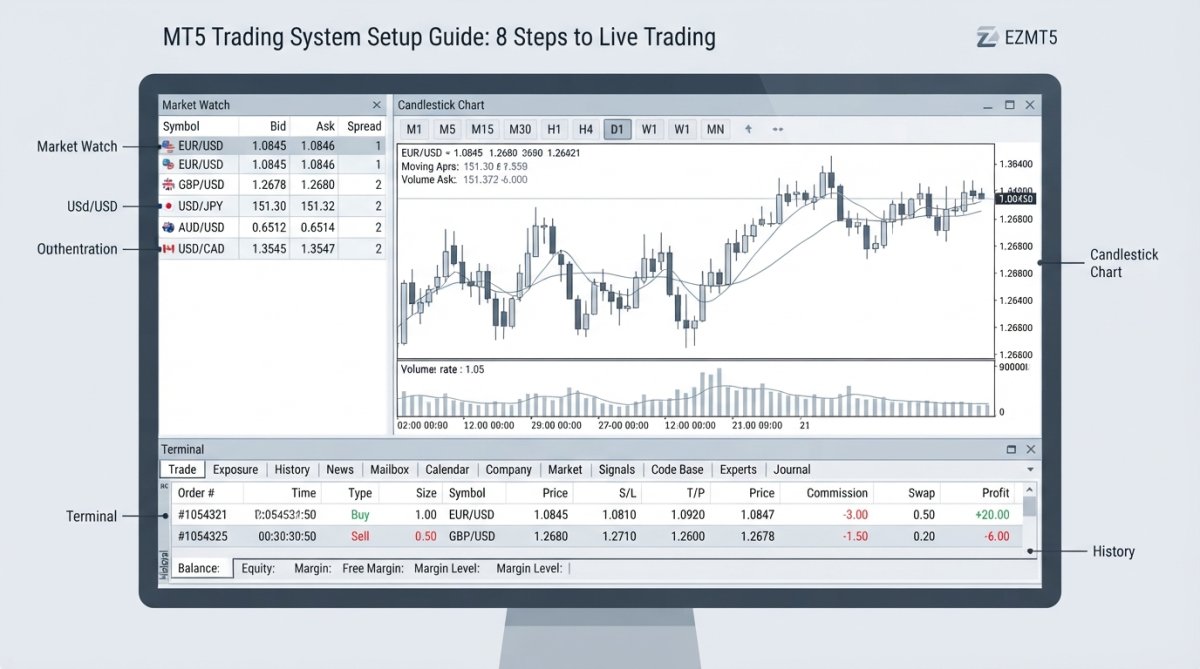
The Market Watch panel displays all available instruments for your account. Right-click any instrument to access trading options.
The Navigator Window is your access point to Expert Advisors, indicators, and custom scripts. This is where you drag-and-drop EAs onto charts or manage automated systems.
The Terminal is the command center showing open positions, pending orders, account history, alerts, and logs. The Terminal has multiple tabs:
- Trades: Open positions and pending orders
- History: Closed positions and executed orders
- Alerts: Triggered alerts from indicators or EAs
- Journal: System logs and error messages
A functional setup requires four visible panels: Market Watch (left), Navigator (left, tabbed with Market Watch), Chart (center, maximized), and Terminal (bottom).
MT5 Chart Setup and Customization for Your Strategy
Your chart is your strategy’s visual representation. A poorly configured chart wastes attention; a well-configured chart makes patterns obvious.
Timeframes, Candlestick Charts, and Chart Templates
MetaTrader 5 offers timeframes from M1 (1 minute) to MN (monthly). Your strategy determines which timeframes matter. A scalper uses M5 and M15. A swing trader uses H4 and D1. A position trader uses W1 and MN.
Candlestick charts are the default and best choice for most traders. Each candlestick represents a fixed time period with open, close, high, and low prices.
To change your chart timeframe, right-click the chart and select your desired timeframe, or use keyboard shortcuts (M1, M5, M15, M30, H1, H4, D1, W1, MN).
Chart templates save your configuration, indicators, colors, objects, and layout, so you can apply the same setup across multiple charts instantly.
To create a template:
- Configure your chart exactly as you want it
- Right-click the chart > Template > Save Template
- Name it (e.g., "Scalping Setup" or "Swing Trade Daily")
- To apply it to another chart, right-click > Template > Load Template > select your saved template
Templates eliminate repetitive setup and ensure consistency across your trading workspace. Most professional traders have 2-4 templates.
Traders managing 5+ instruments simultaneously. Templates reduce setup time from 10 minutes per chart to 30 seconds per chart.
MT5 Indicators Setup and Graphical Objects Configuration
Indicators transform raw price data into actionable signals. The key is restraint, too many indicators create noise, not clarity.
Adding Technical Indicators and Drawing Tools
To add an indicator to your chart:
- Open the Navigator window (View > Navigator or Ctrl+N)
- Expand Indicators
- Double-click the indicator you want (e.g., Moving Average, MACD, RSI)
- Configure the indicator’s parameters
- Click OK
A functional setup uses 2-4 indicators maximum.
Graphical objects are manual drawing tools: trend lines, support/resistance levels, rectangles, and text annotations. These help you mark key price levels without relying on automated indicators.
To add a graphical object:
- Right-click the chart > Insert > select your object type
- Click and drag on the chart to place it
- Right-click the object to adjust its properties (color, thickness, style)
A common approach combines 1-2 indicators (for confirmation) with 3-5 key graphical objects (support/resistance levels). This balance provides signal clarity without overwhelming your visual workspace.
MT5 Expert Advisor Installation and Automated Trading Setup
This is where MT5 transforms from a charting tool into an automated trading system. Expert Advisors are algorithms that execute trades based on predefined rules, requiring no human intervention once running.
Deploying EAs and Running Backtesting in Strategy Tester
An Expert Advisor is a program written in MQL5. You can purchase EAs from the MQL5 marketplace, use EAs included with your broker, or hire a programmer to build custom ones. EZMT5 provides fully built and optimized Expert Advisors ready for immediate deployment.
To install an EA:
- Download the .ex5 file
- In MetaTrader 5, click File > Open Data Folder
- Navigate to MQL5 > Experts
- Paste the .ex5 file into this folder
- Restart MetaTrader 5 or press F5 to refresh
To deploy an EA on a live chart:
- Open a chart for the instrument you want to trade
- In Navigator > Experts, double-click your EA
- Configure the EA’s parameters (lot size, stop loss, take profit, risk percentage)
- Check the "Allow algorithmic trading" checkbox
- Click OK
The EA is now active. A green smiley face icon in the top-right corner means the EA is running; red means it’s disabled or encountered an error.
Configuring EA Parameters and Execution Settings
Common EA parameters include:
- Lot size: How much volume to trade per order
- Risk percentage: Automatically calculates lot size based on account balance and stop loss distance
- Stop loss (pips): How many pips below entry price to place the stop loss
- Take profit (pips): How many pips above entry price to place the take profit
- Max trades: Maximum number of simultaneous open positions
- Trading hours: Restrict trading to specific times
Before deploying any EA on a live account, backtest it first. The Strategy Tester lets you run the EA against historical price data.
To backtest an EA:
- Click View > Strategy Tester (or Ctrl+R)
- Select your EA from the dropdown
- Choose the instrument and timeframe
- Set the date range
- Choose "Every tick" for the most accurate simulation
- Click Start
The Strategy Tester generates a report showing profit/loss, win rate, drawdown, and other metrics. Backtesting shows what would have happened with perfect execution and no slippage. Live trading includes slippage, requotes, and spread widening during volatile periods. Expect live results to underperform backtest results by 10-30%.
A common mistake is assuming backtesting results predict live performance. Backtesting is historical; past performance does not guarantee future results.
MT5 Platform Customization: Order Management and Workflow Optimization
Once your system is running, optimization becomes the priority. This means simplifying order execution, managing positions efficiently, and setting up your workspace for minimal friction.
Placing Market Orders, Pending Orders, and Managing Stop Loss / Take Profit
Market orders execute immediately at the current market price:
- Right-click the chart > Trade > Buy or Sell
- Specify lot size
- Set stop loss and take profit levels
- Click Buy or Sell
Pending orders execute only when price reaches a specified level:
- Right-click the chart > Trade > Pending Order
- Choose order type: Buy Limit, Sell Limit, Buy Stop, or Sell Stop
- Specify the price level where the order should trigger
- Set lot size, stop loss, and take profit
- Click Place
Stop loss and take profit are risk management tools. Stop loss closes your position if price moves against you (limiting losses). Take profit closes your position if price moves in your favor (locking in profits).
To modify an existing position’s stop loss or take profit:
- In Terminal > Trades, right-click the position
- Click Modify
- Adjust the stop loss and take profit prices
- Click Modify again
Keyboard Shortcuts and VPS Integration for 24/7 Trading
Essential keyboard shortcuts:
- F5: Refresh data and reload all Expert Advisors
- Ctrl+R: Open Strategy Tester
- Ctrl+N: Open Navigator
- Ctrl+T: Open Terminal
- Ctrl+M: Open Market Watch
- M1, M5, M15, M30, H1, H4, D1, W1, MN: Switch timeframes
- Delete: Remove selected graphical object or indicator
- Escape: Cancel pending action
Professional traders rarely use the mouse for timeframe changes or panel navigation, keyboard shortcuts are faster.
VPS (Virtual Private Server) integration enables true 24/7 automation. A VPS is a remote computer that runs continuously. You deploy your Expert Advisors on the VPS, and they trade automatically even when your personal computer is off.
To set up VPS trading:
- Purchase a VPS from a provider (many brokers offer integrated VPS services)
- Connect to the VPS via Remote Desktop (Windows) or SSH (Mac/Linux)
- Install MetaTrader 5 on the VPS
- Log into your trading account
- Deploy your Expert Advisors
- Leave the VPS running
The VPS trades 24/5 (forex markets close weekends) without interruption. Your personal computer can be off, and your EAs continue executing trades according to their rules.
Most traders underestimate VPS costs in their ROI calculations. A quality VPS costs $15-50 per month. If your trading system generates $200+ monthly profit, the VPS cost is negligible. Calculate your break-even point before committing to VPS-based trading.
Common Setup Mistakes and How to Avoid Them
| Mistake | Why It Happens | Solution | Impact |
|---|---|---|---|
| Too many indicators on one chart | Traders believe more data = better decisions | Limit to 2-4 indicators; use graphical objects for levels | Reduces analysis paralysis; improves execution speed |
| Deploying untested EAs live | Excitement to automate trades immediately | Backtest for 30+ days; run on demo for 2 weeks first | Prevents catastrophic losses from faulty algorithms |
| Ignoring Terminal logs and alerts | Traders focus only on charts | Check Terminal > Journal daily for errors | Catches connection issues and EA malfunctions early |
| Incorrect broker settings for leverage | Broker offers 500:1 leverage; trader uses it all | Set leverage to match your risk tolerance (1:10 to 1:100) | Prevents account blowouts from normal volatility |
| Not using chart templates | Rebuilding same setup for each instrument | Create 2-3 templates; apply instantly to new charts | Saves 5-10 hours per month on setup |
Frequently Asked Questions
How do I set up a trading system on MT5 from scratch?
Start by downloading MetaTrader 5 from MetaQuotes, creating a broker account, and logging in. Then configure your chart setup with your preferred timeframes and candlestick displays. Add technical indicators relevant to your strategy, deploy any Expert Advisors (EAs) you plan to use, and configure order parameters like Stop Loss and Take Profit levels. Test your MT5 trading system setup using the Strategy Tester before going live with real capital.
What's the difference between installing an Expert Advisor and setting up indicators on MT5?
Indicators are technical analysis tools that display on your chart (moving averages, RSI, MACD, etc.) and help you identify trading signals manually. Expert Advisors are automated programs that execute trades based on predefined rules without your intervention. Both are added through the Navigator window in MT5, but EAs require backtesting and parameter configuration in the Strategy Tester before deployment, while indicators activate immediately on your chart.
Can I use multiple Expert Advisors on the same MT5 chart or account?
Yes, you can attach multiple EAs to the same chart, but this requires careful configuration to avoid conflicting orders or execution issues. Many traders prefer running different EAs on separate charts or using different currency pairs and timeframes to prevent order overlap. Always backtest your combined EA setup thoroughly in the Strategy Tester to ensure they work together without generating excessive trades or opposing signals.
How do I save and reuse my MT5 chart setup across multiple charts?
MT5 allows you to save chart templates that preserve your indicator layout, timeframe, and graphical objects. Right-click your configured chart, select 'Save Template,' and name it. To apply this template to other charts, open a new chart, right-click, and select 'Load Template.' This saves significant setup time if you trade multiple currency pairs or asset classes with the same technical analysis approach.
What should I do if my MT5 connection drops or my EA stops executing trades?
First, check your internet connection and broker connectivity status in the Terminal window. Verify that your EA is enabled (check the 'Allow live trading' box in EA settings) and that your broker account has sufficient margin and balance. If issues persist, restart MetaTrader 5 and reconnect to your broker. For continuous 24/7 trading, consider using a VPS (Virtual Private Server) to keep your platform running independently of your local computer.
Do I need to use a demo account before trading live with my MT5 system setup?
Absolutely. A demo account lets you test your MT5 trading system setup with virtual funds, verify your indicators and Expert Advisors work as expected, and practice order management without financial risk. Use backtesting in the Strategy Tester for historical validation, then forward-test on a demo account for at least several days or weeks before deploying real capital on a live account.
How do leverage and spread affect my MT5 trading system execution and profitability?
Leverage amplifies both gains and losses, higher leverage means larger position sizes with less capital, but also greater risk. Spread (the bid-ask difference) is the cost of each trade; tighter spreads reduce your entry and exit costs. When setting up your MT5 trading system, factor in your broker's typical spread on your chosen asset classes and set Stop Loss and Take Profit levels that account for slippage and execution delays, especially during volatile market conditions.
This article was written using GrandRanker