
Table of Contents
- MT5 Keyboard Shortcuts for Faster Trading: Essential Hotkeys by Category
- Chart Window Shortcuts and Period Separators
- Order Management Hotkeys and Trading Terminal Commands
- Navigation and Workspace Shortcuts for Platform Efficiency
- MetaEditor Hotkeys for Expert Advisor and Automation Scripts
- Customizing Hotkeys in MT5 for Your Trading Workflow
- MT5 One-Click Trading Setup Using Keyboard Shortcuts
- Trading Efficiency Tips: Power User Workflow Optimization
MT5 Keyboard Shortcuts for Faster Trading: 2026 Guide
Last Updated: July 5, 2026
Traders who master MT5 keyboard shortcuts cut execution time in half compared to mouse-based workflows. Power users rely on hotkeys for 70% of daily actions, from opening positions to adjusting chart views. The difference between clicking through menus and pressing a single key can mean catching a trade versus missing it entirely.
This guide covers essential shortcuts, customization strategies, and workflow optimization techniques that separate casual traders from professionals.
Why Keyboard Shortcuts Matter for Trading Execution Speed
Speed in trading removes friction from your workflow. When you see a setup forming, every millisecond counts. Reaching for the mouse, clicking Buy, adjusting lot size, and confirming takes 3-5 seconds. A configured hotkey does the same in under 500 milliseconds.
Keyboard shortcuts keep your eyes on the chart and hands in one place. You don’t break focus hunting for UI elements. This consistency reduces errors, missed clicks, and accidental double-orders. Professional scalpers don’t use the mouse for order entry at all, they’ve mapped their entire workflow to a handful of keys.
The most underrated shortcut benefit is cognitive load reduction. When you don’t think about how to execute an action, your brain stays focused on price action and risk management, the things that actually make money.
Chart Window Shortcuts and Period Separators
Chart navigation shortcuts let you zoom, scroll, and switch timeframes without touching the mouse. These are foundational because your chart is your command center.
Timeframe Navigation and Zoom Controls
Pressing number keys (1-9) jumps directly to timeframes: 1 for M1, 2 for M5, 3 for M15, and so on. This lets you quickly analyze multiple timeframes without using the Period Separators menu. Plus (+) and minus (−) keys zoom in and out. Zooming in reveals finer detail for support and resistance levels; zooming out gives broader trend context.
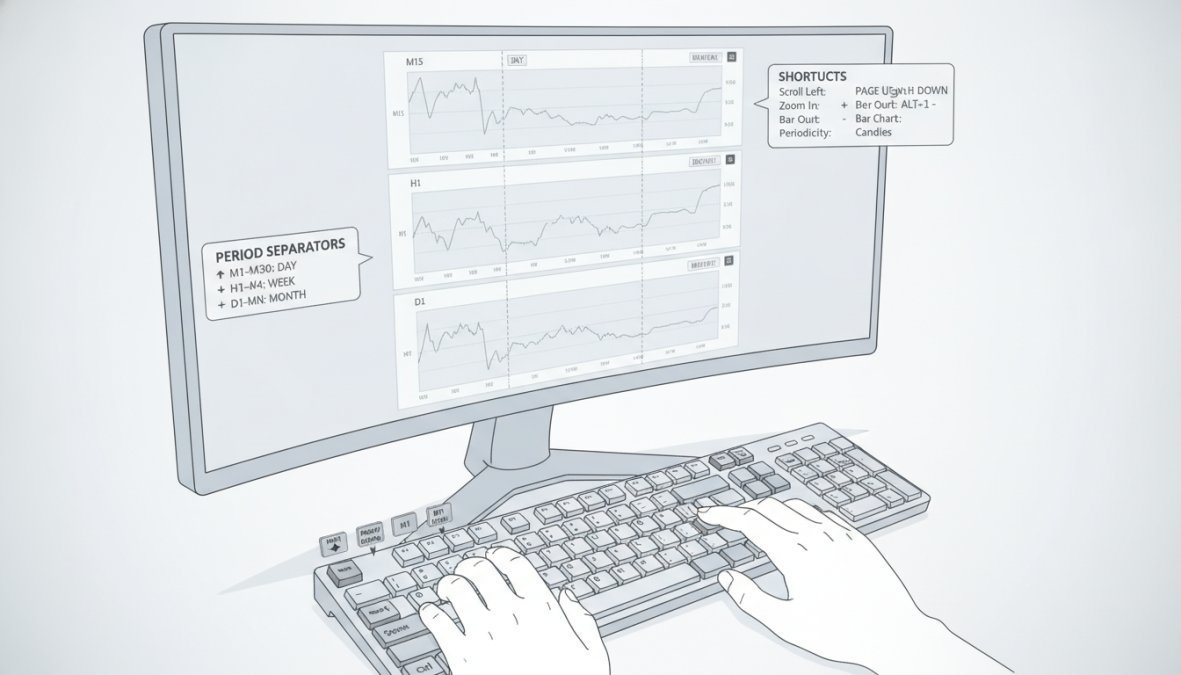
Pressing Ctrl+E toggles Period Separators, vertical lines marking session boundaries. For swing and position traders who care about session structure, this visual reference prevents misreading price action across trading sessions.
Chart Scrolling and Period Separator Functions
Arrow keys (← and →) scroll your chart left and right. Page Up and Page Down scroll by full screen widths. Ctrl+Home jumps to the beginning of available data; Ctrl+End jumps to current price. Home and End keys without Ctrl move by single candles for precise navigation.
Order Management Hotkeys and Trading Terminal Commands
Order execution shortcuts are where MT5 keyboard shortcuts truly shine.
One-Click Order Execution and Position Sizing
MT5 doesn’t have one-click order hotkeys built-in by default. Configure them through Tools > Options > Hotkeys. Common setups map F1 for Buy and F2 for Sell to instant market orders. Some traders create separate hotkeys for different lot sizes: F1 for 0.1 lot, F3 for 0.5 lot, F4 for 1 lot.
This requires an Expert Advisor or third-party tools. HotkeyBridge delivers sub-20ms execution latency with global hotkeys that work even when MT5 isn’t focused. For scalpers, this latency difference is measurable in P&L.
The most effective one-click traders don’t rely on MT5’s native hotkeys alone. They layer in external tools or custom EAs that handle position sizing, risk calculations, and order placement in a single keystroke.
Position sizing hotkeys automatically calculate lot size based on account risk. If your risk per trade is 2% and you set a 50-pip stop loss, a hotkey calculates the appropriate lot size instantly and places the order, removing mental math that causes hesitation and errors.
Order Window Navigation and Modification
Ctrl+M opens the Modify Order dialog to adjust stop loss and take profit without closing and reopening positions. Keyboard navigation (Tab to move between fields, Enter to confirm) keeps you in flow without touching the mouse.
The Order window (Ctrl+T) shows all open positions and pending orders. Select an order and press Delete to close it, faster than right-clicking and selecting Close.
Navigation and Workspace Shortcuts for Platform Efficiency
Keyboard shortcuts toggle MT5’s multiple windows without disrupting trading focus.
Market Watch, Navigator, and Toolbox Access
Ctrl+M opens Market Watch, showing available instruments and current prices. For traders checking related pairs, this shortcut is essential. The Navigator window (Ctrl+N) displays Expert Advisors, indicators, and scripts. If trading with automated systems or multiple indicators, Navigator lets you quickly manage them.
The Toolbox (Ctrl+T opens the Trade tab) consolidates account information, trades, and history. For traders referencing account balance, equity, and margin frequently, keyboard access is critical.
Many traders leave the Toolbox minimized, then struggle finding it when needed. Keep it accessible via Ctrl+T and glance at it during trade reviews.
Window Management and Trading Session Organization
Alt+V opens the View menu; use arrow keys to select options. Most traders memorize specific hotkeys: F8 toggles the Toolbox, F9 toggles the Navigator.
Arranging your workspace matters. Some traders use dual monitors: one for charts, one for Order window and Toolbox. Others use single monitors with tiled layouts. Your most-used windows should always be visible and accessible via keyboard.
MetaEditor Hotkeys for Expert Advisor and Automation Scripts
If building trading systems or custom indicators, MetaEditor keyboard shortcuts dramatically speed development and debugging.
Compilation and Debugging Shortcuts
Ctrl+F9 compiles your code, the most-used shortcut in MetaEditor. Fast compile cycles mean faster iteration. F9 starts the Strategy Tester, launching backtests of your EA. Ctrl+Shift+F9 compiles all open files at once.
Ctrl+G opens Go To Line dialog. For 500-line EAs, jump to specific lines faster than scrolling. Ctrl+F opens Find; Ctrl+H opens Find and Replace. F7 steps through code during debugging; Ctrl+F5 runs to the next breakpoint.
Customizing Hotkeys in MT5 for Your Trading Workflow
MT5’s default hotkeys work generally, but customizing them to match your strategy and muscle memory delivers real efficiency gains.
Accessing the Hotkey Settings Menu
Navigate to Tools > Options > Hotkeys. This dialog shows every available hotkey and lets you reassign them. Over 100 hotkeys are available, but focus on the 10-15 actions you perform most frequently.
Follow a logical pattern. Many traders use function keys (F1-F12) for trading actions: F1 for Buy, F2 for Sell, F3 for Close Position, F4 for Modify Order. This keeps trading hotkeys separate from navigation hotkeys.
Creating Custom Shortcuts and Avoiding Conflicts
Avoid combinations that conflict with Windows or your broker’s platform. Alt+Tab, Ctrl+C, and Ctrl+V are reserved. Use Ctrl+Shift combinations or function keys with modifiers instead. For example, Ctrl+Shift+B for Buy, Ctrl+Shift+S for Sell.
Test custom hotkeys on a demo account before live trading. Your hands should reach for keys without conscious thought. Document your hotkey layout and keep it visible for the first week until muscle memory forms.
Document your custom hotkey layout. Write down your scheme and keep it visible next to your monitor during the learning phase to prevent mistakes.
MT5 One-Click Trading Setup Using Keyboard Shortcuts
One-click trading means a single keystroke opens a position with predetermined risk parameters.
Configuring Instant Buy/Sell Hotkeys
Most traders accomplish this using Expert Advisors that listen for keyboard input. An EA detects when you press a specific key, calculates appropriate lot size based on your risk percentage and stop loss distance, and places a market order instantly.
Workflow: You see a setup. You identify where your stop loss should be (e.g., 50 pips below entry). You press your Buy hotkey. The EA calculates: if you risk 2% on a 50-pip stop, how many lots should you trade? It places the order in under 100 milliseconds.
This requires coding or using a pre-built EA. EZMT5 provides fully built and optimized MT5 Trading Systems that include these automations, designed for immediate deployment with professional-grade execution.
Risk Management Shortcuts for Scalping and Day Trading
For scalpers and day traders, risk management hotkeys are essential:
- F1: Buy 1 lot at market
- F2: Sell 1 lot at market
- F3: Close all open positions
- F4: Move stop loss to breakeven
- F5: Close half the position
| Action | Hotkey | Purpose |
|---|---|---|
| Buy Market | F1 | Enter long position instantly |
| Sell Market | F2 | Enter short position instantly |
| Close All | F3 | Exit all positions in one keystroke |
| Breakeven Stop | F4 | Move stop to entry price to lock in 0% loss |
| Partial Close | F5 | Close 50% of position, lock in profit |
| Modify Order | Ctrl+M | Adjust stop loss or take profit |
Trading Efficiency Tips: Power User Workflow Optimization
Efficiency reduces errors and keeps you calm under pressure. The best traders have automated workflows so completely that execution is mechanical.
Combining Shortcuts for Rapid Trade Execution
A professional scalper’s workflow: Chart is visible. Price hits support. You press F1 (Buy). Position opens. You press Ctrl+M (Modify Order). Stop loss dialog opens. You type 50 (50 pips). Press Tab, type 100 (take profit). Press Enter. Total time: 2-3 seconds. Hands never left the keyboard.
This speed comes from practice and a thoughtfully designed hotkey scheme. Buying and selling should be on nearby keys. Closing and modifying should be accessible without reaching. Stop loss and take profit distances should be memorized.
Many traders use the numpad for position sizing: Numpad 1 = 0.1 lot, Numpad 2 = 0.5 lot, Numpad 3 = 1 lot. Press F1 (Buy), then Numpad 2 (0.5 lot) in sequence, and a custom EA interprets this as "buy 0.5 lots."
Ergonomic Trading Setup and Hotkey Placement Strategy
Your physical setup matters as much as hotkey configuration. Position your keyboard so hands rest naturally on the home row. Most-used trading hotkeys should be within easy reach. Function keys are accessible without moving hands far.
Avoid assigning critical actions to keys requiring awkward finger contortions. Simpler is better: F1, F2, F3. Numpad 1, 2, 3. These are fast and reliable.
Some traders use dedicated trading keyboards with programmable macro keys. Magic Keys and KEY-TRADE are hardware solutions designed for MT5, including tactile feedback that reduces errors.
The best hotkey setup is one you never think about. Your fingers move automatically in response to market conditions. If you’re consciously remembering which key does what, your scheme isn’t optimized yet.
Troubleshooting Hotkey Conflicts and Performance Issues
Conflicts and performance problems can emerge even with careful configuration.
Common Hotkey Conflicts
Windows reserves certain key combinations: Alt+Tab, Alt+F4, Ctrl+Alt+Delete. Some antivirus software reserves hotkeys for quick access. If a hotkey doesn’t work, check system settings and antivirus configuration.
MT5 reserves some hotkeys you can’t override. F12 opens the terminal, for example. If two Expert Advisors listen for the same hotkey, only one responds. Document your hotkey scheme before adding new EAs to verify no conflicts exist.
Web Terminal vs. Desktop Differences
MT5’s Web Terminal has limited hotkey support compared to the desktop platform. Some hotkeys work; others don’t. The Web Terminal doesn’t support custom hotkey assignments like the desktop version.
If trading from multiple locations, hotkey configuration is local to each installation. Reconfigure for each environment. For serious traders, the desktop version is essential. The Web Terminal is useful for monitoring when away from your main setup, but unsuitable for active trading requiring custom hotkeys.
Mastering MT5 keyboard shortcuts is an investment that pays dividends every trading day. The traders who execute fastest and most consistently aren’t the ones with the best analysis, they’re the ones with the smoothest workflows. When you eliminate friction from your trading process, your edge becomes clearer. You can focus on price action and risk management instead of fighting your platform.
EZMT5 helps traders automate execution further by providing fully built, optimized MT5 Trading Systems that include professional-grade order management and risk automation. These systems work seamlessly with your hotkey setup, combining keyboard-based execution with automated trade management. Start trading immediately after download with real-time trade opportunities and precision execution, no contracts, cancel anytime.
Frequently Asked Questions
What are the most important MT5 keyboard shortcuts for faster trading?
The most critical MT5 keyboard shortcuts include F1-F6 for timeframe switching, Ctrl+M for Market Watch, Ctrl+N for Navigator, and Ctrl+T for Terminal. For order management, use Ctrl+Enter for buy/sell execution and Delete to close positions. Mastering these core shortcuts dramatically reduces execution time and improves trading efficiency, especially for scalping and day trading strategies where speed matters.
How do I customize hotkeys in MT5 to match my trading style?
Access MT5 hotkey customization through Tools > Options > Hotkeys. Select any command and assign your preferred keyboard combination. Avoid conflicts with system shortcuts (Windows key, Alt+Tab). Test custom hotkeys before live trading. Many traders map Buy/Sell to nearby keys for rapid access. You can reset to defaults anytime if conflicts arise. Custom hotkeys apply only to your MT5 installation, not across brokers.
Can I use MT5 keyboard shortcuts for one-click trading automation?
Yes. MT5 one-click trading setup combines custom hotkeys with Expert Advisors and automation scripts for instant order execution. Assign hotkeys to predefined order templates with fixed lot sizes or risk percentages. Many traders use MQL5 automation scripts to trigger complex order sequences from a single keystroke. This approach requires careful testing and risk management, especially for scalping where execution speed is critical.
What MT5 shortcuts work on the web terminal versus desktop?
Most core MT5 keyboard shortcuts work on web terminal, including timeframe switching, Market Watch access, and basic navigation. However, advanced customization and MetaEditor hotkeys are exclusive to the desktop MT5 platform. Web terminal has browser limitations that prevent some global hotkeys from functioning. For maximum trading efficiency and custom automation scripts, the desktop version is superior and recommended for professional traders.
How do I fix hotkey conflicts in MT5?
Hotkey conflicts occur when your custom shortcuts clash with system shortcuts or other applications. Open MT5 Tools > Options > Hotkeys and check for duplicate assignments. Avoid Windows+key combinations and Alt+key combinations reserved by your OS. If conflicts persist, reset hotkeys to defaults, then reassign carefully. Disable conflicting third-party software temporarily to test. Document your custom hotkey layout to prevent future conflicts.
References and External Sources
[EXTERNAL_LINK: MetaTrader 5 Official Documentation | metatrader5.com]
[EXTERNAL_LINK: MQL5 Programming Language Guide for Expert Advisors | mql5.com]
[EXTERNAL_LINK: Keyboard Shortcuts Best Practices for Professional Trading | tradingview.com]
This article was written using GrandRanker