
Table of Contents
- How to Get Custom Indicators on TradingView: The Four Core Methods
- How to Import Indicators into TradingView: Step-by-Step Process
- TradingView Pine Script Tutorial: Building Your Own Indicators
- Best Free Custom Indicators TradingView: Finding Quality Scripts
- TradingView Indicator Limit: Understanding Free vs. Paid Plans
- Security and Vetting: Protecting Yourself from Unsafe Scripts
- Troubleshooting Common Installation Errors
- Conclusion: Start Using Custom Indicators Today
Last Updated: June 19, 2026
Knowing how to get custom indicators on TradingView separates traders who react from traders who anticipate. This guide covers every method available in 2026, from browsing the public library to writing your own Pine Script indicators from scratch. Most guides stop at "click the indicator button." This one covers security vetting, troubleshooting, plan limits, and mobile-versus-desktop differences that trip up most new users.
There are four distinct methods to access custom indicators, each suited to a different skill level and use case.
How to Get Custom Indicators on TradingView: The Four Core Methods
Custom indicators on TradingView are technical analysis tools built with Pine Script that extend beyond the platform’s default library. There are four core methods to access them.
Method 1: Browse and Add from the Public Script Library
The fastest path. TradingView hosts thousands of open-source community scripts, searchable by category, asset class, and rating. You find a script, click "Add to chart," and it loads immediately. No coding required.
Method 2: Create Your Own with Pine Script
Pine Script is TradingView’s native scripting language, currently on Version 5. If no public script covers your specific trading logic, you write it yourself in the Pine Editor for complete control over variables, plotting behavior, and alert conditions.
Method 3: Import Community Scripts
Some indicators are published as "invite-only" or shared via direct links rather than the public library. You access them through a shared URL or by being added to the author’s access list.
Method 4: Install from Third-Party Sources
Third-party vendors distribute Pine Script source code outside TradingView’s ecosystem. You copy the source code and paste it into the Pine Editor to compile and add to your chart. This method carries the highest security risk and requires careful vetting.
| Method | Skill Required | Cost | Security Risk |
|---|---|---|---|
| Public Library | None | Free | Low |
| Pine Script (self-built) | Intermediate | Free | None |
| Community Scripts | None | Varies | Medium |
| Third-Party Source Code | Basic | Paid/Free | High |
How to Import Indicators into TradingView: Step-by-Step Process
Importing indicators takes under two minutes once you know where to look. The process differs slightly depending on whether you’re using a public library script or pasting external source code.
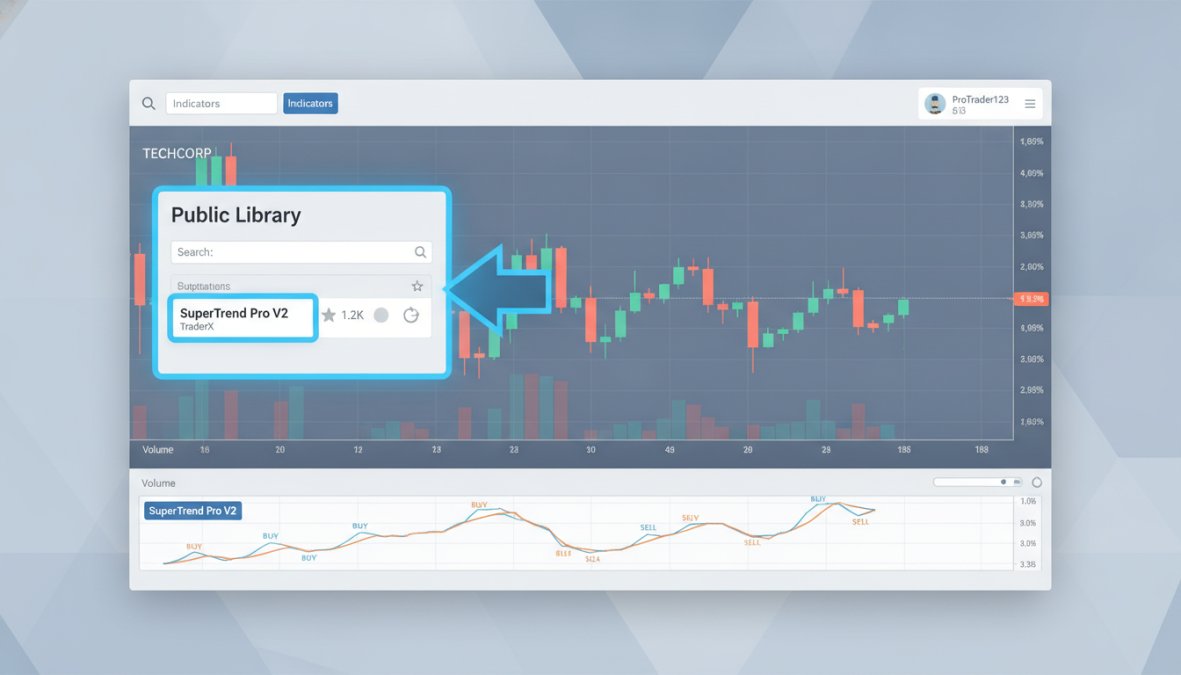
Finding Indicators in the Library
- Open TradingView and load any chart.
- Click the "Indicators" button at the top of the chart toolbar (the waveform icon).
- Select the "Community Scripts" tab in the search panel.
- Type a keyword related to the indicator type you need (e.g., "volume profile," "RSI divergence," "VWAP").
- Filter results by "Open Source" to see scripts whose source code is publicly visible.
- Click any result to view its description, comments, and publication history.
Sort community scripts by “Boosts” rather than “Most Recent” to surface the most battle-tested indicators. Scripts with hundreds of boosts and active comment threads have been stress-tested by real traders across multiple market conditions.
Adding to Your Chart
- Click the "Add to chart" button on the script’s detail page.
- The indicator loads immediately as an overlay or separate panel, depending on configuration.
- A settings dialog appears automatically, showing configurable parameters.
Configuring Parameters
Parameters are adjustable inputs that control how an indicator behaves, period length, source data (close, open, high, low), color settings, and alert thresholds. Access them anytime by clicking the gear icon next to the indicator’s name. Changes apply in real time.
According to TradingView’s official Pine Script documentation, Pine Script Version 5 introduced cleaner parameter syntax that reduces common configuration errors.
TradingView Pine Script Tutorial: Building Your Own Indicators
Building your own indicator with Pine Script is more accessible than most traders assume. Pine Script Version 5 is purpose-built for financial charting, making the learning curve shorter than general-purpose languages.
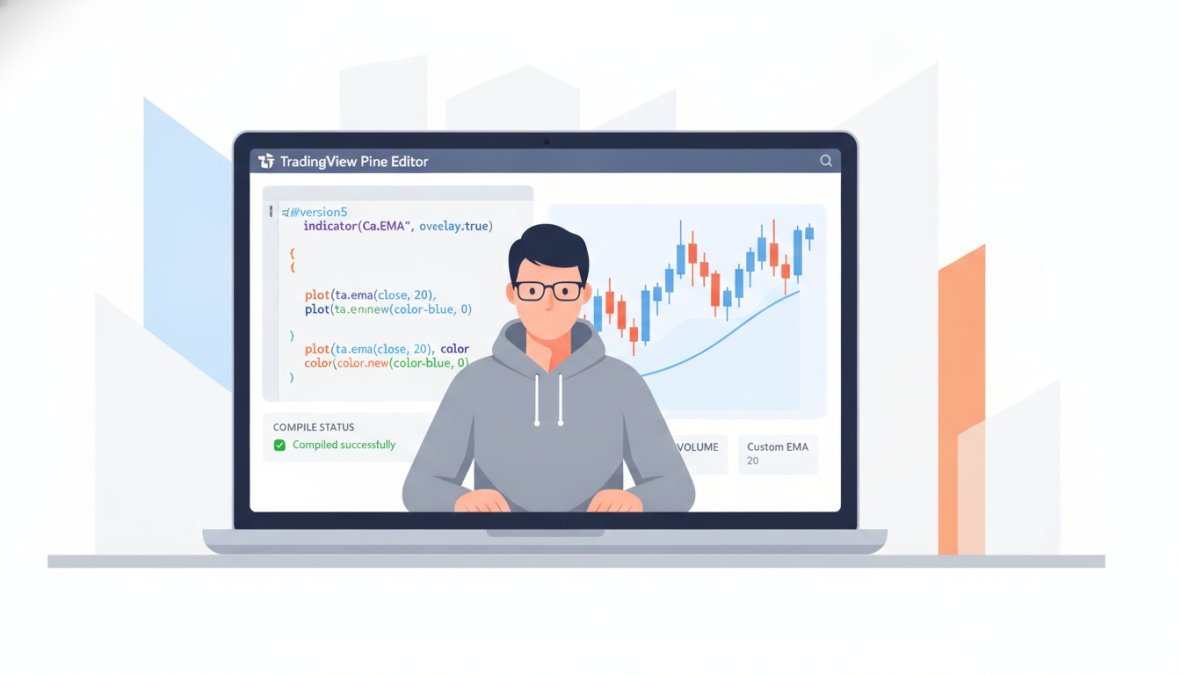
Accessing the Pine Editor
- Open any chart on TradingView.
- Click "Pine Editor" in the bottom toolbar.
- Click "Open," then select "New blank indicator."
- A default template loads with the
indicator()declaration already in place.
Writing Your First Indicator
A minimal Pine Script indicator looks like this:
//@version=5
indicator("My Custom MA", overlay=true)
length = input.int(14, title="Length")
src = input.source(close, title="Source")
ma = ta.sma(src, length)
plot(ma, color=color.blue, linewidth=2)
Breaking this down:
//@version=5declares the Pine Script version.indicator()defines the script as an indicator. Theoverlay=trueparameter plots it directly on the price chart.input.int()andinput.source()create configurable parameters visible in the settings panel.ta.sma()calls TradingView’s built-in simple moving average function.plot()renders the output line on the chart.
Avoid copying Pine Script code from unverified sources without reading it first. Malicious scripts can trigger excessive API calls or send chart data to external servers. Always read the source before compiling.
Testing and Publishing
Click "Save" to store your script, then "Add to chart" to compile and render it. The editor highlights syntax errors with descriptions. Once your indicator behaves as expected, publish it to the community library by clicking "Publish script." Published scripts can be open-source or invite-only.
Best Free Custom Indicators TradingView: Finding Quality Scripts
The public library contains thousands of free custom indicators, but quality varies enormously. A script with 50 boosts and active developer responses is far more trustworthy than one with no engagement history.
Evaluating Indicator Quality
Look for these signals before adding any script:
- Publication date and version history: Scripts updated recently for Pine Script Version 5 compatibility are more reliable.
- Open-source status: You can verify what the script actually does.
- Comment section activity: Active discussions indicate a real user base tested across different conditions.
- Author reputation: Authors with multiple published, well-rated scripts have more accountability.
- Backtesting results: Check the backtesting tab for realistic performance metrics.
A common mistake is adding every highly-boosted indicator without checking whether it was designed for your asset class. A script optimized for crypto volatility behaves differently on forex pairs.
As documented in TradingView’s community scripts overview, the platform’s library now contains scripts across dozens of technical analysis categories, with open-source contributions growing year over year.
TradingView Indicator Limit: Understanding Free vs. Paid Plans
The TradingView indicator limit is one of the most misunderstood constraints. Free accounts can add a limited number of indicators per chart simultaneously, which becomes a bottleneck for multi-indicator strategies.
Indicator Limits by Account Type
| Plan | Indicators Per Chart | Pine Script Access | Custom Indicators |
|---|---|---|---|
| Free | 3 | Yes | Yes (limited) |
| Essential | 5 | Yes | Yes |
| Plus | 10 | Yes | Yes |
| Premium | 25 | Yes | Yes |
| Ultimate | 50 | Yes | Yes |
These limits apply to active indicators on a single chart layout. Free accounts also face restrictions on saved chart layouts and Pine Script variables.
Managing Multiple Indicators Efficiently
Combine related logic into a single script rather than running five separate indicators. A single Pine Script indicator can plot multiple overlays, calculate several signals simultaneously, and trigger multiple alert conditions, working within any plan’s limits.
If you’re hitting indicator limits on a free plan, consolidate your most-used signals into a single custom Pine Script indicator before upgrading. Many traders replicate their full setup within the free tier’s constraints with modest scripting.
Security and Vetting: Protecting Yourself from Unsafe Scripts
Third-party Pine Script code can contain unexpected functions. While TradingView’s sandboxed environment limits damage, real risks exist.
Red Flags to Watch For
- Scripts using
request.security()to call external or unusual symbols - Code referencing undocumented or deprecated Pine Script functions
- Scripts distributed only as compiled (protected) code with no visible source
- Vendors pressuring quick adoption or claiming scripts will "stop working"
- No documentation, comment section, or version history
Verifying Script Source Code
Open-source scripts show their full source code in the Pine Editor. Before adding any community script to a live setup, click "Open in Pine Editor" and review the code. Look for unusual external calls, obfuscated variable names, or logic mismatched to the script’s stated purpose.
For third-party scripts distributed outside TradingView, paste the code into the Pine Editor in a test account before using it on your main account.
According to Pine Script security guidance in the TradingView Help Center, the platform restricts certain operations within Pine Script to protect user data, but user vigilance remains the most effective defense.
Troubleshooting Common Installation Errors
Script errors follow predictable patterns with straightforward fixes.
Script Won’t Compile or Load
The most common cause is a version mismatch. A script written for Pine Script Version 4 throws errors in Version 5 if it uses deprecated functions. Check the first line for //@version=4 and update function calls to Version 5 equivalents. The Pine Editor’s error messages specify the line number and deprecated function name.
Other common errors include undeclared variables, incorrect parameter types, and missing closing brackets.
Indicator Not Appearing on Chart
If the script compiles but nothing appears, check the overlay parameter in the indicator() declaration. An indicator with overlay=false renders in a separate panel below the chart, not on price candles. Also check the plot color, a fully transparent color is invisible regardless of chart theme.
Mobile vs. Desktop Installation Differences
The TradingView mobile app does not include the Pine Editor. You cannot write, edit, or compile Pine Script on mobile. You can add existing indicators from the public library and view indicators already added on desktop.
Build and configure indicators on desktop, save the chart layout, then access that layout on mobile. All indicators render correctly on the mobile app, including custom scripts. The settings panel is available on mobile for parameter adjustments, but you cannot modify source code.
As noted in TradingView mobile app documentation, the mobile platform is optimized for monitoring and execution, not scripting.
Conclusion: Start Using Custom Indicators Today
Getting custom indicators onto your TradingView charts is straightforward once you understand the four methods and constraints. The real challenge is building a setup that’s both effective and maintainable across different plan tiers.
Frequently Asked Questions
Can you use custom indicators on the free version of TradingView?
Yes, you can use custom indicators on TradingView's free plan, but with limitations. Free accounts can add a limited number of indicators to charts (typically 3-5 depending on chart complexity). Premium plans (Pro, Pro+, Premium) allow more indicators. Most public library indicators work on free accounts, though some advanced scripts may require a paid subscription. Check the indicator's description to verify compatibility with your account type before installation.
How do I add a Pine Script indicator to TradingView?
To add a Pine Script indicator, search the public library by clicking 'Indicators' in TradingView's toolbar, find your desired script, and click 'Add to Chart.' If you're creating your own, open the Pine Editor (Tools > Pine Editor), write or paste your source code, click 'Compile' to check for errors, then 'Publish' to make it available. Once published, you can add it to any chart using the same process. Parameters can be customized after adding the indicator to your chart.
Are custom TradingView indicators safe to use?
Most indicators from TradingView's official library are safe, but vetting is essential when using community scripts. Check the script's publication history, community reviews, and open-source status. Avoid indicators that request unusual permissions or come from unverified sources. Always review the source code if possible, look for suspicious functions or requests for sensitive data. Use indicators from established community members with positive ratings. When in doubt, test on a demo account first before using on live trading.
What's the difference between custom indicators and built-in TradingView indicators?
Built-in indicators are native to TradingView's charting library and don't count against your indicator limit on free accounts. Custom indicators, whether from the public library or Pine Script, are user-created scripts that do consume your indicator slots. Custom indicators offer more flexibility and specialization, you can tailor them to your strategy. However, they depend on their creator's maintenance. Built-in indicators are always supported and optimized by TradingView, making them reliable for fundamental technical analysis.
Serious traders need tools that are already built, tested, and ready to deploy. EZMT5 offers instant, unlimited access to 11 professional TradingView indicators and MT5 trading systems, including all future systems added to the library. With two license keys per system and no long-term contracts, it’s a practical solution for traders who want professional-grade execution without the development overhead. Signup now and start trading with precision from day one.
This article was written using GrandRanker