
Table of Contents
- How to Troubleshoot MT5 Connection Errors: Quick Diagnostics
- Step 1: Verify Your Internet Connection Stability
- Step 2: Confirm Your Login Credentials and Account Password
- Step 3: Check Server Status and Connection in Bottom-Right Corner
- Step 4: Fix MT5 No Connection Error with Firewall and Antivirus Configuration
- Step 5: Configure MT5 Proxy Settings and VPN Interference
- Step 6: Check MT5 Ping Status and Re-Scan for Available Servers
- Step 7: Restart the MetaTrader 5 Platform and Update to Latest Version
How to Troubleshoot MT5 Connection Errors: A Step-by-Step Guide
Last Updated: July 4, 2026
Trading platforms depend on stable connections. When MetaTrader 5 loses its link to your broker’s servers, trades fail to execute and prices freeze. Connection failures rarely stem from catastrophic platform failures, they typically trace back to one of six specific causes: internet instability, incorrect login credentials, firewall interference, VPN conflicts, server configuration issues, or outdated software. Each cause has a straightforward fix.
The fastest way to isolate the problem is to test your internet connection FIRST, verify your credentials SECOND, and only then move into network configuration troubleshooting. This sequence eliminates 70% of connection errors in the first two steps.
How to Troubleshoot MT5 Connection Errors: Quick Diagnostics
Connection errors in MT5 manifest in three distinct ways: the platform opens but shows no price quotes, the login screen appears but authentication fails, or the entire application refuses to launch. Each symptom points toward different root causes.
The diagnostic process takes 10-15 minutes and follows a logical sequence: start with your internet connection, move to authentication, then examine platform-level settings. If none of those work, investigate firewall and proxy interference.
What You’ll Need Before Starting
Gather these items before troubleshooting:
- Your broker account login credentials (username and password)
- Administrator access to your computer
- The MT5 platform installed (latest version preferred)
- A secondary device to test internet connectivity
- 15-20 minutes of uninterrupted time
Step 1: Verify Your Internet Connection Stability
Connection errors often originate with your internet, not the trading platform. A weak or intermittent connection will cause MT5 to lose contact with the broker’s servers repeatedly.
Open a command prompt (Windows) or terminal (Mac) and run a ping test to a major DNS server like 8.8.8.8. A stable connection shows response times under 100ms with zero packet loss.
If your ping times exceed 200ms or show packet loss above 5%, your internet connection is the problem. Contact your ISP before proceeding with platform troubleshooting.
Check Connection Speed and Latency
Visit a speed test website like Speedtest.net and run a full test. For stable MT5 trading, you need:
- Download speed: minimum 5 Mbps (10+ Mbps preferred)
- Upload speed: minimum 1 Mbps (5+ Mbps preferred)
- Ping/latency: under 100ms (under 50ms is excellent)
If speeds fall below these thresholds, restart your router by unplugging it for 30 seconds, then plugging it back in. If speeds remain low, check whether other devices are consuming bandwidth and close those applications.
Step 2: Confirm Your Login Credentials and Account Password
Invalid login credentials are the second most common cause of connection errors in MT5. The platform appears to connect, but authentication fails.
Open MT5 and attempt to log in using your broker account credentials. If login fails, check three things:
-
Verify the exact server name. Your broker may operate multiple servers for different account types (live, demo, micro). Select the server that matches your account type. If unsure, contact your broker’s technical support.
-
Confirm your password hasn’t changed. If you’ve recently changed your password on your broker’s website, MT5 still uses the old password until you update it. Go to Tools > Options > Account and re-enter your password.
-
Check for caps lock and special characters. Passwords are case-sensitive. If your password contains special characters like @, #, or !, ensure they’re entered exactly as set.
If you’ve forgotten your password, use your broker’s website password recovery tool to reset it, then update it in MT5.
Step 3: Check Server Status and Connection in Bottom-Right Corner
The bottom-right corner of the MT5 window displays your connection status in real-time. A green icon means your connection is stable. A red icon means the connection is broken. A yellow or orange icon indicates a weak connection with intermittent data flow.
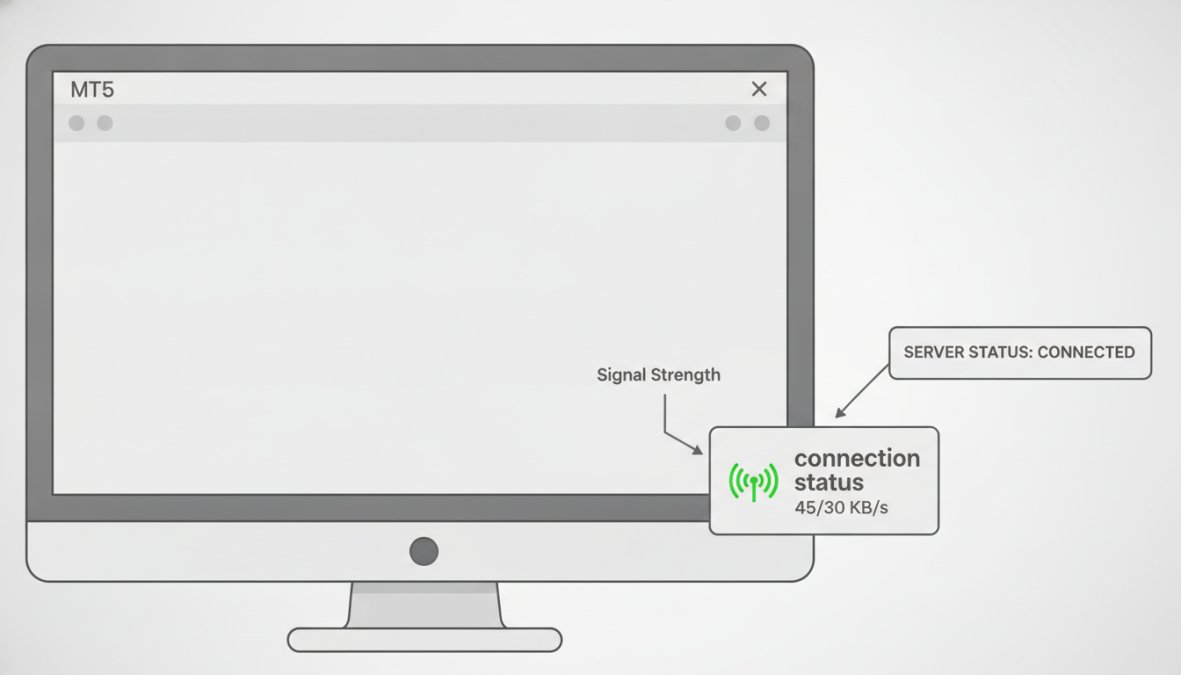
Right-click on the status indicator to see additional details including your current server name and the last time data was updated. If the timestamp is several seconds old, your connection is experiencing significant latency.
Understanding Signal Status Icons
| Icon Color | Status | Meaning | Action |
|---|---|---|---|
| Green | Connected | Live data flowing normally | No action needed |
| Yellow | Weak Connection | Data arriving slowly or intermittently | Check internet speed; consider restart |
| Red | Disconnected | No contact with broker server | Restart platform; check firewall |
| Gray | Offline | Platform not attempting to connect | Restart platform; verify login credentials |
If the icon remains red for more than 30 seconds, restart the MT5 platform completely. Close it entirely (not just minimized), wait 10 seconds, and reopen it. During the restart, the platform re-establishes the connection to the broker’s servers.
Step 4: Fix MT5 No Connection Error with Firewall and Antivirus Configuration
If your internet connection is stable and your login credentials are correct, but MT5 still shows a red icon, your firewall or antivirus software is likely blocking the connection.
For Windows Defender Firewall:
- Open Windows Security (search "Windows Security" in the Start menu)
- Click "Firewall & network protection"
- Click "Allow an app through firewall"
- Find "MetaTrader 5" in the list and check both "Private" and "Public" boxes
- Click OK
If MT5 isn’t listed, click "Allow another app" and browse to your MT5 installation folder (usually C:Program FilesMetaTrader 5terminal.exe).
For third-party antivirus software:
Access your antivirus control panel and look for a "Firewall" or "Network Protection" section. Add MT5 to the whitelist or allowed applications list.
Port Blocking and ISP-Level Issues
Some internet service providers block specific ports to reduce bandwidth usage. MetaTrader 5 typically uses ports 443 (HTTPS) and occasionally port 80 (HTTP) for communication.
Test whether your ISP is blocking MT5’s connection ports using an online port checker tool. Test ports 443 and 80 from your IP address. If both ports show as open, your ISP isn’t blocking them. If blocked, contact your ISP and request they unblock these ports, or use a VPN service to bypass the restrictions.
Firewall blocking accounts for roughly 30% of MT5 connection errors. Adding MT5 to your firewall’s whitelist resolves the issue in most cases.
Step 5: Configure MT5 Proxy Settings and VPN Interference
Virtual Private Networks (VPNs) and proxy servers encrypt your traffic and route it through a different server, which can introduce connection latency and sometimes cause authentication failures.
If you’re using a VPN, test whether it’s causing the connection issue by temporarily disabling it and attempting to log into MT5. If the connection works without the VPN but fails with it enabled, the VPN is the problem. Consider switching to a VPN optimized for low-latency applications like trading.
MT5 also supports explicit proxy configuration for users behind corporate firewalls. To configure a proxy in MT5:
- Open MT5 and go to Tools > Options
- Click the "Server" tab
- Check the "Proxy server" checkbox
- Enter your proxy server address and port
- If your proxy requires authentication, enter username and password
- Click OK
Mobile vs. Desktop Proxy Configuration
For Android:
- Go to Settings > Network & internet > WiFi
- Long-press your WiFi network and select "Modify"
- Scroll down and tap "Advanced options"
- Change "Proxy" from "None" to "Manual"
- Enter proxy server address and port
For iOS:
- Go to Settings > WiFi
- Tap the information icon next to your WiFi network
- Scroll down to "HTTP Proxy" and tap "Configure Proxy"
- Select "Manual" and enter proxy server address and port
After configuring proxy settings on mobile, close and reopen the MT5 app.
Step 6: Check MT5 Ping Status and Re-Scan for Available Servers
Ping status measures the delay between your computer and the broker’s server. A ping under 100ms is acceptable for trading. A ping above 200ms will cause noticeable delays and frequent disconnections.
Check your current ping by right-clicking the status icon in the bottom-right corner. If your ping is consistently high, contact your ISP to investigate routing issues, or consider using a VPN with a server geographically closer to your broker’s data center.
MT5 maintains a list of available broker servers. Sometimes this list becomes corrupted or outdated. Re-scan for available servers to refresh the list:
- Open MT5
- Go to Tools > Options
- Click the "Server" tab
- Click "Rescan" button
- Wait for the scan to complete (usually 30-60 seconds)
- Select your broker’s server from the updated list
- Click OK
Step 7: Restart the MetaTrader 5 Platform and Update to Latest Version
A full platform restart clears cached data and resets network connections. Close MT5 completely (not just minimized), wait 10 seconds, then reopen it.
If you’re running an outdated version of MT5, update to the latest version. MetaQuotes regularly releases updates that improve stability and fix connection bugs.
To check for updates:
- Open MT5
- Go to Help > About MetaTrader 5
- Note your current version number
- Visit the MetaTrader 5 official website
- Compare your version to the latest available version
- If yours is older, download the latest installer and run it
The installer will preserve your existing settings and account configurations.
Re-Login to Your Trading Account
After updating MT5 or restarting the platform, you may need to re-enter your login credentials. Go to File > Login and enter your account credentials:
- Account number
- Password
- Server (select from dropdown)
Click OK. MT5 will authenticate your account and establish a new connection.
If re-login fails with an “Invalid account” message, verify you’ve selected the correct server. Different account types often use different servers.
Troubleshooting Summary
Connection errors in MT5 follow a predictable pattern. Start with internet stability, move to authentication, then investigate network configuration. The vast majority of connection issues resolve within the first three steps. EZMT5’s fully built and optimized trading systems depend on consistent platform connectivity to execute trades with precision. Once your MT5 connection is stable, you can trade with confidence.
External Resources
For additional technical support, consult these authoritative sources:
According to MetaQuotes official MT5 documentation, the platform supports detailed logging that can help diagnose connection issues. Enable logging in Tools > Options > Logging to capture connection events.
ICANN guidance on DNS resolution and network connectivity explains how domain name resolution affects trading platform stability.
The Internet Engineering Task Force (IETF) standards for TCP/IP networking define the technical specifications that MT5 uses for server communication.
Frequently Asked Questions
Why does my MT5 say 'No Connection'?
MT5 no connection errors occur when your client terminal cannot reach the broker server. Common causes include internet connectivity issues, firewall or antivirus blocking port access, incorrect login credentials, server downtime, or proxy/VPN interference. Check your internet stability first, verify your account password, and review firewall settings. If the red icon appears in the bottom-right corner, your trading account is disconnected from the trade server and real-time data isn't flowing.
How do I fix MT5 proxy settings that cause connection timeouts?
Access MT5 proxy settings through Tools > Options > Server. Disable proxy if you're not using one, this is a common culprit for connection timeout errors. If you need a proxy, enter the correct proxy server address and port. On mobile MT5, check your device's network settings. VPN applications can also interfere with MetaTrader 5 connectivity; temporarily disable your VPN to test. Desktop and mobile configurations differ, so verify settings match your platform.
How do I check if my MT5 server is down?
Look at the signal status icon in the bottom-right corner of MetaTrader 5. A red icon indicates a disconnected platform. Re-scan for available servers through Tools > Rescan Servers to refresh your broker server list. Check your broker's website or contact technical support to confirm server status. If the price quotes aren't updating and you see a connection timeout message, the broker server may be experiencing issues. Restart the platform and re-login to your trading account to refresh the connection.
Can firewall or antivirus settings block MT5 connections?
Yes, firewall and antivirus software frequently block MetaTrader 5 by restricting port access needed for broker server communication. Add MT5 to your firewall's whitelist and configure antivirus exceptions for the platform executable. ISP-level blocking can also prevent connections, contact your internet provider if you suspect port blocking. Test by temporarily disabling firewall protection (for testing only), then permanently add MT5 exceptions. Desktop and mobile firewalls require different configuration approaches.
This article was written using GrandRanker