
Table of Contents
- Getting Started: Download and Install MT5 on Your Mobile Device
- Logging In: Connect Your Trading Account to Mobile MT5
- Navigating the Mobile Interface: Quotes, Charts, and Market Data
- Placing and Managing Orders on Mobile MT5
- How to Add Indicators to MT5 Mobile for Technical Analysis
- How to Set Stop Loss on MT5 Mobile: Risk Management Essentials
- MT5 Mobile vs Desktop Differences: What You Need to Know
- Troubleshooting Common Mobile MT5 Issues
Last Updated: June 30, 2026
Learning how to use MT5 on mobile device opens up real-time trading opportunities from anywhere. Mobile trading represents 47% of all trading activity in 2026, yet traders consistently report friction in execution, chart analysis, and risk management on smaller screens. Below, we’ll walk you through exactly how to use MT5 on mobile device, from initial setup through advanced order management and risk control strategies that work on a smartphone.
Getting Started: Download and Install MT5 on Your Mobile Device
The first step is getting the platform installed on your phone or tablet. The process takes under five minutes, but skipping proper setup creates problems later when executing trades under time pressure.
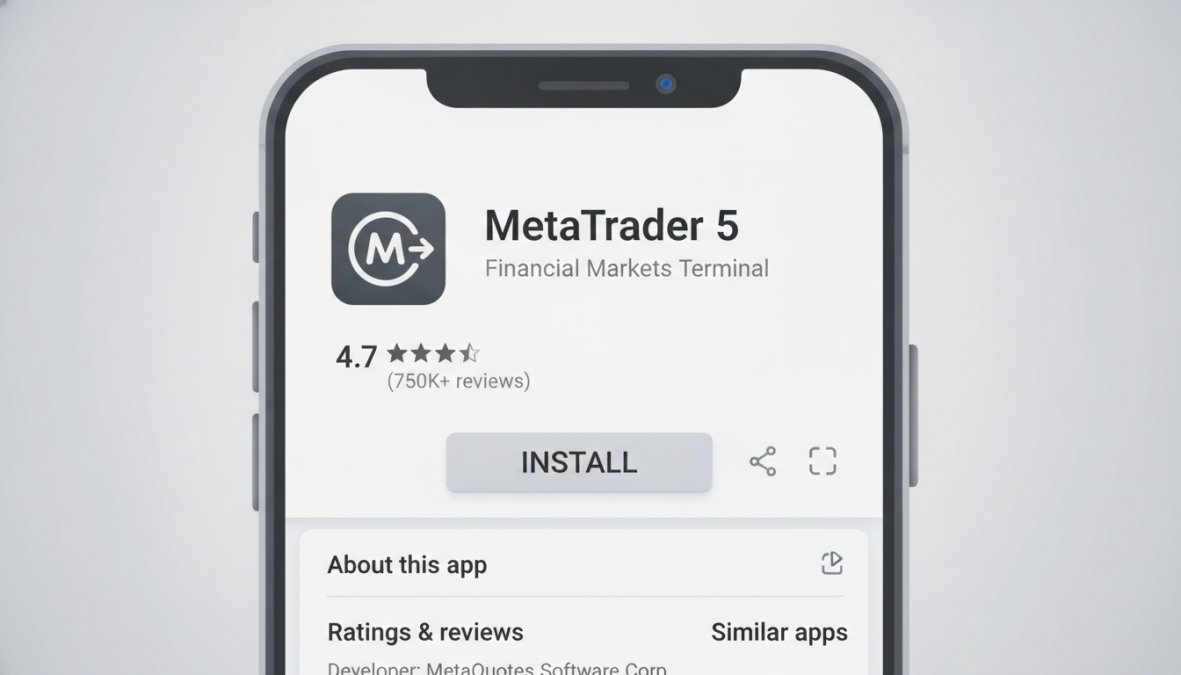
Download from Google Play Store (Android)
Open the Google Play Store on your Android device and search for "MetaTrader 5" by MetaQuotes. Tap the official app with the blue and white icon and over 10 million downloads, then hit "Install." Once installed, open the app and enter your broker server, login credentials, and password. Your broker’s server name is specific to your account, check your broker’s welcome email for the exact server name, as entering the wrong one causes login failures even if your credentials are correct.
Enable automatic updates in Google Play Store settings so you never miss critical security patches. Trading with outdated software increases your exposure to connectivity issues and execution delays.
Download from Apple App Store (iOS)
iPhone and iPad users should open the Apple App Store, search for "MetaTrader 5," and download the official app by MetaQuotes. The iOS version is functionally identical to Android but optimized for Apple’s interface. Configure your notifications in Settings > Notifications after installation to ensure you receive alerts for critical price movements.
Both platforms support the same trading instruments: Forex, CFDs, Stocks, and Futures.
Logging In: Connect Your Trading Account to Mobile MT5
Getting logged in correctly is non-negotiable for mobile trading. A single authentication error can lock you out of your account for 24 hours as a security precaution.
Entering Login Credentials
When you open MetaTrader 5 for the first time, the app asks for three pieces of information: the broker server, your login number, and your password. Your broker server is a specific address like "BrokerName-Demo" or "BrokerName-Live", this is NOT your broker’s website domain. Enter these precisely, as mobile keyboards are error-prone. If you see an error message like "Invalid account" or "Connection timeout," the most common culprit is an incorrect server name.
Once logged in successfully, you’ll see your account balance, available margin, and current positions on the main screen. The app remembers your login credentials, so you won’t need to re-enter them each time you open the app.
Never save your MetaTrader password in your phone’s password manager or browser autofill. Trading accounts are high-value targets for theft. Use manual entry every time, or enable biometric login if your broker supports it.
Switching Between Demo and Live Accounts
Most brokers offer both demo accounts (practice trading with virtual money) and live accounts (real money trading). Tap the menu icon at the bottom of the screen, scroll to the bottom, and select "Settings." From Settings, you can log out and re-enter your credentials for whichever account you want to access. Start with demo trading until you can execute trades smoothly without hesitation.
Navigating the Mobile Interface: Quotes, Charts, and Market Data
The mobile interface is stripped down compared to desktop, but everything essential for trading is present. Understanding where to find what you need prevents costly delays during market moves.
Using the Quotes Tab for Real-Time Data
The Quotes tab shows real-time prices for all available financial instruments. Tap any instrument to see its current bid and ask prices, spread (the difference between buy and sell prices), and recent price movement. The spread is critical information, it represents your transaction cost. A 2-pip spread on EUR/USD costs far less than a 5-pip spread.
Real-time data updates continuously as long as you have an active internet connection. If prices freeze or stop updating, your connection is unstable. The Quotes tab is also where you initiate new trades by tapping any instrument and selecting "New Order."
Understanding Spread and Leverage on Mobile
Spread is the cost of entering a trade, the difference between the bid price and the ask price. On EUR/USD, a typical spread is 1-2 pips. On exotic pairs or during low-liquidity hours, spreads widen to 5+ pips. Always check the current spread before entering a trade.
Leverage is the amount of borrowed capital your broker allows you to use. A 1:100 leverage means you can control $100 worth of an asset with $1 of your own capital. Many traders make the mistake of using maximum leverage on mobile because they’re trading smaller amounts. This is exactly backward, mobile trading requires MORE caution with leverage, not less, because you’re trading on a smaller screen with potential connectivity interruptions.
Your spread cost plus your leverage exposure determine your true risk per trade. Check both before entering any position, especially on mobile where you have less time to react if conditions change.
Placing and Managing Orders on Mobile MT5
Executing trades on mobile is straightforward once you understand the order types and position management tools. Speed matters here, markets move fast, and mobile execution requires confidence.
Creating a New Order: Market and Pending Orders
There are two main order types in MetaTrader 5: market orders and pending orders.
A market order executes immediately at the current market price. You specify your instrument, position size (in lots), and whether you’re buying or selling. A pending order waits to execute until price reaches a specific level. Common pending orders include Buy Limit (buy at a lower price), Sell Limit (sell at a higher price), Buy Stop (buy above current price), and Sell Stop (sell below current price).
To place an order, tap any instrument in Quotes, then tap "New Order." Select Market or Pending, set your volume (0.01 lots is a micro-lot, standard is 1 lot), and confirm. Most mobile traders use market orders because they execute immediately and require fewer steps. Position size is critical on mobile because you have less time to react if a trade moves against you. Start small, 0.01 lots (10 units on Forex), until you’re comfortable with mobile execution.
Monitoring Open Positions and Trading History
Your open positions appear in the Positions tab, showing every active trade: the instrument, entry price, current price, profit/loss, and position size. Tap any position to modify it, close it, or add stop loss and take profit levels if you haven’t already.
The Trading History tab logs every trade you’ve executed, including closed positions. Analyze your history weekly to identify patterns: which instruments are you most profitable on? What time of day do you trade best? Check your positions multiple times per day, especially during key market hours, but avoid obsessive checking, which leads to emotional decision-making.
How to Add Indicators to MT5 Mobile for Technical Analysis
Technical indicators analyze price history to identify trends and potential entry points. Mobile MT5 includes built-in indicators, and adding them to your charts takes seconds.
Selecting and Applying Built-In Technical Indicators
Open any chart by tapping an instrument in Quotes. Tap the chart itself to open the chart view, then tap the indicator icon at the bottom. This opens the Indicators menu showing dozens of built-in options: Moving Averages, RSI, MACD, Bollinger Bands, and Stochastic.
Select an indicator, and it appears on your chart immediately. Most indicators have default settings that work for basic analysis. Common indicators for mobile trading include Moving Average (shows the average price over a set period), Relative Strength Index (measures momentum), MACD (identifies momentum shifts), and Bollinger Bands (shows volatility).
The challenge with mobile indicators is screen real estate. Start with one or two indicators and add more only if they provide actionable signals. Most professional traders use just two or three indicators on mobile to maintain chart clarity.
Test each indicator on your demo account first. Paper trade using only that indicator to understand how it performs. Too many indicators create conflicting signals and analysis paralysis.
Using Timeframes and Chart Analysis Tools
Timeframes determine how you view price history. A 1-minute chart shows price movement second-by-second; a daily chart shows one candle per trading day. On mobile, you typically choose between 1-minute, 5-minute, 15-minute, hourly, 4-hour, daily, weekly, and monthly timeframes.
Shorter timeframes (1-minute to 15-minute) show rapid price movement and generate more trading signals. Longer timeframes (hourly to daily) show broader trends and require less active management. Most mobile traders use 15-minute to hourly charts because they balance signal frequency with screen usability. Many traders use multiple timeframes to confirm signals: check a daily chart to identify the overall trend, then switch to a 15-minute chart to time your entry.
How to Set Stop Loss on MT5 Mobile: Risk Management Essentials
Stop loss is the single most important risk management tool in trading. It’s a price level where your position automatically closes to limit losses. Without stop loss, a single bad trade can wipe out weeks of profits.
Setting Stop Loss and Take Profit Levels
When you place a new order, you can set stop loss and take profit levels immediately. In the order entry dialog, enter your stop loss price (the price at which you want to exit if the trade moves against you) and take profit price (the price at which you want to exit if the trade moves in your favor).
The distance between your entry price and stop loss is your risk per trade. If you buy EUR/USD at 1.0800 and set stop loss at 1.0790, your risk is 10 pips. Calculate this BEFORE entering the trade. If you forgot to set stop loss when entering the trade, you can add it afterward by opening your Positions tab, tapping the open position, and selecting "Modify."
Take profit works the same way: enter the price where you want to exit with a profit. Many traders set a take profit level equal to 2-3 times their stop loss distance. If your stop loss is 10 pips away, set take profit 20-30 pips away. This creates a favorable risk-to-reward ratio.
Never trade without a stop loss. Market gaps and slippage can cause losses far larger than your intended risk. On mobile, where you have less control over execution, stop loss is absolutely non-negotiable.
Mobile-Specific Risk Management Strategies
Mobile trading introduces unique risks: connectivity interruptions, delayed notifications, and the temptation to overtrade. Address these with specific strategies.
Position Sizing: Reduce your position size on mobile by 25-50% compared to desktop trading. This gives you a buffer if connectivity issues prevent you from managing your position immediately.
Tighter Stop Losses: Set stop loss levels closer to your entry price on mobile than on desktop. If you normally use a 20-pip stop loss, use 15 pips on mobile.
Fewer Trades Per Day: Set a rule: maximum 3-5 trades per day on mobile. This forces you to focus on high-probability setups instead of chasing every small price movement.
Pre-Market Planning: Before market open, identify 3-5 price levels where you’ll enter trades. During the trading day, execute only trades at those predetermined levels. This removes emotion from trade entry.
MT5 Mobile vs Desktop Differences: What You Need to Know
Mobile and desktop versions of MetaTrader 5 are powerful, but they’re not identical. Understanding the differences prevents frustration and poor trading decisions.
Feature Parity and Functional Limitations on Mobile
The mobile version includes all essential trading functions: placing orders, managing positions, viewing real-time quotes, and analyzing charts with indicators. However, some advanced features are desktop-only. Desktop MT5 includes Expert Advisors (automated trading robots), custom indicators coded in MQL5 programming language, and advanced order types like trailing stops. Mobile MT5 does not support these features.
Desktop MT5 also provides more customization: you can arrange multiple charts and save custom layouts. Mobile is more limited, you typically view one chart at a time. This actually forces better focus. The mobile version is more responsive for order execution, making it ideal for quick trades during market moves.
When to Use Mobile vs Desktop for Trading
Use desktop when you’re doing analysis, backtesting strategies, or managing multiple positions simultaneously. Use mobile when you need to execute trades quickly or manage positions while away from your desk. Many professional traders use both: they plan trades on desktop during off-market hours, then execute and monitor on mobile during live market hours.
Mobile is ideal for scalping (very short-term trading) because order execution is faster. Desktop is better for swing trading (holding positions for days or weeks) because you can analyze multiple timeframes more effectively.
Troubleshooting Common Mobile MT5 Issues
Mobile trading can encounter specific problems that desktop users rarely face. Know how to fix them quickly.
Connectivity Problems and Server Lag
The most common mobile trading problem is connection loss. Your phone loses WiFi or mobile data connection, and MetaTrader 5 disconnects from the broker server. You’ll see "Disconnected" in red at the top of the screen. If this happens, switch from mobile data to WiFi, or vice versa. Wait 10-15 seconds for the app to reconnect. If it still shows disconnected, restart the app by swiping it closed and reopening it. Your positions are safe on the broker server even if your phone loses connection.
Server lag is different from connection loss. You’re connected, but order execution is slow. This usually happens during major news releases or at market open when trading volume is extremely high. If you experience server lag, reduce your position size.
Test your connection quality before trading. Open MetaTrader 5 and check if quotes update in real-time. If there’s any lag, your connection is unstable. Switch to a more reliable network before entering trades.
Biometric Security Setup and Account Protection
Biometric login (fingerprint or face recognition) adds security without sacrificing convenience. To enable biometric login, open Settings in MetaTrader 5, find Security options, and enable "Biometric Authentication." After that, opening the app requires biometric verification instead of your password.
This protects your account if your phone is lost or stolen. However, biometric authentication doesn’t replace a strong password, use a complex password when you set up your account, then enable biometric login as an additional layer. Enable two-factor authentication (2FA) if your broker supports it. This requires a second verification step (usually a code from an authenticator app) when logging in from a new device.
Keep your MetaTrader 5 app updated. Updates often include security patches that close vulnerabilities. Enable automatic updates in your phone’s app store so you never miss critical security fixes. Always log out if you’re using someone else’s phone, or if you’re in a public location where someone might grab your phone.
Mobile trading with MetaTrader 5 is practical and increasingly essential for active traders, but it requires different discipline than desktop trading. The constraints of a smaller screen and potential connectivity issues demand tighter risk management, smaller position sizes, and clearer trading rules. With proper setup, security measures, and risk management strategies, you can execute your trading plan with precision from anywhere.
| Mobile Trading Task | Time Required | Frequency | Best Practice |
|---|---|---|---|
| Login and check positions | 30 seconds | 2-3 times daily | Use biometric authentication |
| Place a market order | 15-20 seconds | Per trade | Pre-plan entry prices |
| Modify stop loss | 20-30 seconds | Per position | Set immediately after entry |
| Review trading history | 2-3 minutes | Weekly | Analyze patterns for improvement |
| Switch timeframes for analysis | 10-15 seconds | Per chart | Use 15-min to hourly for mobile |
| Adjust position size | 10 seconds | Per trade | Reduce 25-50% vs. desktop |
Frequently Asked Questions
How do I use MT5 on mobile if I'm new to forex trading?
Start by downloading MetaTrader 5 from Google Play Store or Apple App Store, then log in with your broker credentials. Navigate to the Quotes tab to view financial instruments like Forex, CFD, and Stocks. Use the demo account first to practice placing orders, setting stop loss and take profit levels, and analyzing charts with technical indicators. This risk-free approach helps you understand execution, spreads, and leverage before trading live.
Can I use custom indicators on MT5 mobile like I do on desktop?
MT5 mobile supports many built-in technical indicators for chart analysis, but custom indicator functionality is more limited compared to desktop. The mobile version includes essential indicators for timeframes and trend analysis, but advanced custom indicators may require desktop MT5. For most traders using standard indicators and real-time data monitoring, mobile MT5 provides sufficient analytical tools for managing open positions and executing trades.
Is it safe to trade forex on a mobile device with MT5?
Yes, trading on MT5 mobile is secure when you follow best practices. Enable biometric security setup on your smartphone to protect your login credentials. Avoid trading on unsecured public WiFi, use cellular data or trusted networks. Keep your broker server connection stable to prevent execution delays. Mobile MT5 encrypts your account data, but always log out after trading sessions and never share your login information. Use proper risk management with stop loss orders on every trade.
What are the main differences between MT5 mobile and desktop versions?
MT5 mobile offers core trading functionality, placing orders, monitoring positions, viewing real-time data, and using technical indicators, but lacks some advanced desktop features like custom indicator coding and complex algorithmic tools. Desktop provides superior chart analysis with more timeframes, Objects tools, and Crosshair features. Mobile excels for on-the-go trading and real-time notifications. Choose mobile for flexibility and desktop for advanced analysis and system automation with trading systems.
This article was written using GrandRanker