

Table of Contents
- How to Remove a Single Indicator on TradingView
- Hiding vs. Removing Indicators: What’s the Difference
- How to Hide Indicators on TradingView Without Deleting
- Remove All Drawings and Indicators TradingView at Once
- Managing Indicators on Mobile Devices
- Restoring Accidentally Removed Indicators
- Common Mistakes When Removing Indicators
- Conclusion
How to Remove Indicators on TradingView: Step-by-Step
Last Updated: August 4, 2026
Learning how to remove indicators on TradingView is one of the most practical skills for traders managing cluttered charts. Whether you’re clearing old analysis, simplifying your workspace, or starting fresh with a new strategy, understanding the mechanics of indicator removal saves time and prevents accidental data loss. Removing indicators on TradingView is straightforward once you know the three primary methods. Below, we’ll walk through every removal method, explain the critical distinction between hiding and deleting, and show you how to recover indicators if you make a mistake.
How to Remove a Single Indicator on TradingView
The most direct way to remove a single indicator is through the chart legend, the right-click context menu, or the settings gear icon.
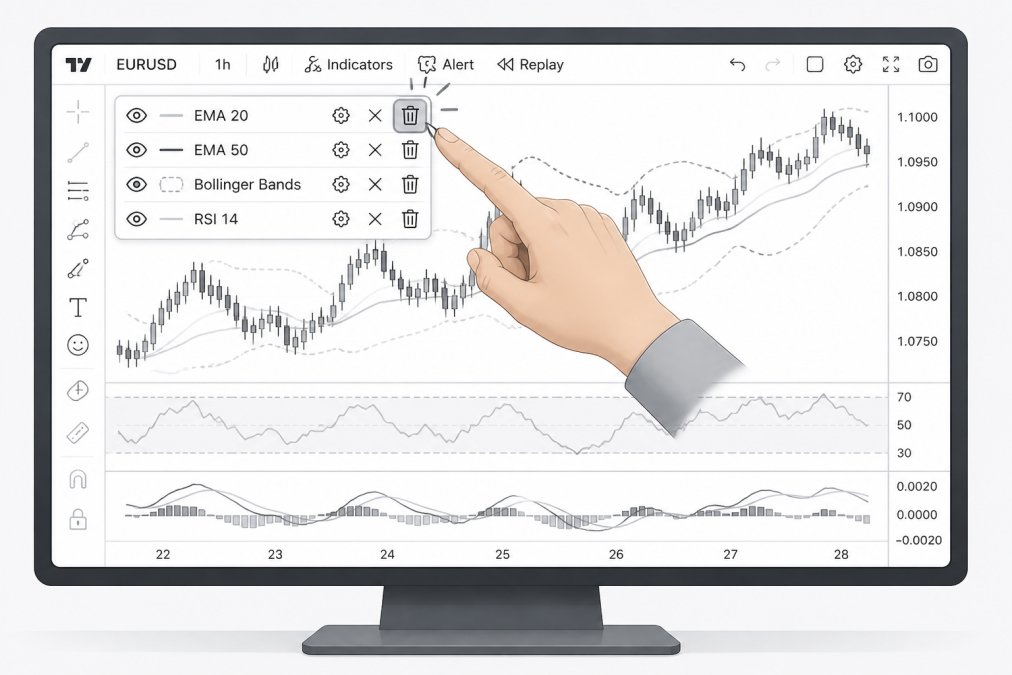
Using the Chart Legend
The chart legend appears on the left side of your chart and lists every indicator currently active. Each indicator entry shows its name, parameters, and a trash icon.
To remove an indicator using the legend:
- Locate the indicator you want to remove in the chart legend (left panel)
- Hover your cursor over the indicator name
- Click the trash icon that appears
- Confirm the deletion if prompted
The indicator disappears from your chart immediately. This method is fastest when you can see the legend clearly and know which indicator you’re targeting.
Using the Right-Click Context Menu
Right-clicking directly on an indicator’s line or element on the chart opens a context menu with removal options.
Steps:
- Move your cursor to the indicator line or overlay on the chart itself
- Right-click to open the context menu
- Select "Remove" or "Delete"
- The indicator is removed from the chart
This approach works well when you’re zoomed in on a specific part of the chart and want to remove an indicator without scrolling to the legend.
Using the Settings Gear Icon
Each indicator in the chart legend has a settings gear icon next to it. Clicking the gear opens the indicator’s configuration panel, which includes a delete or remove button.
Process:
- Find the indicator in the chart legend
- Click the settings gear icon (⚙️) beside the indicator name
- In the settings panel that opens, look for a "Remove" button at the bottom
- Click to confirm removal
This method is useful if you want to review an indicator’s parameters before deleting it.
Hiding vs. Removing Indicators: What’s the Difference
Understanding when to hide versus when to remove can save you hours of reconfiguration.
Removing an indicator permanently deletes it from your chart. The indicator’s settings, parameters, and visual data are gone. If you want it back, you’ll need to recreate it from scratch or restore from a saved template.
Hiding an indicator keeps it intact in your chart’s object tree and legend but makes it invisible on the chart itself. The indicator still exists, still calculates, still stores its parameters, you just can’t see it. You can unhide it instantly with a single click.
Hide indicators when you’re experimenting with layouts, testing different timeframes, or temporarily decluttering your chart. Remove indicators when you’re certain you won’t need them again or when cleaning up a chart for sharing with others.
Toggle Visibility in the Object Tree
The Object Tree is a panel (usually on the right side of TradingView, accessible via the menu) that lists every element on your chart: price bars, indicators, drawings, studies.
To hide an indicator using the Object Tree:
- Open the Object Tree (look for the hierarchical list icon, or access it from the menu)
- Find your indicator in the list
- Click the eye icon next to the indicator name to toggle visibility
- The indicator disappears from the chart but remains in the tree
Click the eye icon again to unhide it. The Object Tree is especially useful for managing charts with many overlays.
Using the Eye Icon in the Chart Legend
The chart legend also includes an eye icon for each indicator. Clicking it toggles visibility without removing the indicator.
Steps:
- Locate the indicator in the chart legend
- Click the eye icon (👁️) beside the indicator name
- The indicator becomes hidden; the eye icon changes appearance to show it’s inactive
- Click the eye icon again to unhide the indicator
This is the fastest way to toggle visibility if you use the same indicators repeatedly.
Remove All Drawings and Indicators TradingView at Once
Sometimes you need to clear your entire chart and start fresh. TradingView offers bulk removal options.
Clearing Your Chart Layout
TradingView’s "Clear Chart" function removes all indicators, drawings, and studies in one action.
To clear your chart:
- Right-click on an empty area of the chart (not on an indicator or drawing)
- Select "Clear Chart" from the context menu
- Confirm the action
All indicators and drawings vanish. The chart returns to showing only price data. This is irreversible without using Undo, so use it deliberately.
Bulk Removal Workflows
For traders managing multiple indicators across several charts, selective bulk removal is efficient. Open the Object Tree, select all indicators (Ctrl+A or Cmd+A within the tree, or click each one while holding Shift), right-click and choose "Remove." Drawings remain intact.
If you use the same indicator configuration repeatedly, save your chart as a template before clearing it. TradingView’s template feature lets you reload your exact setup instantly, complete with all parameters and visual settings.
Managing Indicators on Mobile Devices
The TradingView mobile application handles indicators differently than the desktop version. The touch interface and smaller screen real estate require adapted workflows.
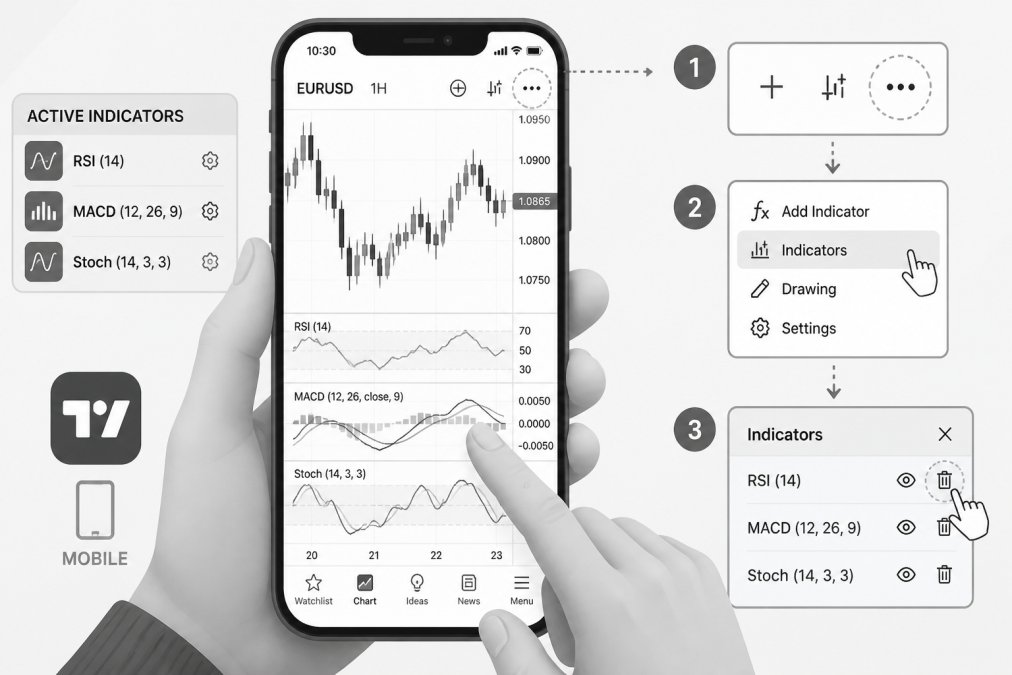
Touch Interface Controls
On mobile, the chart legend appears as a collapsible panel at the bottom or side of the screen. Removing an indicator uses the same trash icon principle as desktop, but the interaction is touch-based.
To remove an indicator on mobile:
- Tap the chart legend (usually a small icon at the bottom or side)
- The legend expands, showing all active indicators
- Tap and hold on the indicator you want to remove, or look for a trash icon
- Tap the trash icon or "Remove" option
- The indicator is deleted
Hiding works similarly: look for an eye icon in the legend and tap it to toggle visibility.
Mobile App Limitations and Workarounds
The mobile app has fewer features than the desktop platform. Some advanced indicator configurations available on desktop may not be fully adjustable on mobile.
Workaround: If you need to manage complex indicator setups, do the configuration on desktop and then view the chart on mobile. The mobile app will display your desktop settings correctly, even if it can’t modify them as extensively.
Use the hide function liberally on mobile to keep your chart readable. Many traders maintain separate chart templates for mobile and desktop, optimized for each screen size.
Restoring Accidentally Removed Indicators
You deleted an indicator and immediately regretted it. Recovery is possible, but only if you act quickly or use the right tools.
Using Undo and Chart Templates
The Undo function (Ctrl+Z or Cmd+Z) works immediately after deletion. If you remove an indicator and haven’t taken other actions, Undo will restore it with all its original parameters intact.
Steps:
- Delete an indicator
- Press Ctrl+Z (Windows) or Cmd+Z (Mac) immediately
- The indicator reappears on your chart
For more permanent recovery, use chart templates. If you saved your chart as a template before clearing it, you can reload that template to restore all indicators.
To restore from a template:
- Open the Chart Templates menu (usually in the top menu or sidebar)
- Select the saved template that contains your desired indicators
- Load the template; all indicators and their settings are restored
This is why experienced traders save templates frequently, it’s insurance against accidental deletions.
Recovering Indicator Parameters
If you deleted an indicator and can’t undo, you can recreate it by referencing another chart with the same indicator configured. Note the parameters (moving average period, source, color, line style, etc.), then add the indicator fresh to your cleared chart and input the same parameters.
Many traders maintain a "template chart" with their standard indicators already configured. When they accidentally delete from a working chart, they reference the template chart to restore parameters quickly.
TradingView does not have a built-in “trash recovery” feature. Once you clear a chart or remove an indicator and close the chart without using Undo, the data is gone. Always save templates before major chart changes, especially if you’ve spent time fine-tuning indicator parameters.
Common Mistakes When Removing Indicators
Most removal problems stem from confusion rather than technical errors.
Mistake 1: Confusing hide with remove. A trader hides an indicator thinking they’ve deleted it, then later wonders why it’s still taking up chart space. Solution: if you want it gone, use the trash icon, not the eye icon.
Mistake 2: Removing an indicator without saving the template first. You delete a carefully configured indicator and can’t remember the exact parameters. Solution: save your chart as a template before experimenting.
Mistake 3: Clearing the chart when you meant to remove one indicator. The "Clear Chart" function removes everything. Solution: use the chart legend or right-click method for single removals.
Mistake 4: Not understanding the difference between the chart legend and the Object Tree. The legend shows only indicators; the Object Tree shows everything. Solution: use the legend for quick indicator management and the Object Tree when you need to see all chart elements.
Mistake 5: Trying to remove an indicator on mobile using desktop shortcuts. The mobile interface works differently. Solution: learn the mobile app’s gesture controls separately from desktop.
| Mistake | Why It Happens | How to Fix It |
|---|---|---|
| Confusing hide with remove | Eye icon and trash icon look similar | Use trash icon only for permanent deletion |
| Deleting without saving template | Overconfidence in memory | Save template before any major chart change |
| Clearing instead of removing one | Misreading menu options | Use chart legend for single removals |
| Not using Object Tree effectively | Unfamiliar with the panel | Open Object Tree and practice filtering by type |
| Mobile workflow mismatch | Desktop habits don’t translate | Spend 10 minutes learning mobile gestures |
Removing indicators on TradingView becomes second nature once you understand the three core methods and the critical distinction between hiding and deleting. Traders who master this workflow spend less time managing their charts and more time analyzing price action.
If you’re managing multiple trading systems or strategies across different timeframes, the ability to quickly clear, restore, and customize indicator layouts directly impacts your trading efficiency. EZMT5 users benefit from pre-built, optimized indicator configurations that eliminate the need for manual setup. With access to 11 professional MT5 Trading Systems and TradingView indicators, you can load proven indicator combinations instantly and test them across different market conditions. The flexibility to change your license keys anytime means you can experiment with different indicator suites without commitment. Start trading with professional-grade tools and spend your energy on strategy, not chart management. Signup Now
Frequently Asked Questions
What's the fastest way to remove all indicators on TradingView at once?
Use the bulk removal workflow by accessing your object tree, selecting multiple indicators with Ctrl+Click (or Cmd+Click on Mac), then pressing Delete. Alternatively, save a clean chart layout template with no indicators and switch to it instantly. This method removes all drawings and indicators TradingView displays without deleting them individually, saving time when you need a fresh chart fast.
Can I hide indicators instead of removing them completely?
Yes. Hiding keeps your indicator settings intact while removing it from view. Toggle visibility using the eye icon in the chart legend or the object tree. This approach differs from permanent removal: hidden indicators preserve all parameter configuration and custom scripts, so you can restore them instantly without reconfiguring. Use hiding when you want to declutter your chart temporarily.
How do I remove indicators on the TradingView mobile app?
On the mobile application, tap the indicator in the chart legend or use the object tree menu (three-dot icon). Select the trash icon to delete it. The mobile interface offers fewer customization options than the desktop client, but the core removal process is identical. Some advanced features like bulk management are limited on touch interface devices.
What should I do if I accidentally removed an important indicator?
Press Ctrl+Z (or Cmd+Z on Mac) immediately to undo the deletion. If undo doesn't work, reload your saved chart layout or indicator templates. TradingView saves your workspace, so switching between chart layouts can restore accidentally removed indicators. Document your custom parameter configuration separately to avoid losing critical settings during accidental removals.
This article was written using GrandRanker