

Table of Contents
- Why TradingView Indicators Matter for MT5 Users
- Understanding the TradingView to MT5 Bridge
- Converting Pine Script to MQL5: What You Need to Know
- Setting Up Automated Alerts: Automate TradingView to MT5
- Best TradingView Indicators for MT5 Trading
- Step-by-Step Integration: Getting Indicators Into MT5
- Common Mistakes to Avoid When Using TradingView Indicators on MT5
- Conclusion
Last Updated: August 2, 2026
Why TradingView Indicators Matter for MT5 Users
Trading on MetaTrader 5 demands precision, but the platform’s native indicators don’t always match the sophistication traders find on TradingView. TradingView indicators for MT5 users bridge the gap between two powerful trading ecosystems. TradingView excels at visualization and community-driven indicator development, while MT5 dominates automated trading and backtesting. Many serious traders now run both platforms in tandem, using TradingView for signal generation and MT5 for execution, a workflow that requires understanding how to move indicators between them.
The challenge involves knowing which indicators translate well, handling syntax differences, and managing security risks. This guide covers all three angles, giving you a complete picture of how to use TradingView indicators for MT5 users effectively.
The traders who succeed with cross-platform setups don’t just copy indicators, they understand the latency trade-offs and execution risks. That knowledge separates profitable automation from costly mistakes.
Understanding the TradingView to MT5 Bridge
A bridge is middleware that connects TradingView alerts to MT5 trading logic. When a TradingView indicator generates a signal, the bridge captures it and transmits an instruction to MT5, which executes the trade automatically. Bridges work through webhooks, HTTP endpoints that TradingView pings when alert conditions are met. Your bridge receives the webhook payload, validates it, and sends an API call to MT5 to place or close orders. The entire chain typically takes 1-5 seconds, though latency varies based on server location, network conditions, and broker API responsiveness.
How bridges work and what they do:
The most common bridge architectures fall into three categories. Server-side bridges run on your own infrastructure or a third-party server, giving you full control but requiring technical setup. Cloud-based bridges handle the infrastructure for you but introduce a middleman into your execution chain. Client-side bridges run directly on your machine, eliminating external latency but requiring your computer to stay online. Each approach has trade-offs: server-side offers reliability and customization, cloud bridges are convenient but add latency, and client-side solutions are cheap and direct but fail if your internet drops.
Security risks and latency considerations:
Every third-party bridge introduces attack surface. If compromised, someone could intercept your API keys, modify order instructions, or drain your account. The OWASP API security guidelines outline these risks clearly: API keys in transit, unencrypted payloads, and insufficient authentication are the most common vulnerabilities.
Latency is the other silent killer. A 2-second delay between TradingView signal and MT5 execution might seem negligible until you’re trading a fast-moving currency pair and miss the best entry by 50 pips. Real-world latency depends on three factors: the bridge’s processing time (typically 100-500ms), network propagation (50-200ms depending on geography), and broker API response time (100-500ms). Total round-trip can easily hit 2-3 seconds in worst-case scenarios.
Never use a bridge you don’t fully understand. If the provider won’t explain how they handle your API keys or where their servers are located, assume the worst and move on. A compromised bridge is worse than no automation at all.
Converting Pine Script to MQL5: What You Need to Know
Pine Script and MQL5 are fundamentally different languages. Pine Script is declarative, visual, and forgiving. MQL5 is compiled, procedural, and demands explicit memory management. Converting between them requires understanding not just syntax, but how each language thinks about time, data, and execution.
The core difference is execution model. Pine Script runs on TradingView’s servers and recalculates every bar as new data arrives. MQL5 runs on your local machine or broker’s server and executes within the MT5 terminal’s event loop. This means a Pine Script indicator that works perfectly on TradingView might behave differently in MQL5 because the underlying data feeds, timeframe handling, and timing are fundamentally different.
Key syntax differences and conversion challenges:
Pine Script uses close, open, high, low as built-in variables that automatically reference the current bar. MQL5 requires you to explicitly request price data using Close[], Open[], High[], Low[] arrays with explicit bar indexes. Moving averages illustrate this: in Pine Script, ta.sma(close, 20) calculates a 20-period simple moving average. In MQL5, you’d use iMA(Symbol(), Period(), 20, 0, MODE_SMA, PRICE_CLOSE) to get a handle to the indicator, then call CopyBuffer() to extract values.
Conditional logic also differs. Pine Script’s if statements work on historical bars and the current bar transparently. MQL5 requires you to track state explicitly. If you want to know whether a condition was true three bars ago, you need to store that information or recalculate it.
Manual conversion versus automated tools:
Automated converters exist, but they’re limited. Tools claiming to convert Pine Script to MQL5 directly can handle simple moving average crosses, but they struggle with complex logic, custom functions, and TradingView-specific libraries. Most non-trivial conversions require manual work. A practical middle ground: use an automated converter as a starting point, then manually review and rewrite the problematic sections. This cuts your conversion time by 60-70% while preserving quality.
Setting Up Automated Alerts: Automate TradingView to MT5
Automated alerts transition tradingview indicators for MT5 users from manual trading to true algorithmic execution. The setup involves three components: the TradingView alert configuration, the webhook receiver, and the MT5 order execution logic.
Start with the TradingView side. Create an alert on your indicator using the alert() function in Pine Script. In the alert message, embed a JSON payload containing all information your bridge needs: the symbol, order type, quantity, entry price, stop loss, and take profit levels.
Webhook configuration and JSON payload setup:
Your webhook URL is the endpoint that TradingView sends data to. If you’re using a third-party bridge, this URL is provided by the service. If you’re building your own, you’ll need a server that listens for HTTP POST requests.
The JSON payload is the message itself. A well-structured payload looks like this:
{
  "symbol": "EURUSD",
  "action": "buy",
  "quantity": 1.0,
  "entry": 1.0850,
  "stopLoss": 1.0820,
  "takeProfit": 1.0900,
  "timestamp": "2026-08-02T14:35:22Z"
}
TradingView allows you to customize this message within the alert dialog. The key is consistency, your bridge must know exactly what fields to expect and in what format.
Triggering market orders and stop loss execution:
Once the bridge receives the webhook, it validates the payload and constructs an MT5 order. Market orders execute immediately at the current bid/ask. Stop orders trigger when price hits a level. For automated trading, market orders are most common because they guarantee execution. The trade-off is slippage; you’ll rarely get your exact entry price, especially on volatile pairs.
Stop loss and take profit are managed two ways. Server-side stops are set at the broker and execute automatically if price moves against you. Client-side stops are monitored by your EA and closed programmatically. Server-side stops are more reliable because they execute even if your connection drops.
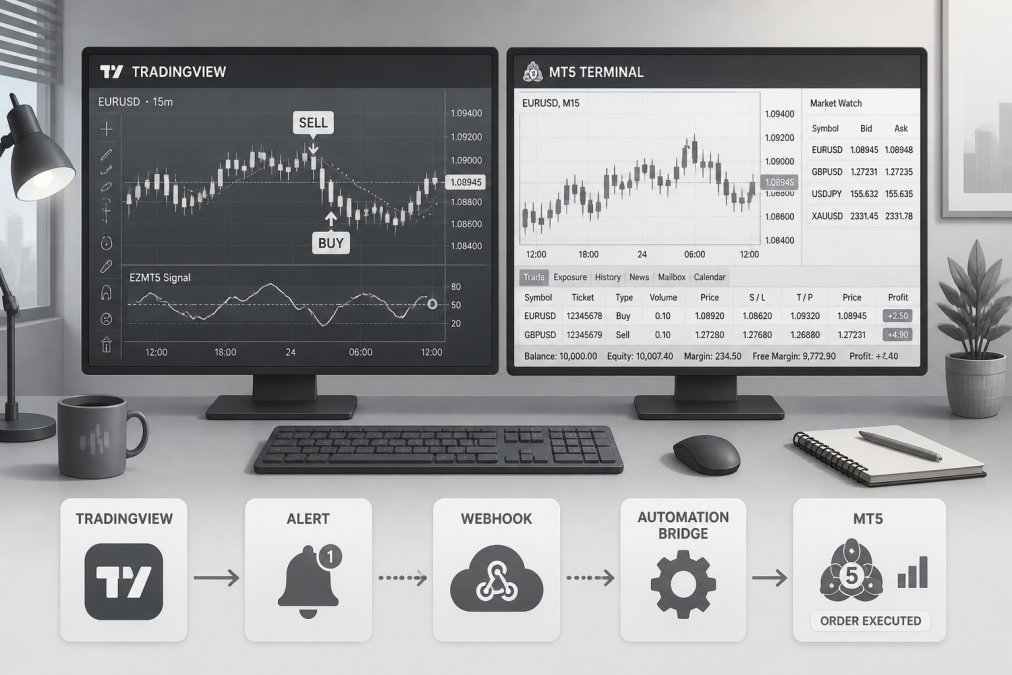
The best automated setups use server-side stops for risk management and client-side logic for profit-taking. This combines the reliability of server stops with the flexibility of custom exit strategies.
Best TradingView Indicators for MT5 Trading
Not all TradingView indicators translate well to MT5. Some are computationally expensive and slow MT5 down. Others rely on TradingView-specific functions that don’t exist in MQL5. The indicators that work best are based on simple, well-understood logic: moving averages, momentum oscillators, and volatility measures.
Moving averages and crossover strategies:
Moving average crossovers are the foundation of countless profitable systems. A simple setup: buy when the 10-period SMA crosses above the 50-period SMA, sell when it crosses below. This strategy is easy to code in both Pine Script and MQL5, and it works across timeframes and asset classes. In backtests, a properly tuned moving average crossover on daily charts generates 30-50 signals per year with win rates around 45-55%, depending on the pair and market conditions.
RSI, MACD, and Bollinger Bands for MT5:
The Relative Strength Index (RSI) measures momentum on a 0-100 scale. Readings above 70 suggest overbought conditions, below 30 suggest oversold. MACD (Moving Average Convergence Divergence) combines two exponential moving averages with a signal line. Bollinger Bands add volatility context, expanding when volatility rises and contracting when it falls. All three indicators are built into MT5 natively, so you don’t need to convert them, you just call them via iRSI(), iMACD(), and iBands(). This makes them ideal for automated systems.
Multi-timeframe analysis and signal confirmation:
Professional traders don’t trade on a single timeframe. They use multi-timeframe analysis: check the daily trend, trade entries on the 4-hour chart, manage exits on the 1-hour. This reduces false signals because you’re only taking trades that align with the larger trend. In MT5, multi-timeframe analysis is straightforward. You call indicator functions with different timeframe parameters. Compare signals across timeframes and only enter when they align. The technical analysis best practices from CMT Association emphasize this approach. Traders who confirm signals across multiple timeframes have significantly lower drawdowns than those who trade a single timeframe.
Step-by-Step Integration: Getting Indicators Into MT5
Moving tradingview indicators for MT5 users into live trading involves several discrete steps. Each must be executed carefully to avoid costly mistakes.
Downloading and installing custom indicators:
Custom indicators come as .mq5 source files or compiled .ex5 files. If you have the source, you can review it for security issues before compiling. To install, place the file in MT5’s indicators folder: C:Users[YourUsername]AppDataRoamingMetaQuotesTerminal[TerminalID]MQL5Indicators. Restart MT5, and the indicator appears in the Navigator panel. Before installing any custom indicator, verify its source. Only use indicators from trusted sources: official repositories, well-known trading platforms, or developers with established track records.
Backtesting and optimization before live trading:
Backtesting is non-negotiable. Your indicator might look perfect on a live chart, but that doesn’t mean it’s profitable. MT5’s Strategy Tester lets you backtest any EA or indicator-based strategy. Set your date range, initial balance, and risk parameters, then run the test. The results show your win rate, profit factor, maximum drawdown, and other metrics. A healthy strategy has a win rate above 40%, a profit factor above 1.5, and a maximum drawdown below 30% of your initial capital.
Optimization tests hundreds or thousands of parameter combinations to find the best-performing settings. The trap is curve-fitting, optimizing so aggressively that your strategy works perfectly on historical data but fails on new data. To avoid this, reserve a portion of your data for out-of-sample testing. Optimize on 2020-2024 data, then test the optimized strategy on 2024-2026 data without further optimization.
Troubleshooting common API errors and execution delays:
Integration failures usually fall into four categories: authentication errors, order rejection, latency, and data synchronization issues. Authentication errors mean your API key is invalid, expired, or doesn’t have the required permissions. Order rejection happens when your order violates broker rules. Latency issues manifest as missed entries or slipped exits. Data synchronization errors occur when MT5 and your bridge disagree on open positions or account balance. Always reconcile your MT5 positions with your broker’s positions before resuming automated trading.
Never ignore error messages. Each error signals something is wrong. Investigate and fix the root cause before resuming live trading. A 10-minute investigation now prevents a 10,000-dollar mistake later.
Common Mistakes to Avoid When Using TradingView Indicators on MT5
The gap between TradingView and MT5 creates specific pitfalls that catch even experienced traders. First: trusting backtests without live validation. Backtests use clean, historical data with no slippage, no spread widening, and no broker requotes. Live trading is messier. Always paper trade for at least two weeks before going live with any new system.
Second: ignoring latency. A strategy that works with instant execution falls apart when there’s a 3-second delay. If your bridge is slow, your entries shift by 10-20 pips on average. Over 100 trades, that’s 1,000-2,000 pips of accumulated slippage.
Third: over-optimizing indicators. A 20-period moving average might outperform a 19-period on historical data, but that doesn’t mean it’s the "right" period. Use round numbers (10, 20, 50, 100) that have been tested across decades of data.
Fourth: setting stops too tight. A stop loss at 10 pips sounds conservative until normal market noise triggers it 30% of the time. Use stops that reflect the actual volatility of the pair.
Fifth: not monitoring your bridge in production. Bridges fail silently sometimes. Check your bridge logs daily. If you see errors, investigate immediately.
Conclusion
Getting tradingview indicators for MT5 users working together is achievable, but it requires technical knowledge, security awareness, and disciplined testing. The traders who succeed aren’t the ones who find the perfect indicator, they’re the ones who understand the platform differences, manage latency and risk carefully, and validate their systems thoroughly before going live.
EZMT5 eliminates most of this complexity by providing fully built and optimized MT5 trading systems that are ready to deploy immediately. Rather than spending weeks converting Pine Script, managing bridges, and backtesting, you get instant access to 11 professional systems plus all future releases, each tested across multiple market conditions and optimized for real-world execution. With two license keys per system that you can change anytime and no long-term contract, you have the flexibility to scale your trading strategy without the technical overhead. Start trading like a pro right after download with real-time trade opportunities and precision-executed automated trading.
Frequently Asked Questions
Can you actually use TradingView indicators directly on MT5, or do you need a bridge?
TradingView and MT5 are separate platforms with different code languages. You cannot use TradingView indicators directly on MT5 without conversion or a bridge tool. A bridge tool connects the two platforms and automates signal transmission via webhooks and API requests. Alternatively, you can manually convert Pine Script indicators to MQL5, though this requires coding knowledge. The method you choose depends on your technical skill level and how quickly you need to deploy indicators.
What are the main security risks when using a TradingView to MT5 bridge?
Third-party bridge services handle your API credentials and trade execution, which introduces security exposure. Your MT5 account credentials may be stored on external servers, and webhook connections transmit order data over the internet. Use only reputable, established bridge providers with documented security practices. Never share your master MT5 password, and consider using a dedicated trading account with limited funds for automated systems. Monitor your account activity regularly and enable two-factor authentication on your broker account whenever possible.
How do I convert Pine Script indicators to MQL5 for use on MT5?
Pine Script and MQL5 have different syntax and functions. Manual conversion requires understanding both languages: Pine Script uses simpler syntax for TradingView, while MQL5 requires more detailed object-oriented coding. Key differences include how arrays, loops, and indicator calculations work. You can hire a developer, use automated converter tools (though these often require manual refinement), or learn MQL5 yourself. For traders without coding experience, using a bridge tool or pre-built MQL5 indicators is faster than learning conversion. Test all converted indicators thoroughly in backtesting before deploying them live.
What's the real cost difference between using a bridge subscription versus buying individual MT5 systems outright?
A bridge subscription or automated trading platform typically charges a monthly fee and gives you access to multiple systems and future releases. Buying individual systems from MQL5 or other marketplaces means a one-time purchase per system, but you don't receive updates or new systems automatically. Over a year, subscription costs can exceed single purchases if you only need a few systems. However, subscriptions often include ongoing support, system updates, and access to new indicators without additional payments. Calculate your actual trading volume and how many systems you realistically use to determine which model saves money for your situation.
This article was written using GrandRanker