

Table of Contents
- What Is MetaTrader 5 and Why MT5 Trading Systems Matter
- Getting Started: Platform Setup, Demo Account, and Interface Basics
- How to Install Expert Advisors in MT5: Step-by-Step
- MT5 Algorithmic Trading Settings You Need to Configure
- MT5 Backtesting Tutorial: How to Test Your Trading Systems
- How to Optimize Expert Advisors in MT5 for Better Performance
- How to Use MT5 Trading Systems Across Multiple Asset Classes
- MT5 Security, Account Safety, and Troubleshooting Common Errors
- Conclusion
Last Updated: May 18, 2026
Knowing how to use mt5 trading systems separates traders who execute with precision from those who react too slowly and miss entries. This guide from EZMT5 breaks down everything from platform setup to backtesting and multi-asset trading, so you can move from installation to live execution without the usual trial-and-error. Most tutorials stop at "place a trade." This one goes further, covering algorithmic configuration, EA optimization, and the security gaps that most guides ignore entirely. The five core areas below cover what professional traders actually configure before running a single system.
What Is MetaTrader 5 and Why MT5 Trading Systems Matter
MetaTrader 5 is a multi-asset trading platform developed by MetaQuotes that supports forex, CFDs, stocks, commodities, indices, futures, and cryptocurrencies within a single interface. It extends the capabilities of its predecessor by offering more order types, a built-in economic calendar, and a native strategy tester for algorithmic trading.
Here’s what most introductions miss: MT5 is not just a charting tool. It is a full execution environment designed for automated trading via Expert Advisors (EAs), which are trading robots that operate on predefined logic without manual input. That distinction matters enormously. Traders who treat MT5 as a manual platform leave most of its capability unused.
The platform supports hedging and netting account modes, depth of market (DOM) data, and multi-threaded strategy testing. For serious traders, these are not optional features. They are the infrastructure that makes precision execution possible.
MT5 vs Other Trading Platforms: What Sets It Apart
The common advice is to pick whichever platform your broker offers. That advice is outdated. MT5’s native algorithmic trading environment, multi-asset coverage, and built-in backtesting engine make it the strongest choice for traders who want to automate and scale.
| Feature | MT5 | MT4 | TradingView |
|---|---|---|---|
| Asset Classes | Multi-asset | Primarily Forex | Multi-asset |
| Algorithmic Trading | Native EAs (MQL5) | Native EAs (MQL4) | Pine Script only |
| Strategy Tester | Multi-threaded | Single-threaded | Limited |
| Order Types | 6 types | 4 types | Broker-dependent |
| Depth of Market | Yes | No | Limited |
According to MetaQuotes official MT5 platform documentation, MT5 supports six pending order types versus MT4’s four, giving traders more granular entry control in volatile markets.
Getting Started: Platform Setup, Demo Account, and Interface Basics
The fastest way to learn how to use mt5 trading systems is to start on a demo account before touching live capital. Setup takes under ten minutes, and the demo environment mirrors live market conditions exactly, same spreads, same execution latency, same order types. Most guides stop at "download and install." This section covers what to configure immediately after first launch, because the default MT5 setup is not optimized for serious trading.
How to Open a Demo Account in MT5
Opening a demo account in MT5 takes four steps and requires no payment information.
- Download MT5 from your broker’s website or directly from MetaQuotes at metaquotes.net, always download from a verified source to avoid tampered installers
- Launch the platform and select File > Open an Account from the top menu
- Choose a broker from the list or enter a server address manually (your broker provides this in their onboarding email)
- Fill in the registration form, select Demo Account, and set your starting balance
The platform generates login credentials automatically and displays them on screen. Save these immediately, MT5 does not re-send them. Most brokers provision demo accounts with virtual capital between $10,000 and $100,000.
When selecting a demo account balance, match it to your intended live deposit. Practicing with $100,000 virtual capital when you plan to trade $5,000 live creates unrealistic risk tolerance habits and position sizing instincts that hurt real performance. If you plan to start with $2,000 live, set the demo to $2,000.
Key Elements of the MT5 Interface: Market Watch, Navigator, and Charts
The MT5 interface has four primary panels that traders interact with constantly. Understanding what each panel controls, and how they connect, is the difference between navigating confidently and clicking randomly.
Market Watch (Ctrl+M to toggle) displays live bid and ask prices for every instrument your broker offers. By default, it shows only a subset. To add instruments: right-click inside Market Watch > Show All, or right-click > Symbols to browse by asset class and add specific instruments. Right-clicking any symbol also gives you direct access to contract specifications, check this before trading any new instrument to confirm lot size, minimum volume, tick value, and margin requirements.
Navigator (Ctrl+N to toggle) is the left-side panel organized into five folders: Accounts, Indicators, Expert Advisors, Scripts, and Signals. This is your control center for algorithmic trading. Double-clicking an EA in Navigator opens its properties dialog. Dragging an EA onto a chart attaches it to that chart’s symbol and timeframe. If Navigator is not visible, go to View > Navigator.
Charts occupy the central workspace. MT5 supports nine timeframes from M1 (one minute) to MN (monthly), plus tick charts. To open a new chart: right-click a symbol in Market Watch > Chart Window. You can tile multiple charts using Window > Tile Horizontally or Vertically. For multi-asset trading, running four to six charts simultaneously is common. Each chart maintains its own attached indicators and EAs independently.
Terminal (Ctrl+T to toggle) sits at the bottom and contains six tabs you should monitor actively:
- Trade: Open positions and pending orders with real-time P&L
- Exposure: Aggregate risk by currency or asset
- Account History: Closed trade log, exportable as HTML or CSV
- News: Broker-pushed market news feed
- Alerts: Custom price and time alerts you configure
- Mailbox: Messages from your broker
First-Launch Configuration Steps Most Guides Skip
Before placing any trade or attaching any EA, complete these configuration steps. They take five minutes and prevent the most common setup errors.
Step 1, Set chart defaults. Go to Tools > Options > Charts. Set "Max bars in chart" to at least 100,000. The default is lower and truncates historical data, which breaks backtesting and causes indicators to calculate incorrectly on longer timeframes.
Step 2, Configure execution mode. Go to Tools > Options > Trade. Set the default lot size to match your intended starting position size. Set "By default, use" to your preferred order type. Enable "Confirm trade operations" while learning, this adds a confirmation dialog before every order executes, preventing accidental entries.
Step 3, Enable algorithmic trading globally. Go to Tools > Options > Expert Advisors. Check "Allow Automated Trading" and "Allow DLL Imports" (required by many commercial EAs). If your EA uses external data sources, add the permitted URLs in the "Allow WebRequest for listed URL" field.
Step 4, Sync your time zone. MT5 displays server time, not local time. Check the clock in the bottom-right corner of the platform and note the offset from your local time. This matters when scheduling EA activity windows and interpreting candle open/close times on daily charts.
Step 5, Save a default template. Once your chart layout, color scheme, and indicator defaults are set, right-click any chart > Template > Save Template > name it "default." MT5 applies this template to every new chart you open, saving repetitive setup time.
The five configuration steps above take less time than a single bad trade costs. MT5’s defaults are designed for broad compatibility, not optimized performance. Adjusting max bars, confirming execution mode, and enabling algorithmic trading globally before your first session eliminates the most common beginner errors before they happen.
How to Install Expert Advisors in MT5: Step-by-Step
Installing an Expert Advisor is a three-minute process once you have the EA file. The most common mistake is placing the file in the wrong directory, which causes MT5 to ignore it entirely.
- Download the EA file (
.ex5or.mq5format) from your source - In MT5, click File > Open Data Folder
- Navigate to MQL5 > Experts
- Paste the EA file into the Experts folder
- Return to MT5 and press F5 or right-click Navigator > Refresh
- The EA appears in Navigator under Expert Advisors
- Drag the EA onto the chart where you want it to run
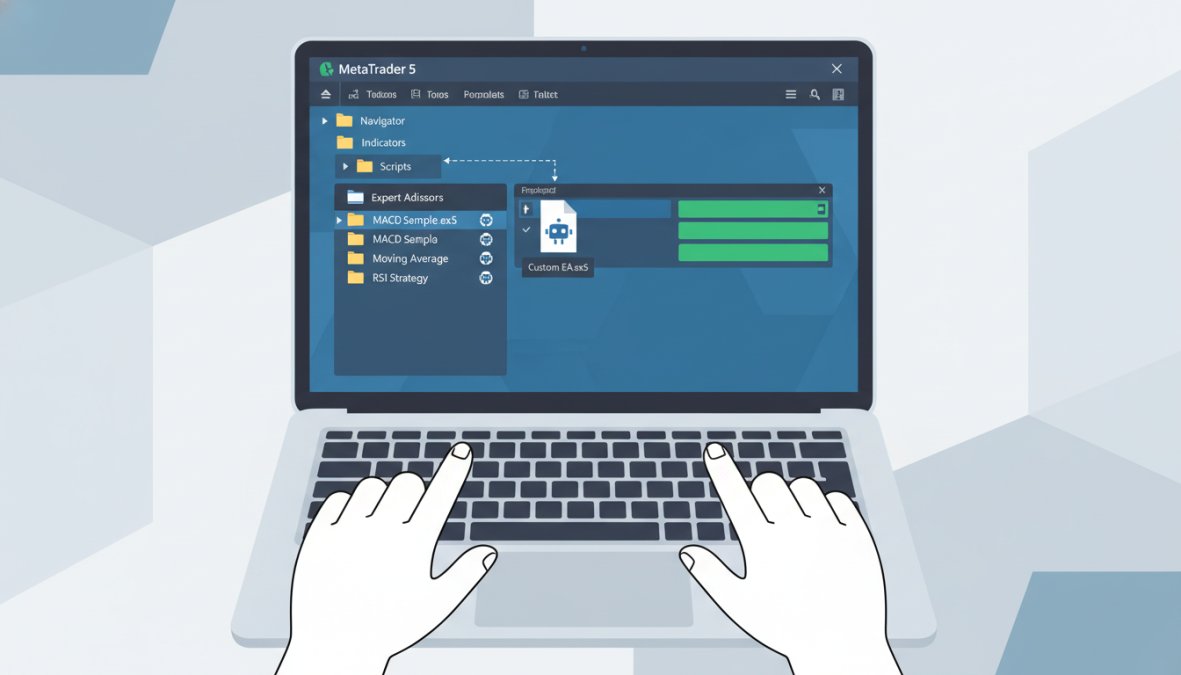
If the EA does not appear after refreshing, the file format may be incompatible. MT5 requires .ex5 files compiled for MT5. MT4’s .ex4 files will not run on MT5.
Enabling Algorithmic Trading and Checking EA Permissions
This is the part most guides skip entirely. Installing an EA is not enough. MT5 requires explicit permission to run automated systems.
- Click the AutoTrading button in the top toolbar (it turns green when active)
- Open EA properties by double-clicking it in Navigator, then check "Allow Automated Trading"
- In Tools > Options > Expert Advisors, enable "Allow Automated Trading" globally
- If your EA uses web requests (for news feeds or external data), add the allowed URLs in the same settings panel
A common mistake is enabling AutoTrading globally but forgetting to check permissions at the individual EA level. The EA runs but places no trades, which looks identical to a broken installation.
MT5 Algorithmic Trading Settings You Need to Configure
Getting MT5 algorithmic trading settings right before going live prevents the most expensive errors. The default configuration is not optimized for live trading.
Understanding Order Types, Lot Size, and Execution Settings
MT5 offers six order types that cover every execution scenario a trading system requires.
Market Order executes immediately at the current bid or ask price. Slippage is possible during high volatility. Use for systems that prioritize speed over exact entry price.
Pending Orders execute when price reaches a specified level:
- Buy Limit / Sell Limit: Enter at a better price than current market
- Buy Stop / Sell Stop: Enter when price breaks through a level
- Buy Stop Limit / Sell Stop Limit: A two-stage order combining stop and limit logic
Lot size determines trade volume and directly controls risk per trade. A standard lot equals 100,000 units of the base currency in forex. Mini lots (0.1) and micro lots (0.01) scale position size for smaller accounts.
Execution settings to configure in your EA properties:
- Maximum slippage tolerance (in points)
- Re-quote handling behavior
- Trade volume limits per instrument
Never run an EA on a live account without setting a maximum lot size cap in the EA parameters. A misconfigured multiplier can send oversized orders that exceed account margin within seconds.
MT5 Backtesting Tutorial: How to Test Your Trading Systems
Backtesting is where most traders either validate a system or discover it was never viable. MT5’s Strategy Tester is the most capable built-in backtesting engine available on any retail trading platform.
To run a backtest in MT5:
- Press Ctrl+R or go to View > Strategy Tester
- Select your EA from the Expert Advisor dropdown
- Choose the symbol and timeframe to test
- Set the date range (minimum 12 months for statistically meaningful results)
- Select modeling quality: "Every Tick Based on Real Ticks" for highest accuracy
- Configure initial deposit, use, and optimization parameters
- Click Start
The Strategy Tester generates a full report including net profit, drawdown, profit factor, expected payoff, and trade count. Focus on maximum drawdown and profit factor before net profit. A system with high net profit but 60% drawdown is not viable for live trading.

A practical backtesting checklist before going live:
- Test covers at least 12 months of historical data
- Modeling quality set to "Every Tick" or "Every Tick Based on Real Ticks"
- Maximum drawdown stays below 20% of account equity
- Profit factor exceeds 1.5
- Results tested across at least two different market conditions (trending and ranging)
- Spread set to match your broker’s actual spread, not the default
Backtesting with default spread settings produces results that will never replicate in live trading. Always input your broker’s actual spread before drawing conclusions from any backtest report.
How to Optimize Expert Advisors in MT5 for Better Performance
Optimization is not about finding the best-performing parameters in historical data. That approach produces curve-fitted systems that fail immediately on live markets. The goal is finding parameter ranges that perform consistently across varied conditions.
MT5’s built-in optimizer runs through parameter combinations automatically. In the Strategy Tester, enable "Optimization" and define parameter ranges with step values. The platform tests every combination and ranks results.
How to optimize expert advisors in MT5 without overfitting:
- Use genetic algorithm optimization instead of exhaustive search for large parameter sets
- Validate the top results on out-of-sample data (a date range excluded from optimization)
- Prioritize stability of results across parameter variations over peak performance at a single value
- Run the optimized parameters on a demo account for 30 days before live deployment
The thing nobody tells you about EA optimization is that a parameter that performs well in isolation often degrades when combined with live spread, commission, and slippage. Always factor in trading costs during the optimization phase, not after.
As documented in MetaQuotes Strategy Tester guide for MT5, the multi-threaded optimizer in MT5 can test thousands of parameter combinations simultaneously using available CPU cores, cutting optimization time significantly compared to single-threaded approaches.
How to Use MT5 Trading Systems Across Multiple Asset Classes
MT5’s multi-asset capability is its most underused feature. Most traders open an account, trade forex, and never touch the other asset classes available on the same platform. This section fills the gap that every competitor ignores: not just listing what MT5 supports, but showing exactly how to configure and analyze each asset class differently inside the platform.
The core principle is this: every asset class in MT5 uses the same interface, but the contract specifications, session hours, margin structure, and EA configuration requirements differ substantially. Applying forex logic to commodities or crypto without adjusting for these differences is one of the most common and costly mistakes multi-asset traders make.
How to Analyze Stocks and Stock CFDs in MT5
Stock CFDs in MT5 behave differently from forex in three critical ways: they have defined market hours, they carry overnight financing charges, and their price is quoted in the currency of the underlying exchange rather than in pip terms.
Step 1, Find and add the stock symbol. In Market Watch, right-click > Symbols. Navigate to the "Stocks" or "CFDs" category. Search by ticker (e.g., AAPL, TSLA, VOD). Double-click to add it to Market Watch. If a symbol does not appear, your broker may not offer it, check their instrument list on their website.
Step 2, Check contract specifications before trading. Right-click the symbol in Market Watch > Specification. Note:
- Contract size: Often 1 share per lot for stock CFDs, but varies by broker
- Minimum volume: Some brokers require a minimum of 1 lot (1 share); others allow fractional
- Swap rates: The overnight financing charge, listed as swap long and swap short in points or as a percentage annualized
- Trading hours: Stock CFDs follow the underlying exchange hours. US stocks trade approximately 09:30-16:00 Eastern Time. EAs must be configured to avoid placing orders outside these windows or they will generate "Market is closed" errors.
Step 3, Adjust your chart analysis for stock behavior. Stocks trend more persistently than forex pairs during earnings seasons and macro events. On the MT5 chart, add the built-in Economic Calendar (Insert > Objects > or via the calendar icon) to mark scheduled earnings dates. Unlike forex, stocks do not have a continuous 24-hour session, so daily candles close with hard gaps, factor this into stop-loss placement.
Step 4, Configure EA lot sizing for stocks. If you are running an EA on a stock CFD, the lot size calculation must account for the share price. A 0.1 lot on EURUSD and a 0.1 lot on a $200 stock CFD represent very different notional values. Hard-code a maximum lot size in EA parameters specific to each stock instrument, separate from your forex EA settings.
How to Analyze Commodities (Gold, Oil) in MT5
Gold (XAUUSD) and crude oil (USOIL or XTIUSD depending on broker) are the most actively traded commodities on MT5. They require specific configuration because their pip values and volatility profiles differ significantly from currency pairs.
Gold (XAUUSD) specifics:
- Quoted in USD per troy ounce
- A standard lot is typically 100 troy ounces
- A 1-point move on a standard lot equals $100 in most broker configurations, roughly 10x the pip value of a standard EURUSD lot
- Spreads widen sharply during the New York-London session overlap and around US CPI and NFP releases
- To check the exact tick value for your broker: Market Watch > right-click XAUUSD > Specification > look for "Tick value"
Practical MT5 workflow for gold analysis:
- Open an XAUUSD chart on the H1 or H4 timeframe
- Apply the built-in ATR indicator (Average True Range, period 14) to gauge current volatility, gold’s ATR on H4 is typically several times larger than major forex pairs
- Use ATR-based stop distances rather than fixed pip stops. A fixed 20-pip stop that works on EURUSD will be triggered by normal noise on XAUUSD
- In your EA parameters, set maximum lot size to a fraction of what you use on forex to account for the higher per-point value
Never copy a forex EA’s default lot size directly onto a gold or oil instrument. The notional risk per trade can be 5-10x higher than the same lot size on a major currency pair. Always recalculate position sizing using the instrument’s tick value from the contract specification.
How to Trade and Analyze Cryptocurrencies in MT5
Cryptocurrencies on MT5 trade 24 hours a day, 7 days a week with no session gaps. This creates a fundamentally different operating environment for EAs compared to forex or stocks.
Key differences to configure for crypto:
-
No session filter needed, but volatility clustering matters. Crypto volume concentrates during US and European business hours. EAs using session-based filters designed for forex will either trade continuously (potentially during low-liquidity periods) or not at all if the filter logic references standard forex session times. Review and adjust any session logic in EA parameters.
-
Spreads are wider and more variable. Crypto spreads on MT5 CFDs are typically wider than forex majors and can spike dramatically during high-volatility events. Set your EA’s maximum allowed spread parameter conservatively. A common approach is to set the maximum spread to 2-3x the typical spread shown in Market Watch during normal conditions.
-
Margin requirements are higher. Most brokers require higher margin for crypto CFDs than for forex. Check the specification for each crypto pair before sizing positions. Running an EA that works within margin on forex may trigger margin calls on crypto if lot sizes are not adjusted.
Step-by-step: Setting up a Bitcoin (BTCUSD) chart for analysis in MT5:
- Add BTCUSD to Market Watch (right-click > Symbols > Crypto)
- Open a chart and set timeframe to H4 for swing analysis or H1 for intraday
- Apply Bollinger Bands (period 20, deviation 2), crypto price action responds well to volatility-based levels given its mean-reverting behavior during consolidation phases
- Add Volume indicator from the Navigator to identify accumulation and distribution phases
- Check the spread in real time by hovering over the bid/ask in Market Watch, if the spread is more than 1% of the current price, execution costs are significant and should be factored into any strategy’s profit target
How to Analyze Futures and Indices in MT5
Indices such as the S&P 500 (US500), DAX (GER40), and FTSE 100 (UK100) are among the most liquid instruments on MT5 during their respective regional sessions. Futures contracts, where offered by brokers, have expiry dates that require additional management.
Index CFD workflow in MT5:
- Add the index symbol to Market Watch and open a chart
- Check trading hours in the contract specification, US indices typically trade from 09:30-16:00 Eastern with a pre-market session some brokers offer; European indices follow their respective exchange hours
- Indices are highly sensitive to macroeconomic data. Use MT5’s built-in Economic Calendar (accessible via the calendar icon in the toolbar) to mark high-impact events, NFP, FOMC decisions, and CPI releases cause sharp, fast moves that can trigger stops before a trend develops
- For EAs on indices, configure a news filter or a time-based trading window that excludes the 15 minutes before and after scheduled high-impact releases
Futures-specific consideration: If your broker offers actual futures contracts (not CFDs), each contract has an expiry date visible in the symbol name (e.g., ES-202509 for September expiry). MT5 does not automatically roll positions. You must manually close the expiring contract and open the next one, or configure your EA to handle rollover logic explicitly.
Multi-Asset EA Deployment: The Configuration Checklist
Before deploying any EA across multiple asset classes, run through this checklist for each new instrument:
- Confirmed contract size and tick value in Market Watch > Specification
- Recalculated maximum lot size based on tick value relative to account equity
- Verified trading hours and configured EA session filters accordingly
- Set maximum spread parameter to match typical spread for that instrument
- Checked swap rates and confirmed strategy accounts for overnight financing costs
- Ran a backtest on the specific instrument (not just on forex) before live deployment
- Confirmed broker authorization to trade that asset class (regulatory requirements differ by instrument)
According to CFTC overview of retail forex and CFD trading structures, retail traders accessing multi-asset CFDs should verify that their broker holds appropriate regulatory authorization for each asset class offered, as oversight requirements differ by instrument type.
The single most common multi-asset mistake is treating MT5 as a uniform environment across all instruments. The platform is consistent in its interface, but every asset class has distinct contract mechanics. Spending ten minutes on the contract specification for each new instrument before deploying an EA saves hours of diagnosing unexpected losses caused by miscalibrated lot sizes or ignored session gaps.
MT5 Security, Account Safety, and Troubleshooting Common Errors
Most MT5 guides end before covering security. That is a serious gap. Account safety failures cost traders more than bad strategies do.
Practical security steps for MT5 users:
- Use a unique, strong password for your MT5 account and change it after any broker communication
- Never share your investor password with anyone claiming to be technical support
- Enable two-factor authentication on your broker’s web portal if available
- Run MT5 on a dedicated device or virtual private server (VPS) rather than a shared machine
- Regularly back up your EA files and template configurations to an external location
For traders running EAs continuously, a VPS is not optional. Running MT5 on a local machine means any internet outage, power failure, or OS update interrupts execution. Many brokers offer integrated VPS hosting directly through the MT5 client.
Common MT5 Errors and How to Fix Them
These are the errors traders encounter most frequently when learning how to use mt5 trading systems:
"Trade context is busy" (Error 146): MT5 is processing another trade request. The EA is sending orders too quickly. Add a brief delay between order attempts in the EA code.
"Off quotes" (Error 136): The broker cannot provide a price for the requested instrument at that moment. This typically occurs during news events or outside market hours. Configure the EA to avoid trading during scheduled high-impact news.
"Not enough money" (Error 134): Insufficient margin for the requested lot size. Reduce lot size or check that the account has adequate free margin before the EA triggers.
"Invalid stops" (Error 130): Stop-loss or take-profit levels are too close to the current price, violating the broker’s minimum stop distance. Increase the stop distance in EA parameters.
EA shows no trades after installation: Check that AutoTrading is enabled globally AND at the EA level. Verify the EA is attached to the correct chart timeframe specified in its documentation.
According to MQL5 error code reference documentation, most execution errors in MT5 trace back to three root causes: insufficient margin, invalid stop levels, or connection interruptions during order submission. Addressing these three covers the majority of live trading failures.
EZMT5 addresses several of these pain points directly. With instant access to 11 fully built and optimized MT5 Trading Systems, each system comes pre-configured with validated stop-loss and take-profit logic, tested lot sizing, and execution parameters that account for real-world spread and slippage. Two license keys per system allow deployment across different brokers or accounts without additional cost, and the no-contract monthly subscription means you can adjust as your trading setup evolves.
Most traders spend months building and testing MT5 systems that never quite perform the way backtests suggested. EZMT5 solves that by providing 11 professional, fully optimized MT5 Trading Systems with real-time trade opportunities, precision execution logic, and TradingView indicators included. Two license keys per system, no contracts, and all future systems included means you start trading like a professional immediately after download. Get started with EZMT5 and begin executing with the same tools serious traders use from day one.
Frequently Asked Questions
Are MT5 trading systems the same as Expert Advisors?
Yes, MT5 trading systems are essentially Expert Advisors (EAs), automated programs that run directly on the MetaTrader 5 platform. They execute trades based on pre-programmed rules, managing entries, exits, stop-loss, and take-profit levels without manual input. When you use a service like EZMT5, you receive fully built and optimized EAs that are ready to deploy immediately after download, removing the need to code or configure a system from scratch.
How do I enable algorithmic trading in MT5?
To enable algorithmic trading in MT5, click the 'AutoTrading' button in the top toolbar, it should turn green to confirm it is active. You also need to ensure the individual EA has 'Allow Automated Trading' checked in its settings. Additionally, go to Tools > Options > Expert Advisors and confirm that 'Allow Automated Trading' is enabled globally. Without both settings active, your MT5 trading systems will not execute trades automatically.
How do I backtest a trading system in MT5?
To run an MT5 backtesting tutorial, open the Strategy Tester via View > Strategy Tester or press Ctrl+R. Select your Expert Advisor from the dropdown, choose the financial instrument and timeframe, set your date range, and pick a modelling quality, 'Every Tick' is the most accurate. Click Start to run the test. Once complete, review the results tab for metrics like profit factor, drawdown, and total trades to evaluate your trading system's historical performance.
Is it safe to use third-party trading systems on MT5?
Using third-party MT5 trading systems carries risk if the source is unverified. Always download EAs from reputable providers, check that no suspicious DLL permissions are requested, and test on a demo account before going live. Reputable services like EZMT5 provide professionally built systems with transparent licensing, including two changeable license keys per system, reducing the risk associated with unknown third-party code. Never share your broker login credentials with any EA provider.
Can I use MT5 trading systems on assets other than Forex?
Absolutely. MetaTrader 5 is a true multi-asset platform, meaning MT5 trading systems can be applied to stocks, commodities, indices, cryptocurrencies, and futures, not just Forex. You simply attach your Expert Advisor to the relevant chart for that instrument. However, confirm your broker supports the specific asset class and that the EA's logic is suited to that market's volatility and trading hours before running it live on non-Forex instruments.
How do I optimize Expert Advisors in MT5 to improve results?
To optimize Expert Advisors in MT5, open the Strategy Tester, select your EA, and switch to the 'Optimization' tab. Define the input parameters you want to test, such as stop-loss distance, lot size, or indicator periods, and set value ranges for each. Run the optimization pass and review the results table sorted by your preferred metric, such as profit factor or net profit. Avoid over-optimizing to historical data, as this leads to poor live performance.
This article was written using GrandRanker