
Table of Contents
- What Are TradingView Alerts for Crypto?
- How to Set Up TradingView Alerts: Step-by-Step
- Best TradingView Alert Settings for Crypto Trading
- TradingView Alert Webhook Integration for Crypto Automation
- Understanding TradingView Alert Limits by Subscription Plan
- Advanced Alert Management: Watchlists and Multi-Symbol Tracking
- TradingView Alerts for Crypto Explained: Common Mistakes to Avoid
- Conclusion
TradingView Alerts for Crypto Explained: Complete Setup Guide
Last Updated: June 28, 2026
What Are TradingView Alerts for Crypto?
TradingView alerts for crypto are real-time notifications that trigger when price levels, technical indicators, or market conditions meet your predefined criteria. When you set an alert, TradingView continuously monitors your specified asset and notifies you the moment conditions are met, whether that’s Bitcoin hitting $45,000 or a bearish engulfing pattern forming on the daily chart.
Rather than manually checking charts constantly, you receive instant notifications via email, SMS, browser push, or webhook integration. According to TradingView’s platform documentation, the alert system supports over 100 technical indicators, making it possible to create alerts based on complex chart patterns, volume spikes, or custom Pine Script conditions. For serious traders, this automation becomes the difference between catching an entry opportunity and missing it entirely.
Set alerts on multiple timeframes for the same asset. A 4-hour breakout alert combined with a daily support level alert creates a two-layer confirmation system that reduces false signals significantly.
How TradingView Alerts Work for Cryptocurrency Markets
The mechanics involve three components: the trigger condition, the notification method, and execution timing. When you create an alert, TradingView continuously monitors the specified cryptocurrency against your chosen condition. The moment that condition becomes true, TradingView initiates your notification through your configured channels.
Real-time data flow is critical. TradingView processes market data with minimal latency, typically alerting you within seconds of your condition being met. For cryptocurrency markets operating 24/7, this speed advantage is essential. The platform handles multiple alert types simultaneously without performance degradation, allowing comprehensive market surveillance across dozens of trading pairs.
Real-Time Notifications Across Devices
Synchronization across your devices ensures you never miss an opportunity. When an alert triggers, notifications reach your phone, desktop, email, and webhook endpoint simultaneously. TradingView’s mobile app maintains the same alert functionality as desktop, with push notifications arriving even when the app is closed. Browser-based notifications work independently, creating multiple notification layers that prevent alerts from being missed.
How to Set Up TradingView Alerts: Step-by-Step
Creating Your First Price Alert
Step 1: Navigate to Your Chart
Open TradingView and search for your cryptocurrency. Load the chart and ensure you’re viewing the relevant timeframe for your trading strategy.
Step 2: Click the Alert Button
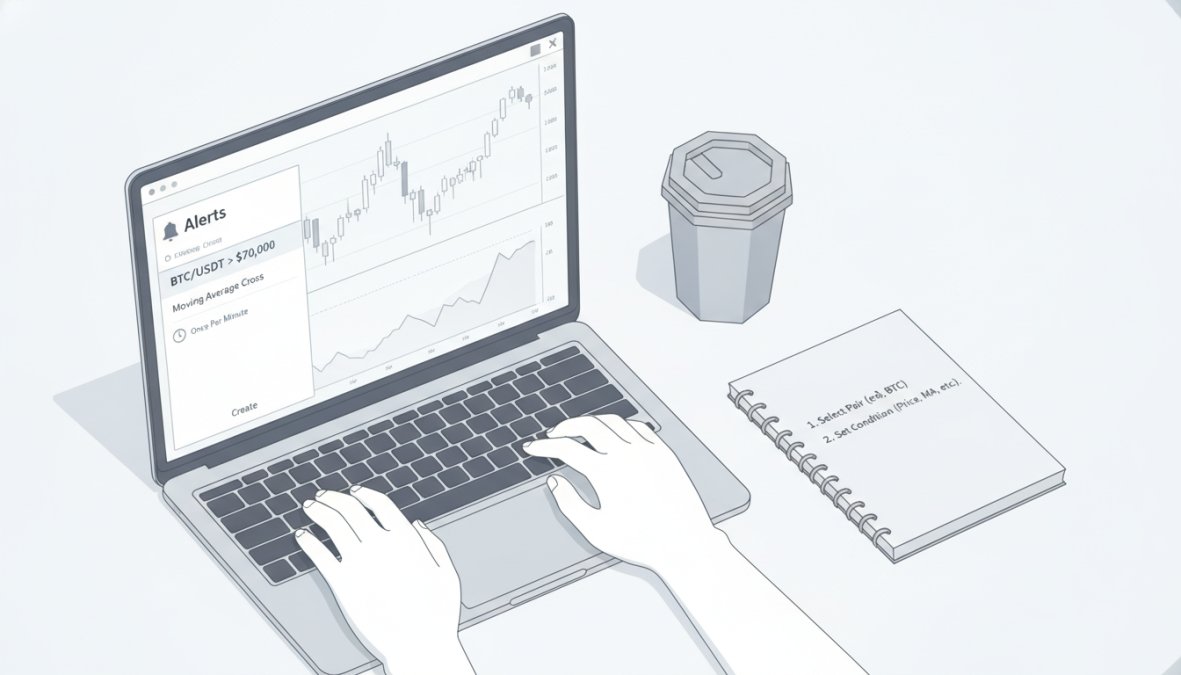
Locate the bell icon or "Create Alert" button on the chart toolbar. This opens the alert creation panel where you’ll define your conditions.
Step 3: Select Your Trigger Condition
Choose from price alerts (above/below a specific level), indicator-based alerts (RSI above 70, moving average crossover, etc.), or custom Pine Script conditions. For your first alert, start with a simple price alert and enter your desired price level.
Step 4: Configure Notification Methods
Select how you want to receive notifications:
- Browser push notifications (instant, requires permission)
- Email notifications (reliable, includes chart snapshot)
- SMS alerts (fastest for mobile traders, Pro/Premium only)
- Webhook integration (for automated trading bot execution)
Step 5: Set Alert Frequency
Choose whether the alert fires only once when conditions are met, or repeatedly as long as conditions remain true. For price alerts, "once" is typically preferred. For indicator-based alerts, "once per bar" provides useful repetition without overwhelming notifications.
Step 6: Add Notes and Save
Include a brief note describing your alert’s purpose (e.g., "BTC support test at 42500 – buy signal"). Click "Create" to activate the alert.
Alerts don’t execute trades automatically unless connected to a trading bot via webhook. A price alert notifies you, but you must manually place the trade.
Setting Alert Frequency and Notification Methods
The notification method you choose directly impacts response speed. Email alerts provide a permanent record but introduce 30-60 second delays. Browser push notifications arrive instantly but only if you have the TradingView tab open. SMS alerts offer the fastest delivery for mobile traders but are limited to Pro and Premium accounts.
Frequency settings prevent alert fatigue. Set price alerts to "once" so you’re notified only when price first crosses your level. Set indicator-based alerts to "once per bar" for daily charts, which means one notification per trading day when conditions are met. Match your alert configuration to your trading schedule and availability.
Best TradingView Alert Settings for Crypto Trading
Optimal alert settings depend on your trading timeframe, risk tolerance, and market conditions.
Optimizing for Volatility and Market Conditions
Volatility directly impacts alert effectiveness. During high-volatility periods, add additional confirmation layers to your alerts. Instead of relying on a single support level, combine a price alert with an RSI oversold condition. This dual requirement filters false signals while maintaining responsiveness.
In trending markets, set alerts ahead of the trend direction, place buy alerts above resistance in uptrends, sell alerts below support in downtrends. In ranging markets, place alerts at support and resistance boundaries where price tends to reverse. Cryptocurrency-specific volatility requires tighter alert clustering. Bitcoin often moves 2-3% in a single hour. Set alerts at $100-$500 intervals to catch intermediate price moves.
Indicator-Based Alerts for Entry and Exit Points
Indicator-based alerts fire before price moves, based on early signal formation. A moving average crossover alert triggers when a fast moving average crosses above a slow moving average, often before price makes its significant move.
Set up entry alerts using early-stage indicators: RSI divergence alerts, MACD crossover alerts, or Bollinger Band squeeze alerts. For cryptocurrency, the RSI oversold condition (below 30) combined with a price alert at support creates a powerful entry signal.
Exit alerts should use different indicators than entry alerts. Set up alerts for RSI overbought (above 70), Bollinger Band upper band touches, or moving average resistance rejections. These signals warn you when your profitable trade is approaching a natural exit point.
| Alert Type | Best Used For | Typical Timeframe | Frequency Setting |
|---|---|---|---|
| Price Level | Support/resistance testing | Any | Once |
| Moving Average Crossover | Trend confirmation | 4-hour and daily | Once per bar |
| RSI Overbought/Oversold | Momentum extremes | 1-hour and 4-hour | Once per bar |
| MACD Crossover | Trend initiation | Daily | Once per bar |
| Volume Spike | Breakout confirmation | 15-minute and 1-hour | Once per bar |
| Custom Pine Script | Complex multi-indicator | Any | Customizable |
TradingView Alert Webhook Integration for Crypto Automation
Webhook integration transforms alerts from notifications into automated trading instructions. Instead of receiving an alert and manually placing a trade, a webhook sends your alert data directly to your trading bot, which executes trades automatically.
Setting Up Webhooks for Trading Bots
Webhook setup requires three components: a TradingView alert configured with webhook action, a webhook receiver (your bot’s endpoint), and the bot’s execution logic. When your alert triggers, it sends an HTTP POST request to your webhook URL containing the alert details.
Obtain your webhook URL from your trading bot platform and copy it into your TradingView alert’s notification settings. Configure your bot to recognize and act on TradingView alerts with specific parameters: trade size, entry price, stop loss, and take profit levels. Test your webhook integration with a practice alert before using it with real capital.
Include a unique identifier in each webhook alert (timestamp, alert name, or custom ID) so your bot can log and track which TradingView alerts generated which trades.
Security Best Practices for Webhook Endpoints
Use HTTPS exclusively. Never use HTTP for webhook URLs. HTTPS encrypts the alert data in transit.
Implement API key authentication. Require your bot to verify an API key or token with each webhook request. This prevents random requests from triggering trades.
Whitelist TradingView’s IP addresses. Configure your firewall to accept webhook requests only from TradingView’s known IP ranges.
Validate webhook message structure. Confirm that incoming messages contain expected fields before executing trades. Reject any message that doesn’t match your expected format.
Log all webhook activity. Record every webhook received, including timestamp, source, alert details, and bot response.
Use rate limiting. Configure your endpoint to reject requests exceeding a certain frequency. This prevents abuse and alerts you if something is triggering your webhook abnormally.
Understanding TradingView Alert Limits by Subscription Plan
Alert limits vary significantly between free and paid accounts.
Free vs. Pro and Premium Alert Capabilities
The free TradingView plan allows up to 3 active alerts simultaneously. Free alerts support price-based conditions and basic indicators but exclude webhook integration and SMS notifications.
The Pro plan increases your active alert limit to 20 and adds SMS notification capability and webhook integration. Premium accounts remove the active alert limit entirely, allowing unlimited simultaneous alerts. Premium members also receive priority alert delivery during periods of high server load.
Alert expiration also differs by plan. Free alerts expire after 60 days of inactivity. Pro alerts expire after 90 days. Premium alerts never expire, remaining active indefinitely until you manually delete them.
Pro plan alerts are sufficient for most active traders. The jump to Premium is worthwhile only if you need unlimited alerts or require the fastest possible alert delivery during extreme volatility.
Advanced Alert Management: Watchlists and Multi-Symbol Tracking
Managing Alert Fatigue and Cross-Device Synchronization
Alert fatigue, receiving so many notifications that you stop paying attention, destroys trading discipline. The solution is ruthless prioritization. Create separate watchlists for different trading strategies: a "breakout candidates" watchlist, a "support test" watchlist, and a "momentum reversal" watchlist. Assign alerts only to the watchlist matching your current market focus.
Cross-device synchronization ensures your alerts remain consistent across desktop, tablet, and phone. When you create an alert on your desktop, it appears on your mobile app immediately. Use alert notes extensively to maintain context. Set up separate notification channels for different alert priorities: critical alerts route to SMS, secondary alerts to email, tertiary alerts to browser notifications only.
Review your alerts weekly. Identify alerts that never trigger, alerts that trigger too frequently, and alerts that trigger but don’t lead to profitable trades. Delete or adjust underperforming alerts to keep your monitoring focused on high-probability setups. The most successful traders maintain 10-20 active alerts maximum, carefully curated to their specific trading strategy.
TradingView Alerts for Crypto Explained: Common Mistakes to Avoid
Many traders set alerts at round numbers ($40,000, $50,000) without considering actual support and resistance. Instead, identify technically significant levels using swing highs and lows, moving averages, or Fibonacci levels.
Another common mistake is ignoring alert frequency settings. Traders set alerts to "on every bar" expecting one notification per day, then receive 50+ notifications. Always verify your frequency setting matches your intended alert behavior.
Relying on alerts without confirming the underlying setup before trading is dangerous. Always check the current chart before placing a trade, even if an alert triggered. Failing to adjust alerts for changing market conditions leads to stale, ineffective alerts. Review your alert levels weekly and adjust them based on current price structure.
Setting too many alerts creates noise that obscures signal. Limit yourself to 10-20 carefully selected alerts that align with your specific trading strategy. Neglecting webhook security allows others to potentially exploit your trading bot. Never share your webhook URL, never use HTTP instead of HTTPS, and always implement API key authentication.
Conclusion
The difference between reactive trading and proactive trading comes down to market awareness. TradingView alerts for crypto enable traders to execute precise entries and exits even when they’re not actively watching charts. The platform’s real-time notification system, combined with webhook automation, creates a comprehensive trading infrastructure that keeps you informed without constant manual monitoring.
Frequently Asked Questions
How do I set up TradingView alerts for crypto trading?
To set up TradingView alerts for crypto, open your chart, click the alert icon, set your price level or indicator condition, choose your notification method (email, push, webhook), and save. You can configure alert frequency and select which assets to monitor. Free users get limited alerts; Pro/Premium subscribers enjoy unlimited alerts with faster real-time data and webhook integration for automated trading bots.
What's the difference between TradingView alert limits by plan?
Free TradingView accounts allow 1 active alert at a time. Pro accounts enable 20 simultaneous alerts, while Premium accounts offer unlimited alerts. All plans support basic price and indicator-based alerts, but webhook integration for automated trading and advanced scripting with Pine Script are exclusive to Pro and Premium subscriptions, enabling seamless bot automation.
Can I use TradingView alert webhooks to automate my crypto trading?
Yes. Webhook integration lets you send alert triggers directly to trading bots or external systems via API. When your technical indicator or price condition is met, TradingView sends data to your webhook URL, which executes trades automatically. This requires Pro/Premium subscription and proper security practices, use authentication tokens, validate endpoints, and monitor latency to ensure execution speed meets your trading edge requirements.
How do I avoid alert fatigue when monitoring multiple crypto assets?
Manage alert fatigue by setting realistic price thresholds aligned with actual market volatility, using time-based alerts to reduce notification frequency, grouping related assets into watchlists, and disabling non-essential alerts during low-liquidity hours. Enable cross-device synchronization so acknowledged alerts on mobile don't repeat on desktop. Focus alerts on key entry and exit points rather than every minor price movement.
[EXTERNAL_LINK: TradingView’s alert system documentation and features | tradingview.com]
[EXTERNAL_LINK: Cryptocurrency market volatility analysis and trading best practices | coinmarketcap.com]
[EXTERNAL_LINK: Webhook security standards and API authentication guidelines | owasp.org]
This article was written using GrandRanker