
Table of Contents
- What Is MetaTrader 5 and Why Unlimited Access MT5 Trading Tools Matter
- Top Platforms Offering Unlimited Access MT5 Trading Tools Compared
- Best Free MT5 Indicators for Technical Analysis
- How to Install MT5 Expert Advisors Step by Step
- MT5 Trading Scripts Download: Automating Repetitive Tasks
- Back-Testing, VPS Hosting, and Order Execution Essentials
- AI/ML Integration, Security Audits, and Regulatory Compliance for MT5 Tools
- Conclusion
Last Updated: May 30, 2026
Serious traders searching for unlimited access mt5 trading tools face a frustrating reality: the market is flooded with half-built indicators, overpriced EAs, and platforms that promise professional-grade automation but deliver amateur results. This guide from EZMT5 cuts through that noise by evaluating the tools that actually matter, from free indicator suites to fully automated trading systems, so you can make an informed decision before spending a single dollar. Below, we cover every major platform, walk through installation steps, and flag the security and compliance issues most guides ignore entirely.
Here’s what most roundups get wrong: they treat "unlimited access" as a marketing phrase rather than a meaningful feature. The real question is not how many tools you can access, but whether those tools are built, optimized, and ready to trade the moment you install them.
What Is MetaTrader 5 and Why Unlimited Access MT5 Trading Tools Matter
MetaTrader 5 (MT5) is a multi-asset trading platform developed by MetaQuotes that supports forex, stocks, futures, and commodities, with native support for algorithmic trading via MQL5 scripting, built-in back-testing, and direct market access through connected brokers. It is the successor to MT4 and the current industry standard for retail and institutional automated trading.
The platform’s depth is what makes access to a full MT5 tool suite so consequential. MT5 supports 21 timeframes, hedging and netting account modes, a built-in economic calendar, and a strategy tester capable of multi-currency back-testing. None of that matters, though, if the tools you install are poorly coded or untested.
Key Differences Between MT5 and MT4
MT4 remains widely used, but the gap between the two platforms has widened considerably. MT5 offers more order types (including buy stop limit and sell stop limit), a depth-of-market panel for institutional-style order execution, and native support for ONNX neural networks, which enables AI-driven Expert Advisors that MT4 cannot run at all. For scalping strategies that depend on sub-pip spreads and execution speed, MT5’s tick data handling is also meaningfully superior.
The MQL5 language itself is closer to C++ than MQL4, which means indicators and EAs written for MT5 are generally more computationally efficient. If you are building or buying automated systems, this matters for latency-sensitive strategies.
Who Benefits Most from Full-Access MT5 Tool Suites
Full-access tool suites deliver the clearest value to three types of traders: those running multiple automated strategies simultaneously across different currency pairs, traders who want to copy or mirror signals across accounts, and those transitioning from manual to algorithmic trading who need pre-built systems rather than raw code. For anyone in the third category especially, the difference between a curated, optimized suite and a marketplace free-for-all is the difference between trading on day one and spending weeks debugging someone else’s EA.
Top Platforms Offering Unlimited Access MT5 Trading Tools Compared
The platforms below represent the most practical options for accessing professional MT5 tools in 2026. Each serves a different trader profile, and the right choice depends on whether you need breadth, depth, or a managed solution.

| Platform | Pricing Model | Best For | Free Tier |
|---|---|---|---|
| EZMT5 | Monthly subscription | Ready-to-trade automated systems | No |
| MQL5 Market | Freemium/Marketplace | Specialized, community-vetted tools | Yes |
| FX Blue | Free | Risk management and order control | Yes |
| Social Trader Tools | Subscription | Multi-account management | Limited |
| Autochartist | Broker-provided | Pattern recognition and signals | No |
| Trading Central | Broker-integrated | Institutional research and signals | No |
EZMT5: Instant Unlimited Access to 11 Professional Trading Systems
EZMT5 is the clearest answer for traders who want to start executing automated strategies immediately rather than assembling a toolkit piece by piece. The platform delivers instant, unlimited access to 11 professional MT5 Trading Systems and TradingView indicators, all fully built and optimized, with every future system included in the subscription at no additional cost.
What separates EZMT5 from a marketplace model is the absence of configuration overhead. Each system arrives ready to deploy, with precision execution built in for improved entries and exits. The subscription includes two license keys per system, both of which can be changed at any time, which matters practically for traders who switch brokers or run systems across multiple accounts. There are no contracts, and the subscription cancels anytime.
Pros:
- Instant access to 11 optimized MT5 Trading Systems plus all future releases
- Two changeable license keys per system
- Real-time trade opportunities delivered alongside the tools
- No contracts, no lock-in
Cons:
- No free tier; requires a monthly subscription commitment
EZMT5 is the best choice for traders who want pre-built, optimized systems without the setup friction of a marketplace. The included future systems make it the strongest long-term value in this category.
MQL5 Market: The Largest Broker-Neutral Marketplace
The MQL5 Market is the official MetaQuotes marketplace and the largest repository of MT5-specific Expert Advisors, indicators, and scripts in existence. It is directly accessible from within the MT5 terminal, which makes installation frictionless. The integrated strategy tester lets you back-test any tool before purchase, and verified user reviews provide at least some signal on quality.
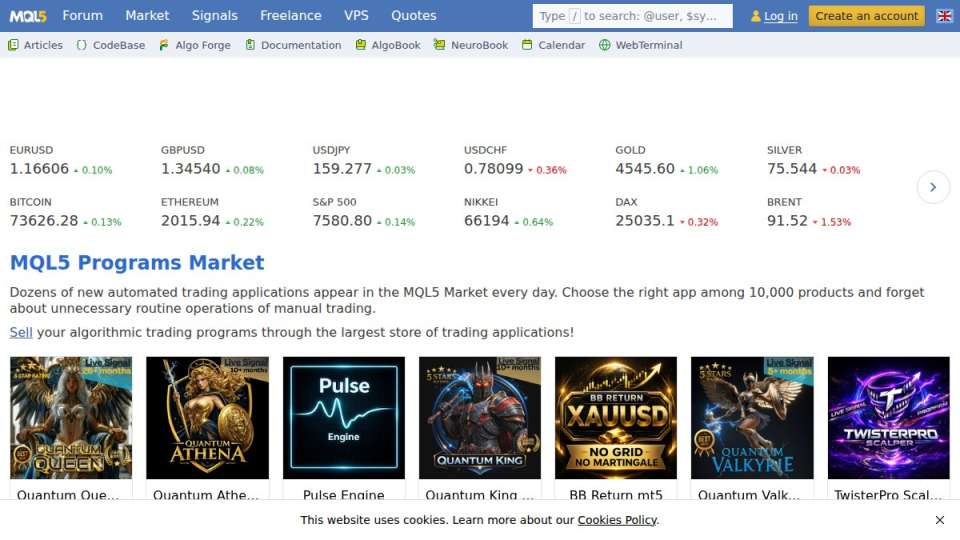
The honest limitation: quality varies enormously. A five-star rating on a $300 EA does not guarantee forward-tested profitability. Many top-rated products have strong back-test results built on curve-fitted parameters that collapse in live conditions.
Pros:
- Largest selection of MT5-specific tools available
- Direct in-terminal access and installation
Cons:
- Developer quality is inconsistent; vetting takes significant time
FX Blue Advanced Trading Tools: Free Professional Suite
FX Blue offers more than 30 professional-grade trading apps at no cost, covering everything from mini-terminals and trade copiers to sentiment analysis and correlation matrices. For retail traders who need precise lot size calculation, margin management, and real-time alarm management, this suite is genuinely hard to beat at the price point of zero.
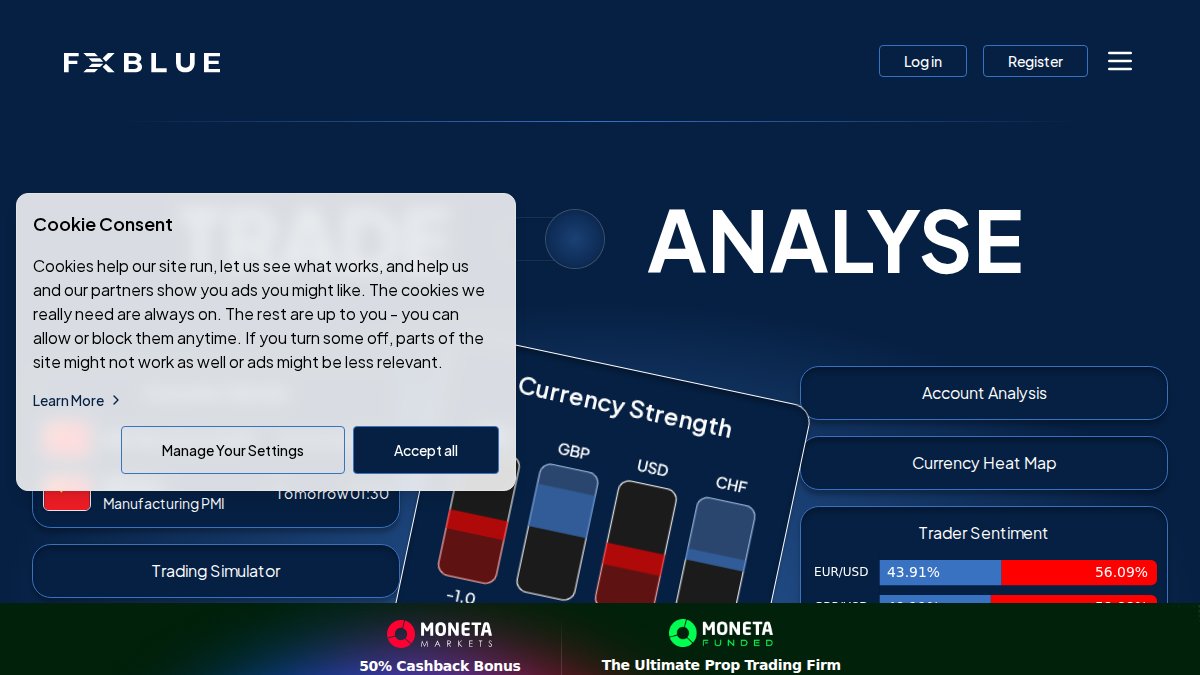
The interface is dense. Absolute beginners will find it overwhelming, but experienced traders will appreciate the precision.
Social Trader Tools, Autochartist, and Trading Central
Social Trader Tools operates as a cloud-hosted trade copier and multi-account management platform. Because it runs in the cloud, no VPS configuration is required, which removes a significant technical barrier for traders managing multiple MT5 accounts or running signal provider operations.
Autochartist automates the process of scanning markets for chart patterns, Fibonacci levels, and key support/resistance zones across forex, stocks, and commodities. Its integrated risk calculator handles position sizing automatically. Access typically requires a broker partnership rather than a direct subscription.
Trading Central provides institutional-grade AI-powered trade intelligence with clear entry, exit, stop-loss, and take-profit levels. It is the strongest option for traders who want data-driven signal confirmation rather than raw chart scanning. Like Autochartist, access is broker-integrated rather than direct.
Best Free MT5 Indicators for Technical Analysis
Free MT5 indicators are the most practical entry point for extending platform functionality without upfront cost, but the MQL5 Marketplace’s sheer volume, over 10,000 listed products as of 2026, makes curation essential. Most guides stop at generic category labels. This section names specific tools worth downloading, explains the mechanism behind each, and covers the angle almost no MT5 guide addresses: how native AI and machine-learning integrations are changing what a "free indicator" can actually do.
High-Signal Free Indicators Worth Installing Today
The following tools have maintained active developer support, consistent update histories, and strong download-to-review ratios on the MQL5 Marketplace, the three signals most predictive of a reliable free tool.
Trend and Structure Tools
- Non-Repainting ZigZag variants (search "ZigZag NRP" on MQL5): Standard MT5 ZigZag repaints historical swing points as new bars form, which distorts back-test visuals. Non-repainting versions lock swing points once confirmed, making them usable for structure-based strategies.
- Market Structure Break (MSB) indicators: These automatically mark higher highs, lower lows, and break-of-structure events on the chart. For traders using Smart Money Concepts or ICT-style frameworks, a well-coded MSB indicator replaces hours of manual chart marking.
- Ichimoku Kinko Hyo with alerts: MT5’s native Ichimoku implementation lacks push notification alerts for cloud crossovers and Tenkan/Kijun crosses. Free marketplace versions add this functionality without changing the underlying calculation.
Momentum and Divergence Tools
- RSI Divergence Scanner: Rather than watching a single RSI panel, divergence scanner indicators monitor multiple instruments or timeframes simultaneously and fire alerts when regular or hidden divergence forms. Look for versions that specify "non-repainting" in the product description.
- MACD Histogram Color Change Alert: A simple but underused tool that fires an alert the moment the MACD histogram changes direction, earlier than a crossover signal and useful for momentum-based entries.
Volatility and Session Tools
- ATR-Based Stop Loss Calculator: Displays dynamic stop-loss levels as a multiple of Average True Range directly on the chart, removing manual calculation from the entry process.
- Session Highlighter (London/New York/Tokyo): Shades session open and close windows on the chart. Straightforward, but essential for strategies that depend on session overlap volatility.
- Correlation Matrix: Displays real-time correlation coefficients across multiple currency pairs. For traders running multiple positions simultaneously, this is the most practical tool for avoiding unintentional overexposure, for example, holding long positions on both EUR/USD and GBP/USD when the two pairs are correlating above 0.85.
The AI/ML Angle: What Free Indicators Can Now Do in MT5
This is the section most MT5 guides miss entirely, and it represents a genuine shift in what retail traders can access at no cost.
MetaQuotes added native ONNX (Open Neural Network Exchange) support to the MQL5 environment in MT5 build 3370 and later. ONNX is an open standard for machine learning models, and its integration means that pre-trained neural network models can now run directly inside MT5 indicators and EAs, without requiring a separate Python environment, external API calls, or cloud processing.
In practical terms, this means free and low-cost indicators on the MQL5 Marketplace can now include:
- Sentiment classification models: Pre-trained models that classify current price action as trending, ranging, or reversing based on pattern recognition across historical tick data, rather than a fixed mathematical formula.
- Volatility forecasting overlays: ONNX-based indicators that output a probability distribution of expected price range for the next N bars, derived from a model trained on historical volatility regimes.
- Anomaly detection signals: Models that flag when current market microstructure deviates significantly from historical norms, useful for avoiding entries during abnormal spread conditions or thin liquidity.
The practical limitation is transparency: an ONNX model embedded in an indicator is a black box. You can observe its outputs but cannot audit the logic the way you can read a moving average formula. Before relying on any AI-driven indicator for live trading decisions, test it across at least one full market cycle in a demo environment and compare its signals against a simpler baseline indicator to verify it is adding genuine predictive value rather than noise.
For traders who want to explore this without building their own models, search the MQL5 Marketplace for indicators tagged "ONNX" or "neural network" and filter by last update date, models trained on data older than 18 months may have degraded accuracy on current market regimes.
What to Look for Before Installing Any Free Indicator
Check the MQL5 product page for four things before installing:
- Download-to-review ratio: A tool with 5,000 downloads and 12 reviews has a much thinner quality signal than one with 800 downloads and 200 reviews. High downloads with few reviews often indicates the tool was promoted externally rather than discovered organically.
- Last update date: MT5 has undergone significant platform builds since 2022. Indicators not updated to reflect current MQL5 compiler standards may produce errors or behave unpredictably on newer builds.
- Developer response history: Scroll through the comments section. A developer who responds to bug reports and user questions within a reasonable timeframe is maintaining the tool. Silence in the comments for 12+ months is a maintenance red flag.
- Repainting disclosure: The product description should explicitly state whether the indicator repaints. If it does not address this, assume it does and test accordingly on historical data.
Never install an MT5 indicator or EA from outside the official MQL5 Marketplace without reviewing the source code first. Malicious scripts embedded in third-party tools can expose your broker login credentials or execute unauthorized trades. This risk is higher for AI-labeled tools distributed via Telegram channels or third-party websites, where the ONNX model file itself (.onnx) could be replaced with a version that has been tampered with.
A practical indicator stack for most strategies is three tools maximum: one trend or structure tool, one momentum oscillator, and one volatility measure. Adding a fourth or fifth indicator rarely improves signal quality and measurably increases chart rendering time, particularly on lower-end hardware running multiple chart windows simultaneously.
How to Install MT5 Expert Advisors Step by Step
Installing MT5 Expert Advisors correctly takes less than five minutes once you know the sequence. The most common failure point is not the installation itself but the configuration step that follows.
Total Time: 10 minutes
Difficulty: Beginner to Intermediate
- Download the EA file (
.ex5or.mq5format) from your source - Open the MT5 terminal and navigate to File > Open Data Folder
- Go to
MQL5 > Expertsand paste the EA file into this folder - Return to the MT5 terminal and press F5 to refresh the Navigator panel
- Locate the EA under Expert Advisors in the Navigator panel
- Drag the EA onto the chart of your chosen instrument and timeframe
- Configure input parameters in the EA settings dialog
- Click OK to attach the EA to the chart
Enabling Algorithmic Trading and Configuring EA Settings
This is where most guides stop, and where most traders run into problems. After attaching the EA, you must confirm that algorithmic trading is enabled at both the terminal level and the chart level.
At the terminal level: click Tools > Options > Expert Advisors and check "Allow automated trading." At the chart level: confirm the smiley face icon in the top-right corner of the chart is green, not grey. A grey icon means the EA is attached but not running.
For EAs that trade forex or currency pairs with specific spread requirements, also configure the maximum spread input parameter before going live. Many EAs include this setting but leave it at a default that is too wide for scalping strategies.
Run any new EA on a demo account for at least two weeks of live market conditions before funding a real account. Back-test results and live performance diverge most significantly during high-volatility events like NFP releases and central bank announcements.
MT5 Trading Scripts Download: Automating Repetitive Tasks
MT5 trading scripts are single-execution programs that automate one specific task rather than running continuously like an Expert Advisor. They are the most underused category of MT5 tool, and that is a mistake. Scripts are ideal for closing all open positions at once, setting batch stop-losses across multiple trades, calculating lot sizes based on account equity, and placing complex multi-leg orders with a single click.
According to MetaQuotes official MT5 documentation, scripts execute once and then terminate, which makes them safer than EAs for one-off operations where you do not want continuous automation running in the background.
The installation process for scripts mirrors the EA process exactly, except files go into MQL5 > Scripts rather than MQL5 > Experts. To run a script, drag it onto a chart from the Navigator panel. It executes immediately and stops.
For traders managing multiple positions across different currency pairs, a "close all" script is the single most valuable utility tool available. Many are free on the MQL5 Marketplace and require no configuration.
Back-Testing, VPS Hosting, and Order Execution Essentials
The three technical pillars of reliable automated trading are often treated as separate topics, but they are deeply interconnected. A well-back-tested strategy running on a slow VPS with poor order execution will underperform its theoretical results significantly. This section covers each pillar with the specific settings and trade-offs that most guides omit, and adds a performance benchmarking angle that the current MT5 content landscape misses almost entirely.
Using the MT5 Strategy Tester for Reliable Back-Testing
MT5’s built-in strategy tester is one of the most capable back-testing environments available to retail traders. It supports multi-currency testing, genetic optimization, and tick-by-tick simulation using real historical data. Understanding the specific settings that separate reliable results from misleading ones is what most guides skip.
Modeling Quality: The Setting That Matters Most
MT5 offers three modeling modes in the strategy tester:
- Every tick based on real ticks: Uses actual historical tick data downloaded from your broker. This is the most accurate mode and the only one suitable for scalping strategies or any system that places stop-loss or take-profit orders that could be triggered intrabar.
- Every tick: Generates synthetic tick data from M1 OHLC bars. Faster than real ticks but introduces modeling error, particularly for strategies sensitive to spread variation.
- Open prices only: Tests only on bar open prices. Fastest mode, appropriate only for systems that enter and exit exclusively on bar open, most swing trading EAs using daily or weekly timeframes.
For any strategy that depends on intrabar price movement, use real ticks. The difference in results between real-tick and synthetic-tick modeling can be substantial for scalping systems, where spread and slippage assumptions embedded in synthetic data often understate real-world costs.
To download real tick data: in the strategy tester, select your instrument and date range, then click the download icon next to the modeling quality selector. MT5 will pull tick data from the connected broker’s server. Note that tick data availability varies by broker, some provide only 2-3 years of history, while others offer 5+ years.
Optimization Without Over-Fitting
Genetic optimization in MT5 tests parameter combinations efficiently rather than exhaustively, but it creates a strong incentive to over-fit. The standard discipline is a walk-forward approach:
- Optimize parameters on an in-sample period (minimum three years of data recommended).
- Identify the top 5-10 parameter sets by your chosen fitness criterion (profit factor, Sharpe ratio, or custom metric).
- Run those parameter sets, without re-optimizing, on a separate out-of-sample period of at least six to twelve months.
- If the best in-sample parameters rank near the bottom on out-of-sample data, the system is curve-fitted and should not be deployed live.
A parameter set that ranks consistently in the top third across both in-sample and out-of-sample periods is a more reliable signal of robustness than the single highest-performing in-sample result.
As documented in MetaQuotes Strategy Tester guide, the real-tick modeling mode requires downloading historical tick data for each instrument, which takes additional time but produces results meaningfully closer to live performance.
VPS Hosting: Latency, Uptime, and Provider Selection
A Virtual Private Server keeps your MT5 terminal running 24 hours a day without depending on your personal computer or home internet connection. For algorithmic trading, this is not optional, a strategy that misses a signal because a laptop went to sleep or a home connection dropped is a strategy that cannot be trusted in live conditions.
The Latency Threshold That Actually Matters
Latency to your broker’s execution server is the single most important VPS selection criterion, and it is measurable before you commit to a provider. Most brokers publish their server locations (typically listed in the MT5 terminal under Help > About, or in the broker’s technical documentation). The practical thresholds:
- Under 5ms: Optimal for high-frequency scalping strategies. Achievable only when the VPS is co-located in the same data center as the broker’s server, or in the same city.
- 5-20ms: Acceptable for most scalping and intraday strategies. Slippage impact is present but manageable with appropriate maximum spread settings in the EA.
- 20-50ms: Suitable for swing trading and position trading systems where execution timing is measured in minutes or hours, not milliseconds.
- Above 50ms: Introduces meaningful slippage risk for any strategy with tight stop-losses. Avoid for automated trading.
To measure latency before purchasing a VPS, most providers offer a test IP address you can ping from your current location. More accurately, once you have a VPS trial, install MT5 on it and check the connection bar in the bottom-right corner of the terminal, MT5 displays ping to the broker server in real time.
Performance Benchmarking: The Angle Most Guides Skip
Beyond latency, the resource consumption of your MT5 tool suite directly affects execution reliability, and this is the benchmarking question almost no MT5 content addresses.
Running multiple EAs, indicators, and scripts simultaneously on a single MT5 instance creates CPU and RAM load that can cause the terminal to lag, miss tick events, or in extreme cases crash. Practical observations from traders running complex multi-EA setups:
- Each active chart window with multiple indicators attached consumes RAM continuously. A setup with 20 chart windows, each running 4-5 indicators, can consume 2-4GB of RAM on a standard MT5 installation.
- EAs that use
OnTick()functions (executing code on every incoming tick) are significantly more CPU-intensive than those usingOnBar()functions (executing only on bar close). For VPS instances with limited CPU allocation (common on entry-level plans), tick-based EAs can cause processing queues that delay order execution. - ONNX-based AI indicators add additional CPU load compared to formula-based indicators, because neural network inference, even on small models, requires more computation per tick than a moving average calculation.
A practical benchmarking approach before going live: run your full tool suite on the VPS for 48 hours during active market hours with Task Manager (Windows) or equivalent monitoring open. If CPU usage consistently exceeds 70-80% during peak activity, either upgrade the VPS plan or reduce the number of simultaneously active chart windows.
VPS Provider Selection Criteria
When evaluating VPS providers for MT5, prioritize these specifications in order:
- Data center location relative to your broker’s server: Geographic proximity is the primary latency driver. A VPS in London for a broker with servers in London will consistently outperform a faster VPS in New York.
- Guaranteed RAM allocation: Avoid providers that offer "burstable" RAM as the primary spec. For a setup running 5-10 EAs across multiple chart windows, a minimum of 2GB dedicated RAM is a practical floor; 4GB provides comfortable headroom.
- SSD storage: MT5 writes tick data and log files continuously. SSD storage reduces I/O latency compared to HDD-based VPS plans.
- Uptime SLA: Look for providers offering 99.9% or higher uptime guarantees with documented compensation policies. A 99.9% SLA still allows approximately 8.7 hours of downtime per year, acceptable for most swing trading systems, but worth noting for strategies that trade around specific economic events.
- Windows Server OS: MT5 runs natively on Windows. Linux-based VPS options require Wine or similar compatibility layers, which introduce additional latency and occasional compatibility issues with MT5 builds.
Some brokers offer free or subsidized VPS hosting to clients who meet minimum monthly trading volume thresholds. If your broker offers this, verify the data center location before accepting, a free VPS in a suboptimal location may perform worse than a paid VPS co-located near the broker’s execution server.
Order Execution, Lot Size Calculation, and Risk Management
MT5 supports multiple order execution modes, instant execution, market execution, and request execution, and the differences between them have direct implications for automated trading performance.
Execution Mode Trade-Offs
- Market execution: The broker fills the order at the best available price at the moment of execution. Requotes do not occur, but slippage can be positive or negative. This is the standard mode for ECN and STP brokers and the most common configuration for algorithmic trading on liquid instruments.
- Instant execution: The broker attempts to fill at the requested price. If the price has moved beyond a specified deviation threshold, the order is rejected (requoted). This mode is more common on market-maker brokers and can cause EAs to miss entries during fast-moving markets if the deviation parameter is set too tightly.
- Request execution: Used primarily for exchange-traded instruments. The trader requests a quote, the broker responds, and the trader confirms. Not suitable for automated trading systems that require immediate execution.
For most algorithmic trading setups, market execution is preferable. If your broker uses instant execution, set the maximum deviation parameter in your EA to a value that reflects realistic spread widening during your target trading sessions, typically 2-5 pips for major forex pairs during normal conditions, wider during news events.
Lot Size Calculation: The Formula and Its Variables
Position sizing is where many traders make costly errors by using fixed lot sizes rather than equity-proportional sizing. The standard formula for risk-based lot sizing is:
Lot Size = (Account Equity × Risk%) ÷ (Stop Loss in Pips × Pip Value per Lot)
The variable most traders miscalculate is pip value, which changes with account currency, instrument, and current exchange rate. For a USD account trading EUR/USD, pip value per standard lot is approximately $10. For cross pairs like EUR/GBP, pip value in USD terms fluctuates with the GBP/USD rate. MT5’s built-in margin calculator handles this dynamically, as does FX Blue’s risk calculator tool, both are more reliable than manual calculation for live trading.
For EAs, the most robust implementation calculates lot size dynamically on each trade using the AccountInfoDouble(ACCOUNT_EQUITY) function and the current pip value from SymbolInfoDouble(), rather than accepting a fixed lot size as an input parameter. Fixed lot size inputs are a common source of account blow-ups when traders forget to adjust them after account growth or drawdown.
Hedging vs. Netting Account Modes
MT5 supports two account modes that affect how open positions are managed:
- Hedging mode: Multiple positions in opposite directions on the same instrument are allowed simultaneously. Each position has its own entry price, stop-loss, and take-profit. Standard for most forex brokers outside the US.
- Netting mode: All positions on the same instrument are aggregated into a single net position. Opening a sell position when a buy is already open reduces the net long exposure rather than creating a separate short position. Required for US-regulated forex accounts under FIFO rules, and standard for most exchange-traded instruments.
EAs designed for hedging accounts will behave incorrectly on netting accounts, specifically, any EA logic that attempts to hold simultaneous long and short positions as a hedging mechanism will instead reduce or close the existing position. Confirm your broker’s account mode before deploying any EA, and verify that the EA’s documentation explicitly states which mode it was designed for.
Run any new EA on a demo account for at least two weeks of live market conditions before funding a real account. Back-test results and live performance diverge most significantly during high-volatility events like NFP releases and central bank announcements, periods that are often underrepresented or smoothed over in historical tick data.
The performance benchmarking discipline, measuring CPU load, RAM consumption, and latency under real conditions before going live, is the step most traders skip and the one most likely to explain the gap between a strategy’s back-tested results and its live performance. Treat your VPS and execution environment as part of the strategy, not just infrastructure.
AI/ML Integration, Security Audits, and Regulatory Compliance for MT5 Tools
The most significant development in MT5 tooling over the past two years is the native integration of ONNX (Open Neural Network Exchange) models directly into the MQL5 environment. This is the angle most MT5 guides miss entirely, and it changes what is possible for retail traders.

Vetting Third-Party Tools: Security and Privacy Checklist
Third-party MT5 tools, particularly those downloaded outside the official MQL5 Marketplace, represent a genuine security risk. A poorly reviewed EA can contain code that logs your broker credentials, executes trades without your knowledge, or exfiltrates account data to external servers.
Before installing any third-party tool, run through this checklist:
- Source confirmed as MQL5 Marketplace or a verified developer with public reputation
- Source code is available for review (
.mq5file, not just compiled.ex5) - Tool does not request internet access permissions beyond what its stated function requires
- Developer has an active public profile with verifiable history
- Tool has been tested on a demo account before live deployment
- Broker account uses two-factor authentication independent of the MT5 terminal
The ONNX-based EAs like the Mad Turtle EA represent a specific case worth noting: they use neural network models that are inherently opaque in their decision-making. This is not a security risk per se, but it does mean you cannot fully audit the logic driving trade decisions, which is a transparency trade-off worth understanding before deploying.
Never share your MT5 investor password with third-party tool providers. The investor password grants read-only access and should be the only credential you provide to any external service requesting account verification.
Regulatory Compliance Considerations for Automated Trading
Automated trading tools operate within a regulatory framework that varies significantly by jurisdiction. Traders in the EU operate under MiFID II requirements that affect how algorithmic strategies must be documented and monitored. In the US, CFTC and NFA rules govern forex trading and impose specific requirements on automated systems used by registered entities.
For retail traders, the most practical compliance consideration is FIFO (First In, First Out) order management, which is required for US-based forex accounts. MT5 supports FIFO compliance, but EAs must be configured to respect it. Systems that use hedging logic will not function correctly on FIFO-restricted accounts.
As outlined in CFTC retail forex trading regulations, retail forex traders in the US must trade through CFTC-registered entities, which affects which brokers and execution environments are legally accessible. Verify your broker’s regulatory status before deploying any automated system.
Performance benchmarking is the compliance-adjacent practice most traders skip: documenting your EA’s expected behavior, maximum drawdown parameters, and risk limits in writing before going live. This creates an audit trail that is increasingly important as regulators pay closer attention to algorithmic trading at the retail level.
The challenge most traders face is not finding MT5 tools, it is finding tools that are built, tested, and ready to generate real trade opportunities without weeks of configuration. EZMT5 solves this directly: instant access to 11 professional, fully optimized MT5 Trading Systems and TradingView indicators, two changeable license keys per system, all future systems included, and no contracts. Get started with EZMT5 and begin executing automated trades with professional-grade precision from day one.
Frequently Asked Questions
Are there free unlimited MT5 trading tools available?
Yes, some platforms offer free tiers. FX Blue Advanced Trading Tools provides over 30 professional-grade MT5 apps at no cost, covering trade copiers, risk calculators, and alarm managers. The MQL5 Market also hosts thousands of free indicators and Expert Advisors. However, for a fully built, optimized, and unlimited suite of professional trading systems, subscription-based services like EZMT5 offer broader, more structured access including all future systems under one plan.
How do I install custom tools on MetaTrader 5, including expert advisors?
To install MT5 Expert Advisors, download the .ex5 or .mq5 file, then open MT5 and navigate to File > Open Data Folder > MQL5 > Experts. Paste the file there and restart the platform. The EA will appear in the Navigator panel. Drag it onto your chosen chart, enable 'Allow Algorithmic Trading' in the EA settings, and configure your lot size, risk parameters, and timeframe. Always back-test the EA in the Strategy Tester before running it on a live account.
Do I need a paid subscription for unlimited MT5 trading tools?
Not always, but free tools often come with limitations in quality, support, or scope. Platforms like EZMT5 offer a no-contract monthly subscription giving unlimited access to 11 professional MT5 trading systems, TradingView indicators, and all future systems, plus two changeable license keys per system. For traders who need reliability, precision execution, and ongoing updates, a subscription model typically delivers far more consistent value than piecing together free tools from various sources.
Are unlimited MT5 trading tools safe to use?
Safety depends on the source. Tools from reputable platforms with verified reviews, transparent MQL5 code, and clear developer credentials carry lower risk. Before installing any third-party Expert Advisor or script, check for a hard stop-loss on every trade, avoid tools using martingale or grid strategies without risk caps, and confirm the developer's track record. For regulatory compliance, ensure automated tools align with your broker's terms and your local financial authority's rules on algorithmic trading.
What are the best MT5 indicators available for free download?
The MQL5 Marketplace is the most reliable source for free MT5 indicators, offering thousands of community-vetted options covering trend-following, oscillators, volume analysis, and Fibonacci tools. FX Blue also provides free sentiment and correlation indicators. When evaluating any free indicator, prioritize those with high user ratings, active developer support, and clear documentation. Always test indicators on a demo account first and verify they perform consistently across multiple timeframes before applying them to live trades.
This article was written using GrandRanker