

Table of Contents
- What You’ll Need Before Logging In
- How to Log In to Your TradeLocker Demo Account
- How to Use TradeLocker for Beginners
- TradeLocker Demo Account Reset and Password Recovery
- Troubleshooting Login Errors
- Checking TradeLocker Server Status
- Security Best Practices for Your Demo Account
- Platform Compatibility: Desktop, Web, and Mobile
Last Updated: August 15, 2026
What You’ll Need Before Logging In
Before you access your TradeLocker demo login, gather a few essentials. You’ll need a computer or mobile device with an internet connection and a web browser. Most traders prefer having a second monitor or larger screen when learning the platform, though it’s not required. If you’re new to trading platforms, consider having a notebook nearby to jot down key shortcuts and settings you discover during your first session.
Your login credentials are critical. These include your email address and password, keep both secure and stored somewhere you can access them. Some traders use password managers to maintain security without memorizing complex passwords. If you’ve forgotten your credentials, TradeLocker offers a straightforward password recovery process, which we’ll cover later in this guide.
Internet stability matters more than speed. A consistent connection beats a fast but intermittent one. Trading platforms require reliable data flow to display real-time market information accurately. If you’re on a slower connection, the platform will still function, but order execution and chart updates may lag slightly.
How to Log In to Your TradeLocker Demo Account
The TradeLocker demo login process is straightforward and designed to get you trading within minutes. Your demo account gives you virtual funds to practice with, eliminating the risk of real money while you learn the platform’s interface and features.
Step 1: Navigate to the Login Page
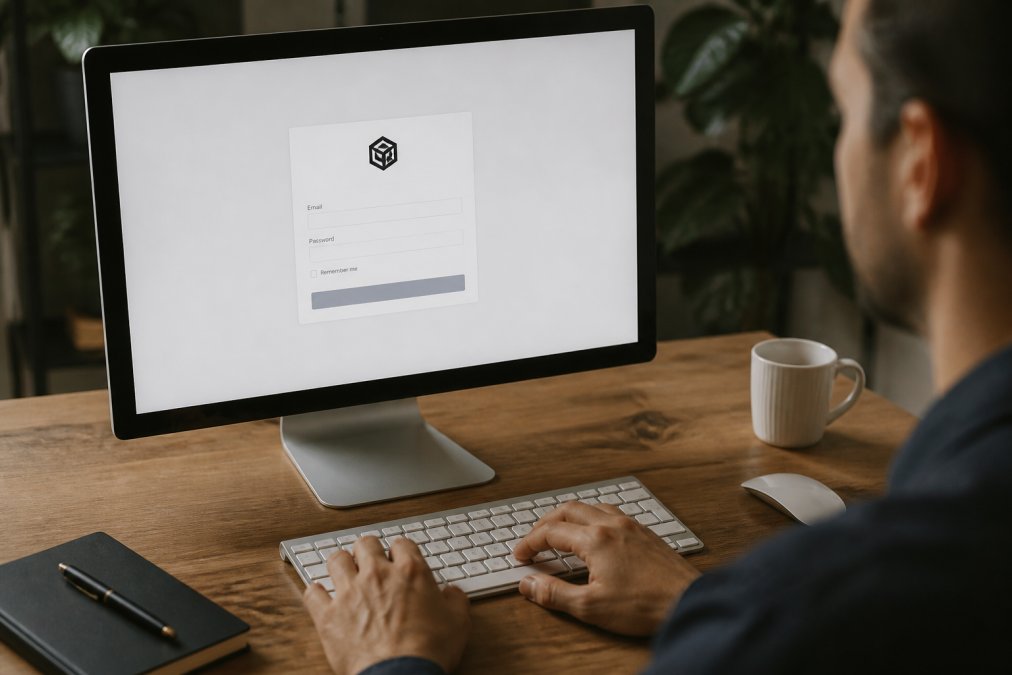
Open your web browser and go to the TradeLocker login portal. Most traders bookmark this page for quick access. The login page displays clearly with two primary input fields: one for your email address and another for your password. The interface is clean and uncluttered, focusing your attention on authentication.
You’ll notice a "Forgot Password?" link below the login fields. This becomes useful if you ever lose access to your credentials. The page also displays TradeLocker’s branding and may show system status information or announcements about platform maintenance.
Step 2: Enter Your Login Credentials
Type your email address into the first field. This is the email you registered with when you created your demo account. Double-check for typos, email addresses are case-insensitive, but spacing errors will prevent login.
Next, enter your password in the second field. Passwords are case-sensitive, so "Password123" differs from "password123." If you’ve recently changed your password, ensure you’re using the most current version. The password field masks your input for security, displaying dots or asterisks instead of characters.
Step 3: Complete Authentication
After entering your credentials, click the "Login" or "Sign In" button. The system processes your information and verifies your account details. This typically takes 2-5 seconds depending on your internet connection and server load.
TradeLocker may display a two-factor authentication prompt if your account has this security feature enabled. If prompted, check your email or authentication app for a verification code. Enter this code in the field provided. Two-factor authentication adds an extra security layer, ensuring only you can access your account even if someone obtains your password.
Once authentication completes successfully, the platform redirects you to your trading dashboard.
Step 4: Access Your Trading Dashboard
Your dashboard appears after successful authentication. This is your command center for all trading activities. The interface displays your account balance, open positions, and available trading tools. The layout may feel overwhelming initially, but most traders become comfortable with it after a few sessions.
Take a moment to explore the main sections. You’ll typically find a market data section showing available trading instruments, a chart area for technical analysis, and an order placement panel. Navigation menus are usually located on the left side or top of the screen, providing access to different features and account settings.
How to Use TradeLocker for Beginners
Starting with TradeLocker as a beginner requires understanding the platform’s core functions. The system is built for both demo trading and live account transition, so your demo experience directly translates to real trading later.
Begin by exploring the trading tools available. Most platforms include candlestick charts, technical indicators, and order types. Spend time adjusting chart timeframes, switching between 1-minute, 5-minute, hourly, and daily views helps you understand different trading perspectives. Each timeframe reveals different patterns and opportunities.
Practice placing orders in your demo account. Create a small hypothetical trade to understand the order entry process. This hands-on experience is invaluable before risking real money. Pay attention to order execution speed and how the platform displays filled orders.
Learn the risk management features. Set stop-loss orders on your practice trades to understand how they protect against losses. Experiment with take-profit levels to see how they lock in gains. These features are essential whether you’re trading manually or using automated systems.
Connect with the platform’s documentation and support resources. Most brokers provide video tutorials and written guides. These materials explain features in detail and often show best practices. Many traders review these materials during their first week to accelerate their learning curve.
TradeLocker Demo Account Reset and Password Recovery
Resetting your TradeLocker demo account or recovering your password is a straightforward process designed for user convenience. Understanding these options prevents frustration if you encounter access issues.
To reset your password, click the "Forgot Password?" link on the login page. Enter your registered email address in the prompt that appears. TradeLocker sends a password reset link to your email within minutes. Click that link to access a form where you create a new password. Choose a strong password combining uppercase letters, lowercase letters, numbers, and special characters.
If you need to reset your entire demo account, contact TradeLocker support directly. They can clear your account history and restore your virtual funds to the initial amount. This is useful if you’ve exhausted your demo balance and want to practice more without creating a new account.
For security, never share your password via email or messaging. TradeLocker support staff will never ask for your password. If someone requests it, treat it as a security threat and report it immediately.
Troubleshooting Login Errors
Login errors happen occasionally, but most have simple solutions. Understanding common issues saves time and frustration.
If you receive an "Invalid Credentials" error, your email or password is incorrect. First, verify you’re using the correct email address associated with your account. Password errors are common, remember that passwords are case-sensitive. If you’re unsure of your password, use the password recovery option instead of guessing repeatedly.
An "Account Locked" message indicates too many failed login attempts. For security, TradeLocker temporarily locks accounts after several incorrect password entries. Wait 30 minutes before attempting to log in again. This prevents unauthorized access attempts.
"Connection Timeout" errors occur when the platform can’t reach the server. This typically indicates a network issue on your end. Check your internet connection, restart your router if necessary, and try again. If the error persists, the TradeLocker servers may be experiencing maintenance or technical issues.
If you’re using a VPN or proxy service, it may conflict with TradeLocker’s security systems. Try logging in without the VPN to see if that resolves the issue. Some geographic regions or IP addresses trigger additional verification steps for security purposes.
Browser-related issues are common. Clear your browser’s cache and cookies, then try logging in again. Using an incognito or private browsing window can help identify if browser extensions are interfering with login. If problems continue, try a different browser entirely.
Checking TradeLocker Server Status
Server uptime directly affects your ability to access the platform and execute trades. Monitoring TradeLocker server status prevents surprises during trading sessions.
TradeLocker maintains a status page showing real-time server information. Visit this page before important trading sessions to confirm the platform is fully operational. The status page displays system uptime, any ongoing maintenance windows, and reported issues.
Subscribe to TradeLocker’s status notifications if available. Many platforms offer email or SMS alerts when maintenance is scheduled or when issues occur. These alerts help you plan your trading around planned downtime.
During maintenance windows, the platform may be completely unavailable or have reduced functionality. Planned maintenance typically occurs during low-volume trading hours, but it’s worth checking before you plan a trading session. Unexpected server issues are rare, but monitoring status information helps you distinguish between personal connection problems and platform-wide issues.
If you experience persistent connection problems while the status page shows everything is operational, the issue likely exists on your end. Check your internet connection, firewall settings, and browser configuration.
Security Best Practices for Your Demo Account
Protecting your account requires attention even though it’s a demo with virtual funds. The habits you develop now transfer directly to protecting real money later.
Create a strong password combining multiple character types. Avoid using personal information like birthdates or names. Never reuse passwords across different platforms. If one service experiences a breach, unique passwords prevent attackers from accessing your other accounts.
Enable two-factor authentication if TradeLocker offers it. This feature requires a second verification step beyond your password, dramatically reducing unauthorized access risk. The small inconvenience of entering a code provides significant security benefit.
Never log in from public WiFi networks without a VPN. Public networks are vulnerable to interception, potentially exposing your credentials. If you must use public WiFi, use a reputable VPN service to encrypt your connection.
Keep your email account secure since password recovery uses email verification. Use a strong password for your email account and enable two-factor authentication there as well. Your email is the gateway to resetting access to your trading account.
Log out when finished trading, especially on shared computers. Close your browser completely rather than just closing the tab. This prevents accidental access if someone else uses the computer afterward.
Review your account activity regularly. Most platforms show login history and recent activities. Unfamiliar activity indicates potential unauthorized access. Contact support immediately if you notice anything suspicious.
Platform Compatibility: Desktop, Web, and Mobile
TradeLocker functions across multiple platforms, giving you flexibility in how you access your trading account. Understanding each platform’s strengths helps you choose the right tool for each situation.
The web-based interface is the most feature-rich version. Access it from any computer with a modern browser, Chrome, Firefox, Safari, or Edge all work well. The web platform displays all tools, indicators, and features without limitations. Most serious traders use the web interface for detailed analysis and order placement.
Mobile applications provide trading access from your phone or tablet. These apps are optimized for smaller screens, prioritizing essential features. You can monitor positions, check market data, and place orders on the go. Mobile apps are ideal for traders who need flexibility or want to monitor markets outside the office.
Desktop software, if available, offers a dedicated application separate from your browser. This provides a native experience with potentially faster performance. Some traders prefer desktop applications for their stability and comprehensive feature set.
Compatibility across platforms means your account settings and positions sync automatically. A position opened on your desktop appears on your mobile app without delay. This seamless integration lets you switch between devices without confusion.
Test each platform during your demo phase. You’ll discover which interface you prefer and which works best for different trading scenarios. Some traders use multiple platforms simultaneously, the web interface on a desktop monitor and the mobile app on a phone for quick checks.
Getting started with a TradeLocker demo login is your first step toward automated trading with precision. EZMT5 complements this foundation by providing fully built, optimized MT5 trading systems that integrate with your broker connection. With instant access to 11 professional trading systems and the flexibility to change license keys anytime, you can move from learning the platform to executing real strategies without the complexity of building systems from scratch. Start your demo experience today and discover how professional-grade tools accelerate your trading journey.
Frequently Asked Questions
How do I log in to my TradeLocker demo account?
Visit the TradeLocker login page, enter your email address and password in the designated fields, and click 'Login.' If you have two-factor authentication enabled, complete the additional verification step. Once authenticated, you'll be directed to your user dashboard where you can access virtual funds and begin practice trading immediately.
Why can't I log in to my TradeLocker demo account?
Common login issues include incorrect credentials, expired passwords, browser cache problems, or server connectivity issues. Verify your email and password are correct, clear your browser cache, and try a different browser. Check the TradeLocker server status to rule out platform downtime. If problems persist, use the password recovery option or contact technical support for account verification assistance.
How do I reset my TradeLocker demo password?
Click 'Forgot Password' on the login page and enter your registered email address. TradeLocker will send a password reset link to your inbox. Click the link, create a new password, and confirm the change. Your new credentials will be active immediately. If you don't receive the email within a few minutes, check your spam folder or request a new reset link.
Can I use TradeLocker on my mobile device?
Yes, TradeLocker offers a mobile application for both iOS and Android devices. Download the app from your device's app store, log in with your account credentials, and access your demo account on the go. The mobile interface includes real-time data, order execution capabilities, and full access to your trading tools, making it ideal for traders who need flexibility across desktop, web, and mobile platforms.
This article was written using GrandRanker